

Descripción general
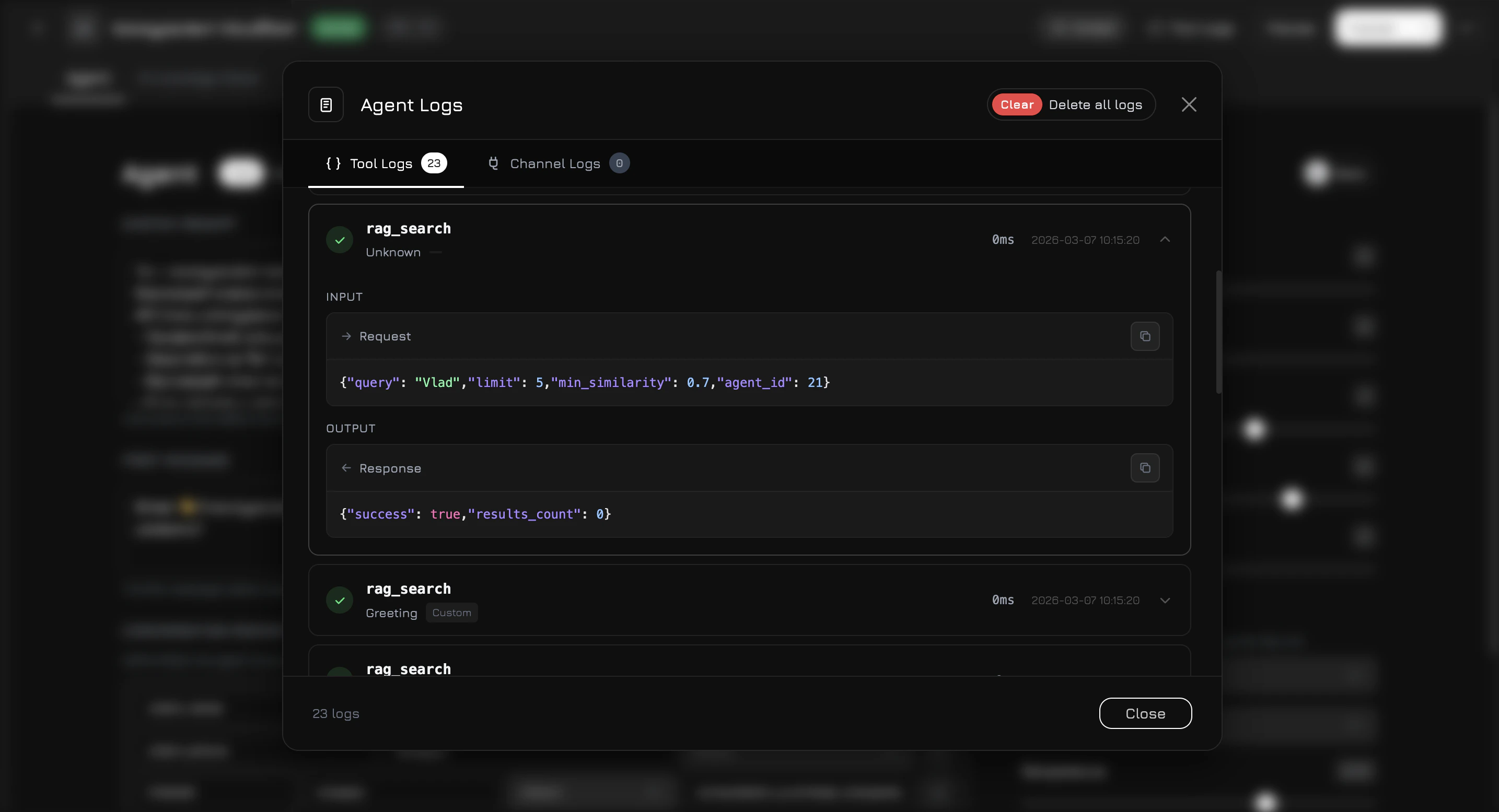
Los Registros de herramientas proporcionan visibilidad completa de lo que hace su agente de IA durante las conversaciones — cada llamada a herramienta, búsqueda RAG y evento de canal externo se registra con datos de entrada/salida, tiempo de ejecución y estado. Abra los Registros de herramientas haciendo clic en el botón Registros de herramientas en la esquina superior derecha del modal del editor de agentes.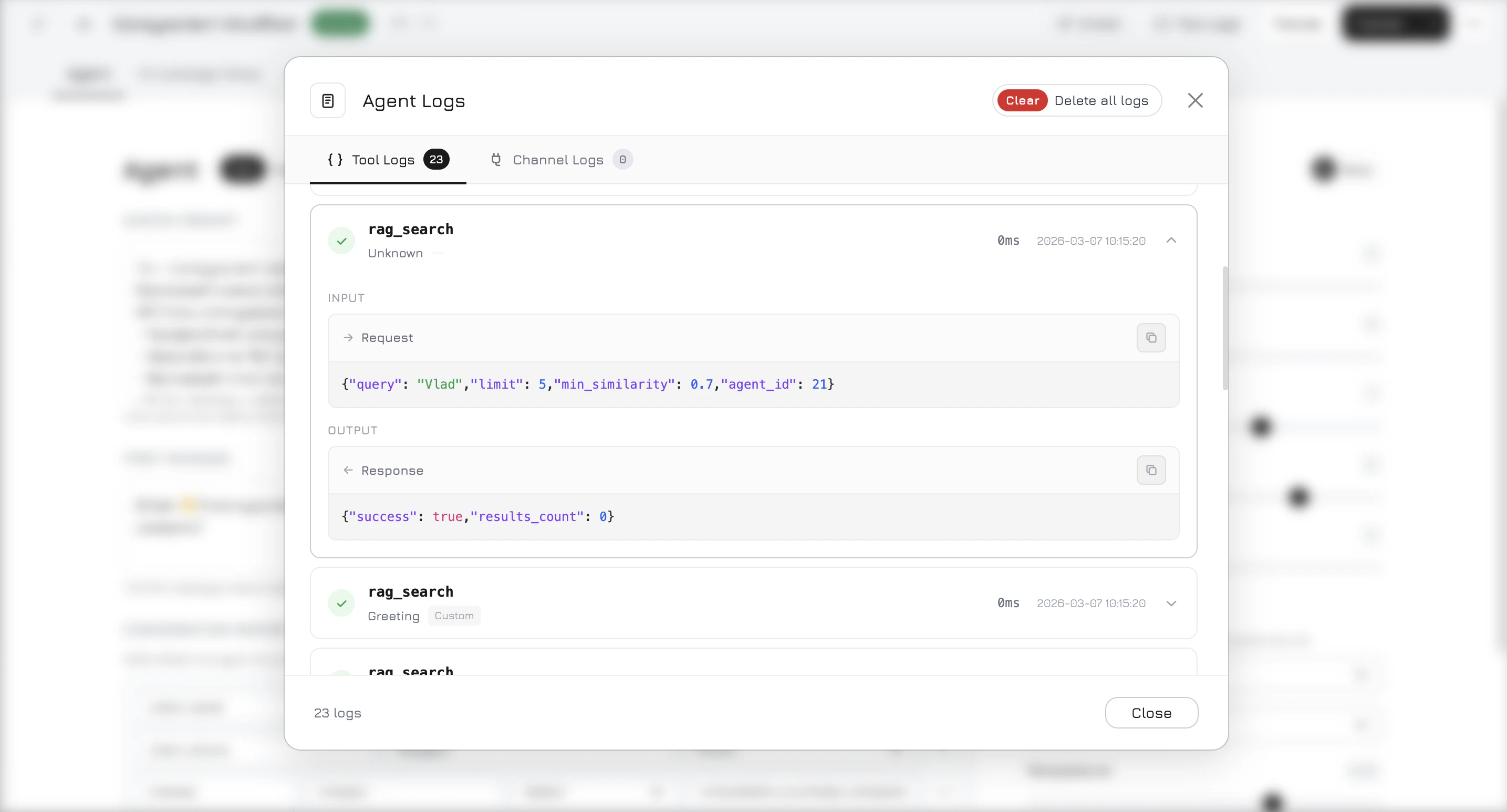
Dos pestañas
El modal tiene dos pestañas:Registros de herramientas
Registra cada ejecución de herramienta durante las conversaciones de IA. Cada entrada muestra:
Haga clic en cualquier entrada del registro para expandirla y ver la Entrada completa (parámetros de la solicitud en JSON) y la Salida (datos de respuesta en JSON). Si el estado es
error, el mensaje de error se muestra en la parte superior de la sección expandida.
Registros de canales
Registra eventos de canales de comunicación externos — webhooks, llamadas telefónicas, mensajes de mensajería. Cada entrada muestra:
Haga clic para expandir y ver la Carga de la solicitud completa (datos crudos del webhook) y la Respuesta (lo que se envió de vuelta).
Qué se registra
Los registros de herramientas se crean automáticamente cuando el agente:- Busca en la base de conocimiento —
rag_searchcon la consulta y el número de resultados encontrados - Llama a una herramienta de función — cualquier herramienta configurada en el conjunto de herramientas del agente (p. ej.
get_products,get_documents,get_photos,get_videos,get_company_info) - Ejecuta herramientas de integración — Google Ads, Facebook Ads y otras herramientas de servicios conectados
- Llega un webhook entrante — llamada telefónica, mensaje de mensajería o cualquier evento de canal externo
- Se envía un mensaje saliente — la respuesta del agente entregada a través de un canal
Limpieza de registros
Use el botón Limpiar registros (icono de papelera) en la parte superior del modal para eliminar todos los registros del agente actual. Esta acción es irreversible.Los registros se almacenan en una tabla de base de datos particionada para mayor rendimiento. Los agentes de alto volumen pueden acumular miles de entradas — use Limpiar registros periódicamente para mantener la interfaz ágil.