

Overview
Revol uses a token-based billing model powered by Stripe. Every AI interaction consumes tokens — the more your agents work, the more tokens are used. Choose a plan that fits your volume, and purchase add-on packs when you need more resources without upgrading.Pricing Page
Navigate to Billing → Pricing Plan to compare plans and subscribe.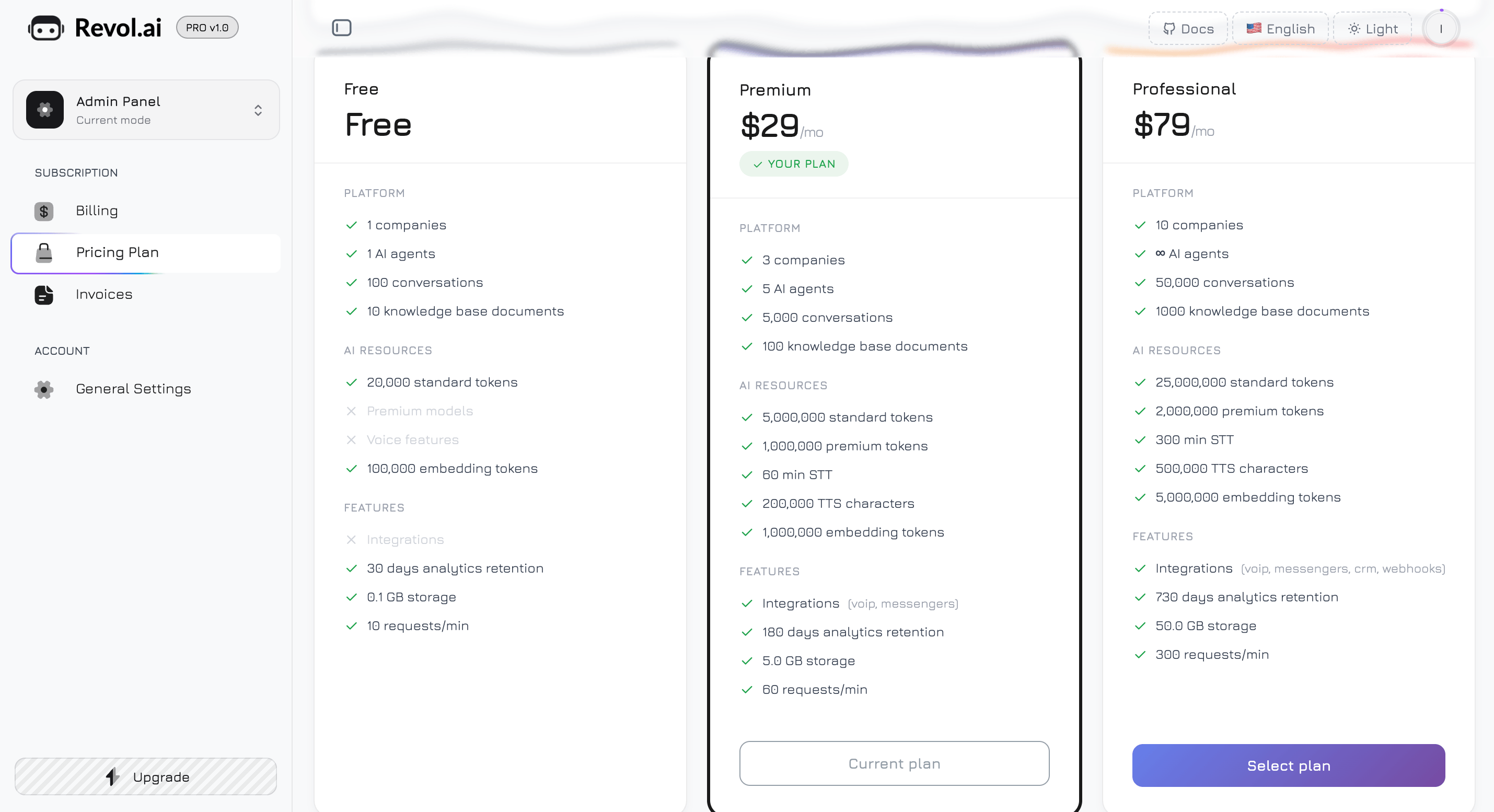
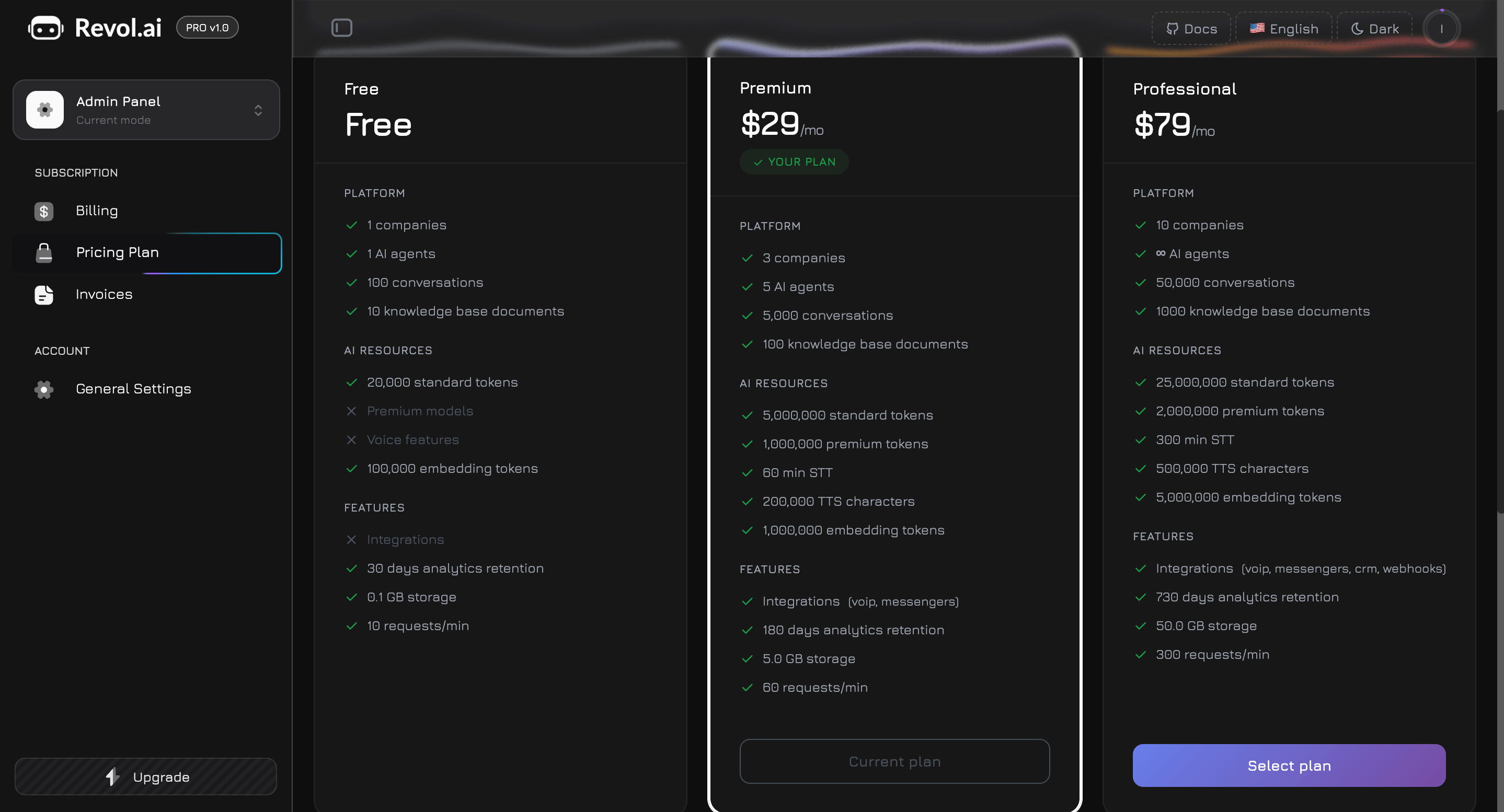
Plans
- Free
- Professional
$0/month — get started and explore the platform
The Free plan resets token usage daily (UTC midnight). Paid plans reset at the start of each billing cycle (the date you subscribed).
Model Access
Each plan determines which AI models are available:
Standard models are faster and consume standard tokens. Premium models offer higher-quality responses and consume premium tokens. On the Free plan, premium models are locked — selecting one shows an upgrade prompt with a link to the Pricing page.
Payment via Stripe
All payments are processed securely through Stripe. Revol does not store your card details — everything is handled by Stripe’s PCI-compliant infrastructure.Subscribing to a Plan
- Go to Billing → Pricing Plan and click Select Plan on the desired plan card
- You are redirected to a Stripe Checkout page — enter your card details and confirm
- After successful payment, your plan activates immediately and all new limits take effect
- A subscription is created with automatic monthly renewal
Managing Your Subscription
Click the Manage button on the Overview or Pricing page to open the Manage Subscription modal.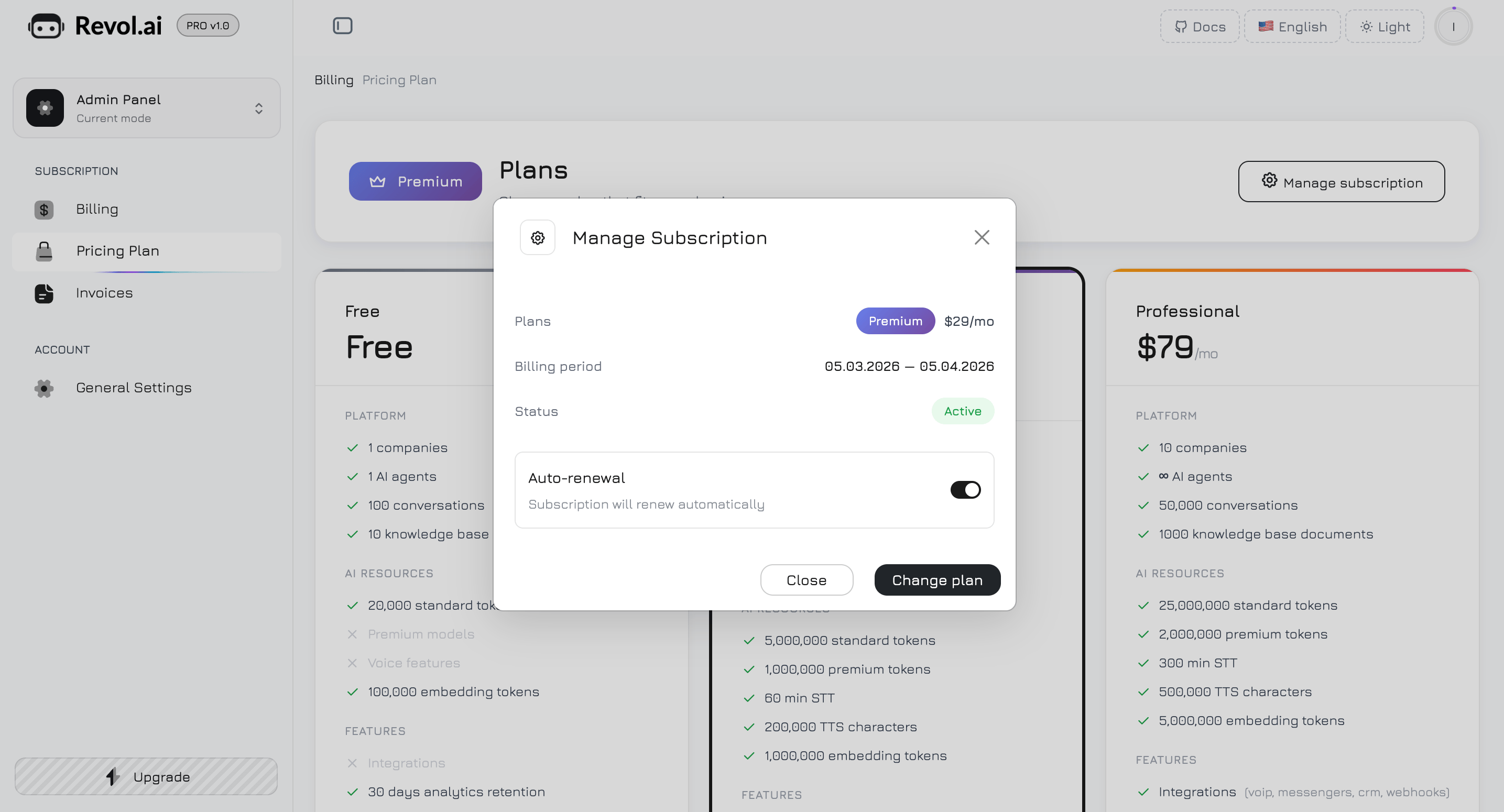
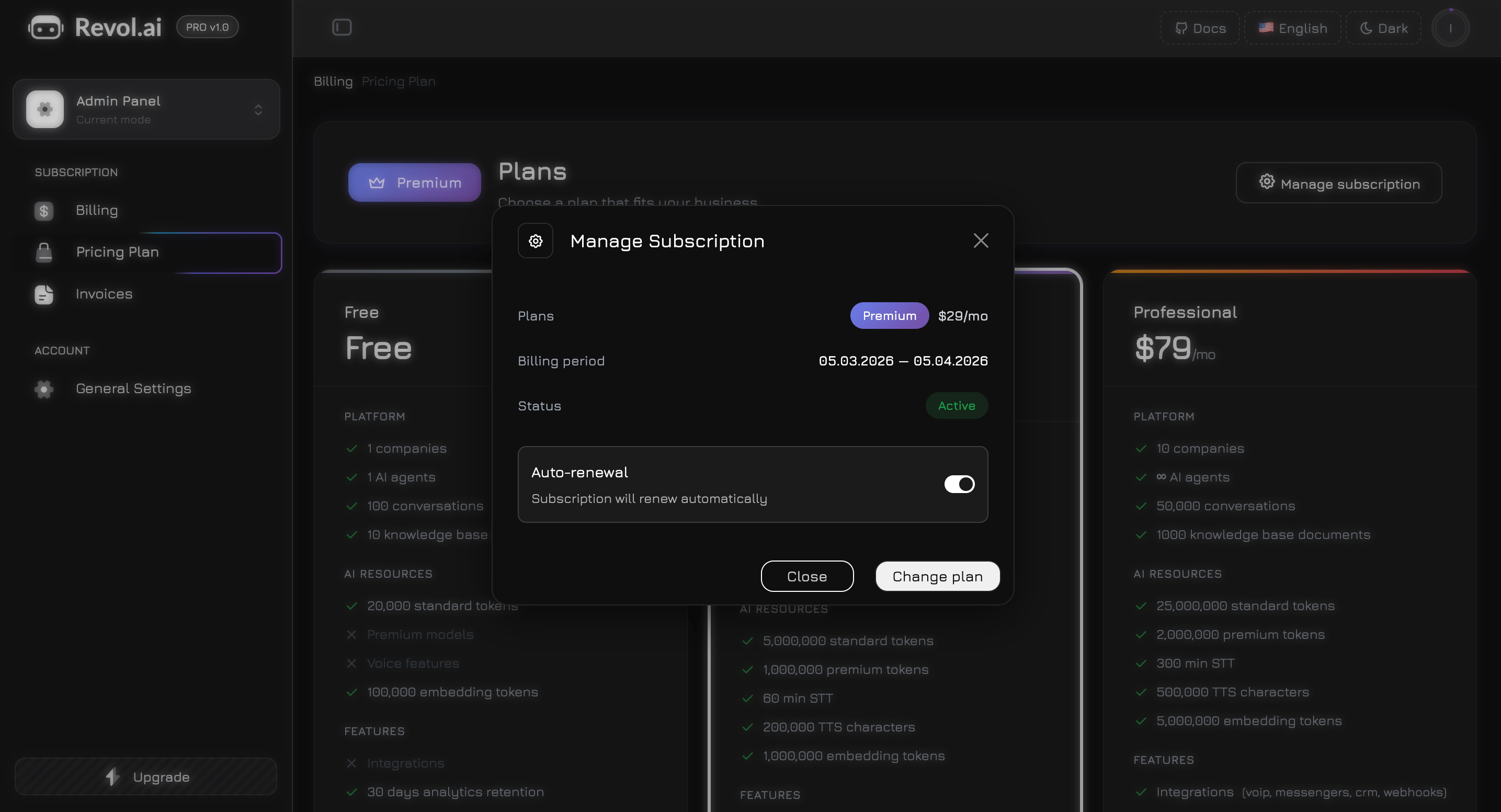
Auto-renewal toggle — a switch at the bottom of the modal:
- Turning off cancels the subscription at the end of the current billing period. A confirmation dialog appears before proceeding. You keep full access until the period ends (grace period).
- Turning on resumes a previously canceled subscription if the grace period hasn’t expired yet.
- Close — dismiss the modal
- Change Plan — navigate to the Pricing page to upgrade or downgrade
Upgrading and Downgrading
- Upgrade — takes effect immediately. You are charged the new plan price, prorated for the remaining days in the current period.
- Downgrade — takes effect at the end of the current billing period. You keep full access to the higher plan until the period ends.
Add-on Packs
Need more resources without upgrading your plan? Purchase one-time add-on packs from Billing → Pricing Plan (packs section at the bottom) or the dedicated Add-on Packs page.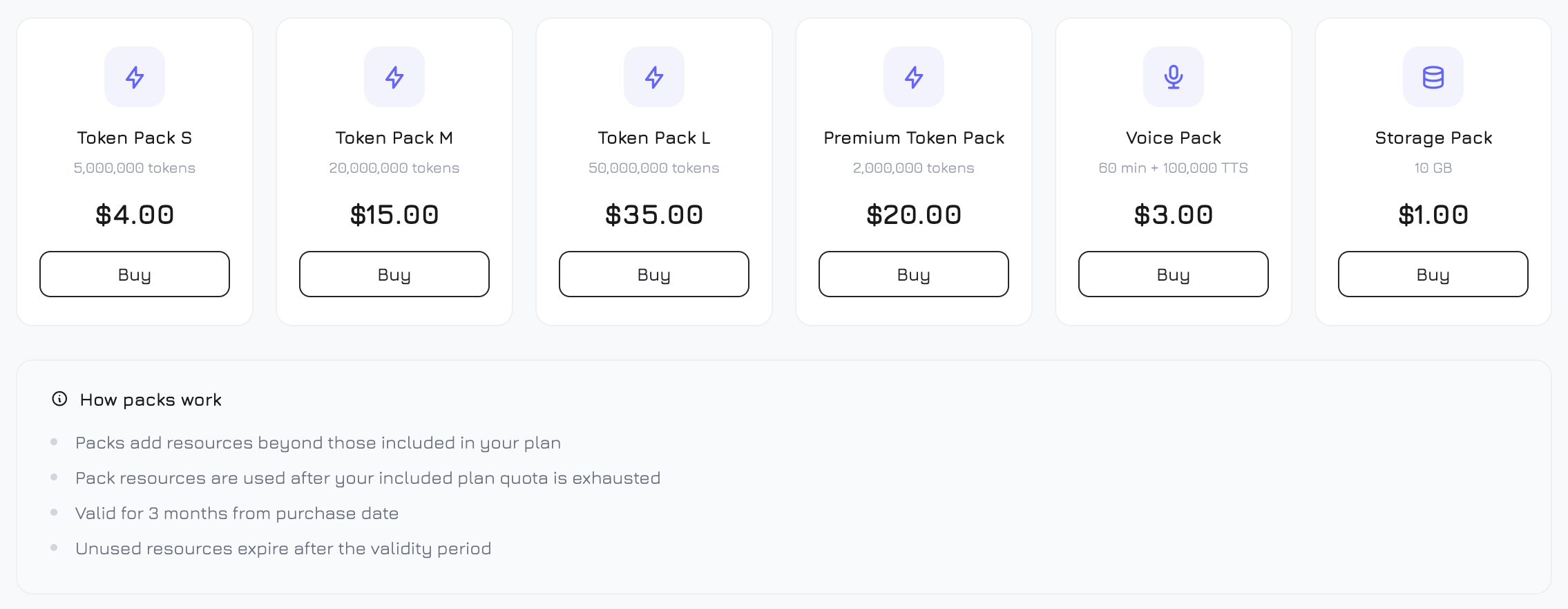
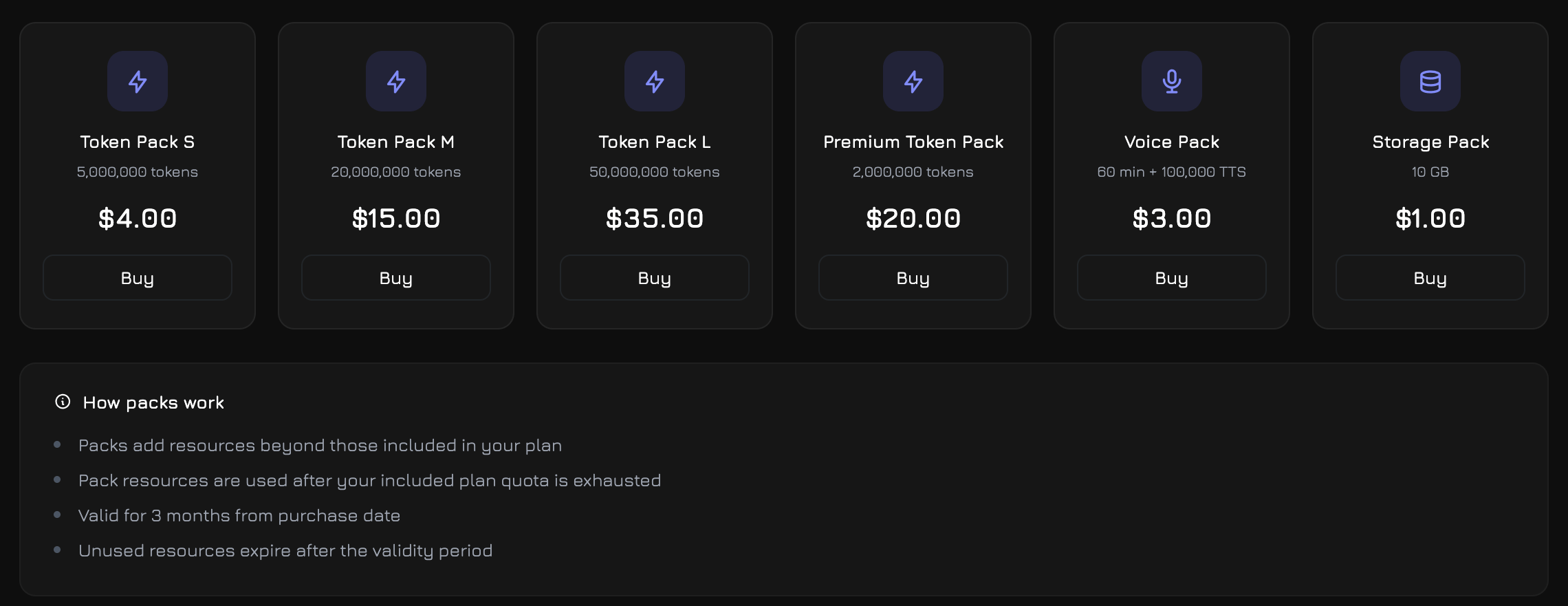
Each pack card shows an icon (bolt for tokens, microphone for voice, database for storage), the pack name, a description of what’s included, the price, and a Buy button.
Clicking Buy redirects you to Stripe Checkout for a one-time payment (not recurring). The pack activates immediately after successful payment.
Add-on packs expire 3 months after purchase. Unused resources do not roll over. When you have multiple active packs, the oldest-expiring pack is consumed first.
Invoices
All payment history is available in Billing → Invoices.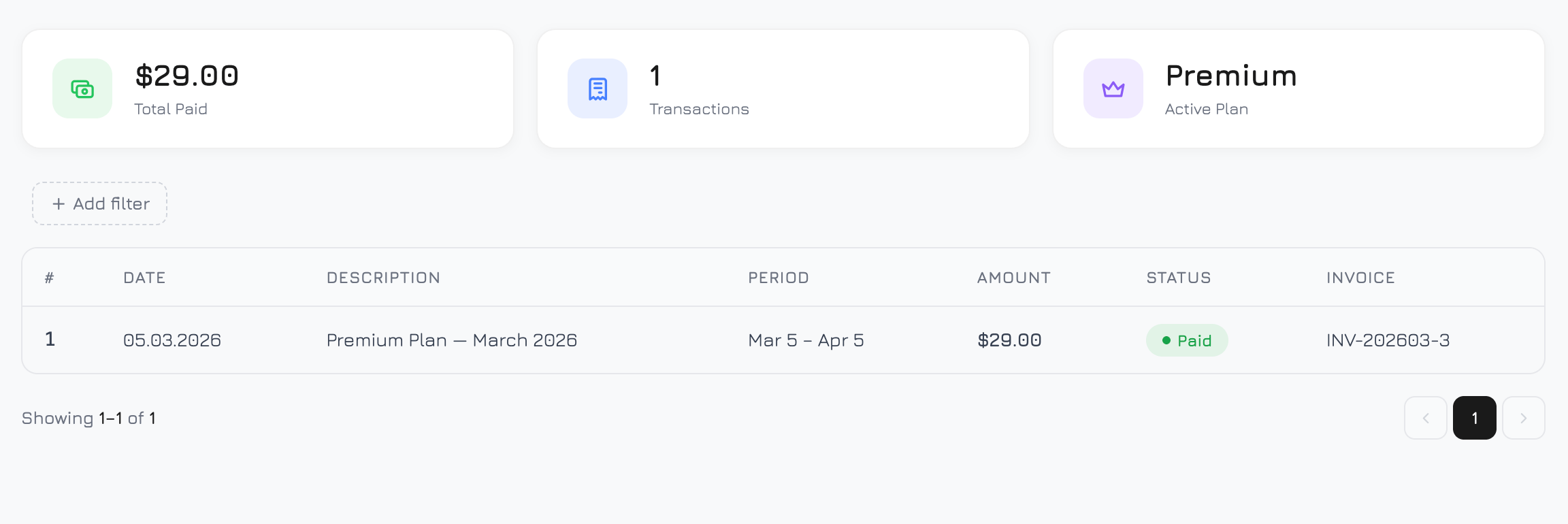
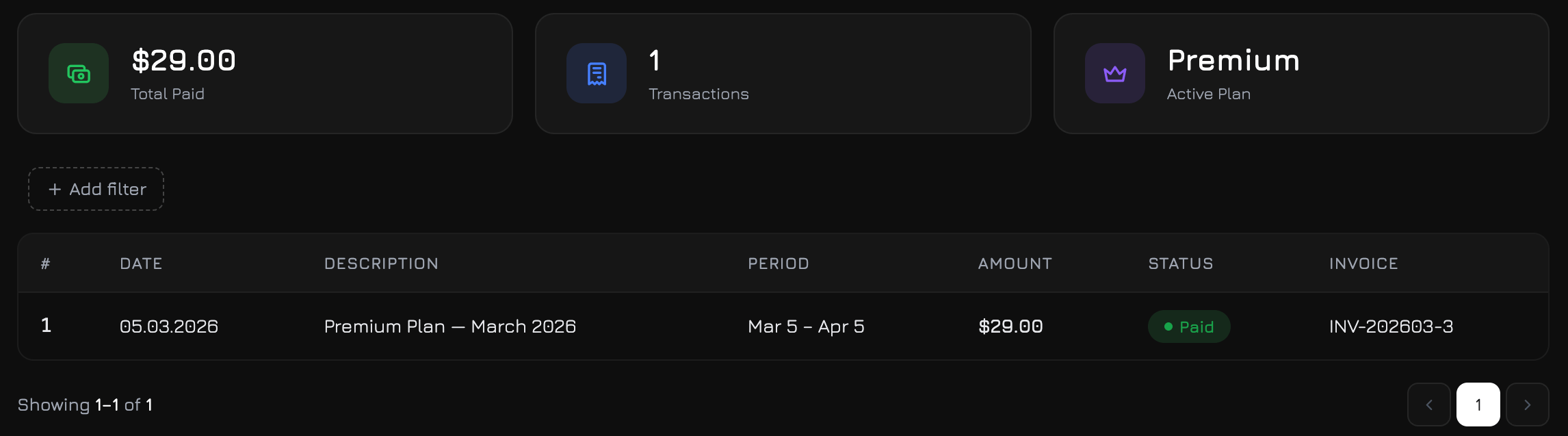
Summary Cards
Three cards at the top of the page provide a quick financial overview:
The Total Paid and Transactions values update dynamically when you apply filters — they reflect only the filtered results.
Invoice Table
A filterable, paginated table of every billing transaction. Click + Filter to add filter chips:
Table columns (7):
Status badges:
PDF column: If a Stripe-generated PDF is available, a PDF icon links to the downloadable file. If only a hosted invoice URL exists, an external-link icon opens it in a new tab. Otherwise, the invoice number is shown as plain text.
The table loads 15 transactions per page with the same pagination system as Usage Events.
Upgrade Modal
When you attempt to perform an action that exceeds your plan limits — such as creating a new agent, starting a conversation, or sending a message when tokens are exhausted — an upgrade modal appears automatically. The modal shows:- Resource icon and name — which limit was hit (e.g., “AI Agents”, “Standard Tokens”)
- Current usage — how much you’ve used vs. your plan limit (e.g., “5 / 5 agents”)
- Your plan name — so you know which plan you’re on
- Buy a Pack button — shown for token, storage, and voice resources, links to the Packs page
- Upgrade Plan button — links to the Pricing page