

Create a New Agent

  1. Open your Company page → AI Agents tab
  2. Click Create Agent
  3. Fill in the basic information:
FieldDescription
NameAgent display name
CompanyWhich company this agent belongs to
Use CaseSales, Support, Lead Generation, etc.
LLM ProviderOpenAI, Anthropic, Google, or Groq
ModelSpecific model to use

Configure System Prompt

The system prompt is the core instruction set for your agent. Best practices:
Be specific about the agent’s role, tone, and boundaries. Include examples of how it should respond.
You are a sales assistant for [Company Name].
Your goal is to help customers find the right product.

Rules:
- Always be polite and professional
- If you don't know the answer, say so honestly
- Never discuss competitor products
- Suggest relevant products from the knowledge base

Add Knowledge Base

After creating the agent, click on it from the agents list — a side offcanvas panel opens. Navigate to the Knowledge Base tab to add sources.
You cannot upload files directly to the agent. All data must first be added to the company’s File Manager (documents, photos, videos, links, text). In the agent’s Knowledge Base tab you then select which sources this specific agent should use.
Create agent wizard
Available source types from the company’s data:
  • Products — product name, description, parameters, price
  • Documents — PDF, Word, Excel, TXT files
  • Photos — photo name and description
  • Videos — video name and description
  • Text — free-text content
  • Links — fetched web page content
  • Company — company name, description, phone, contacts
When you add sources, the training process starts automatically — you can see the progress on the left side of the panel (status changes from Training to Ready).
Selected sources are split into chunks and converted to vector embeddings for semantic search. The agent retrieves the most relevant chunks during each conversation.

RAG Settings

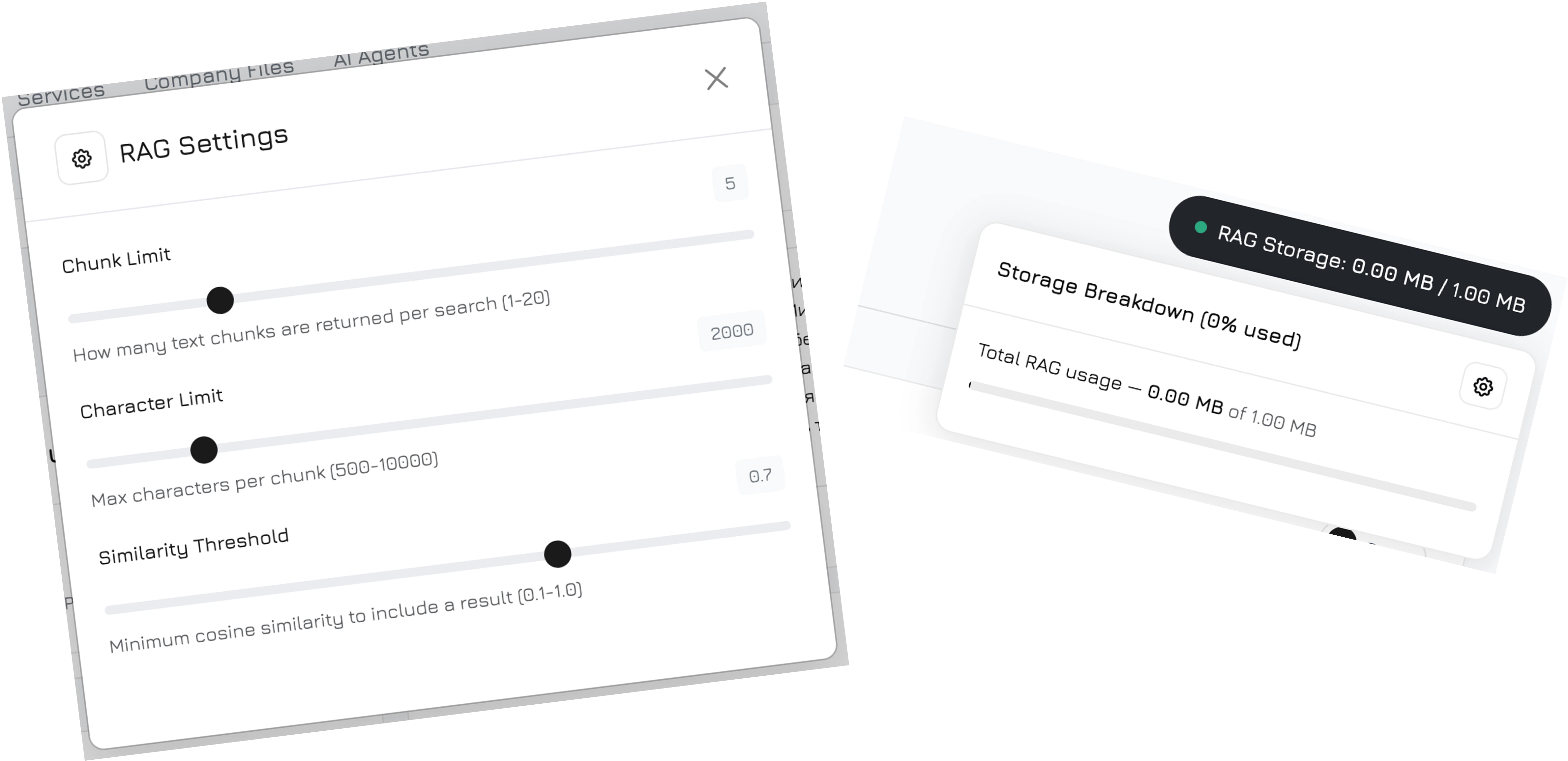
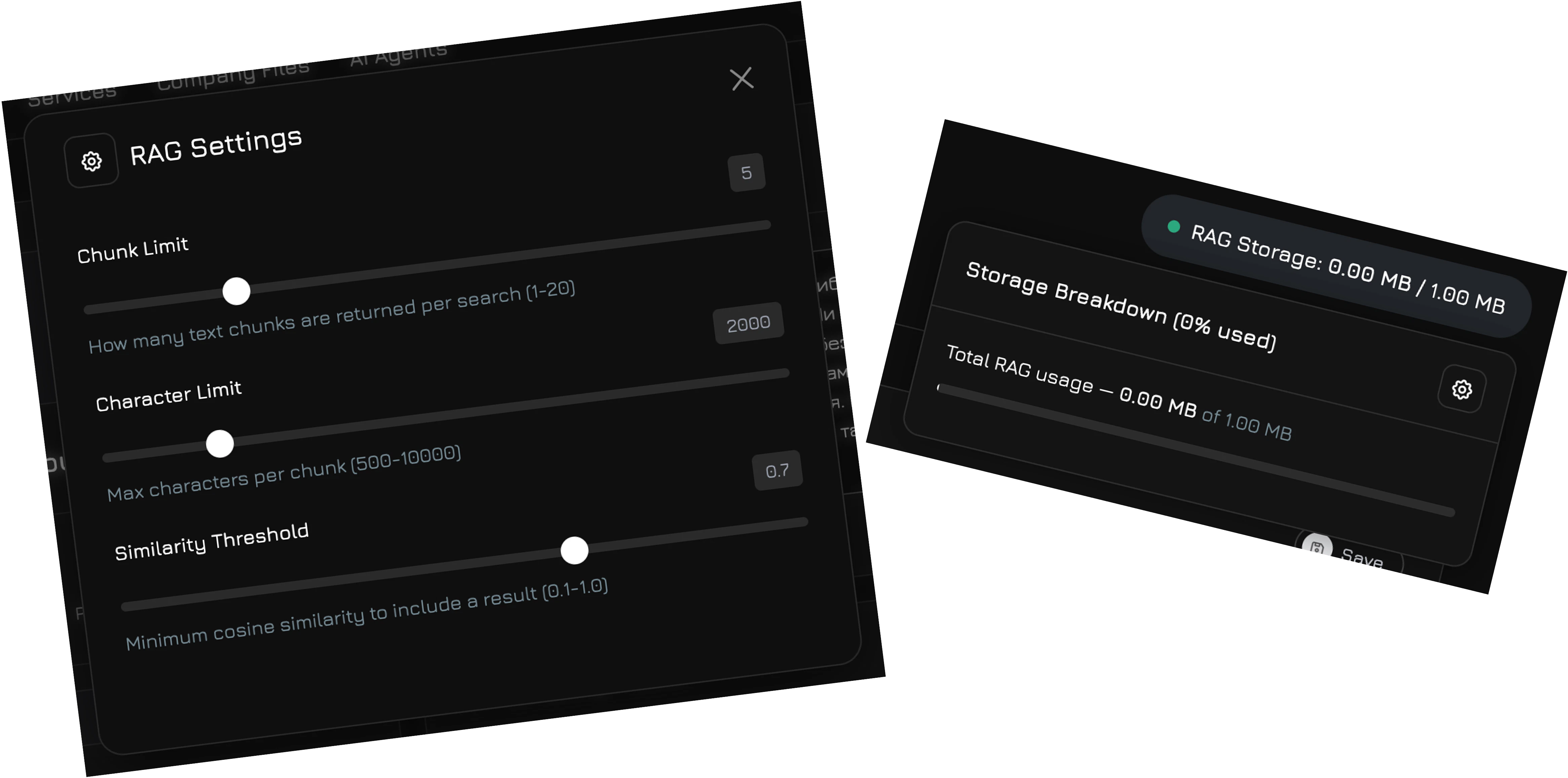
Hover over the RAG Storage indicator (shows used/total storage) — a settings icon will appear. Click it to open RAG Settings — a modal where you fine-tune how the agent searches the knowledge base:
SettingRangeDefaultDescription
Chunk Limit1–205How many text chunks are returned per search
Character Limit500–10,0002,000Maximum characters per chunk
Similarity Threshold0.1–1.00.7Minimum cosine similarity to include a result — higher values return fewer but more relevant results

Configure Workflow

After training is complete, navigate to AI Agents in the sidebar menu, select your agent, and click to open the full-screen agent editor modal. Go to the Workflow tab — a visual canvas where you design the conversation logic. For a detailed guide on workflow nodes, edges, conditions, and the default workflow, see AI Agents → Workflow.