

Overview
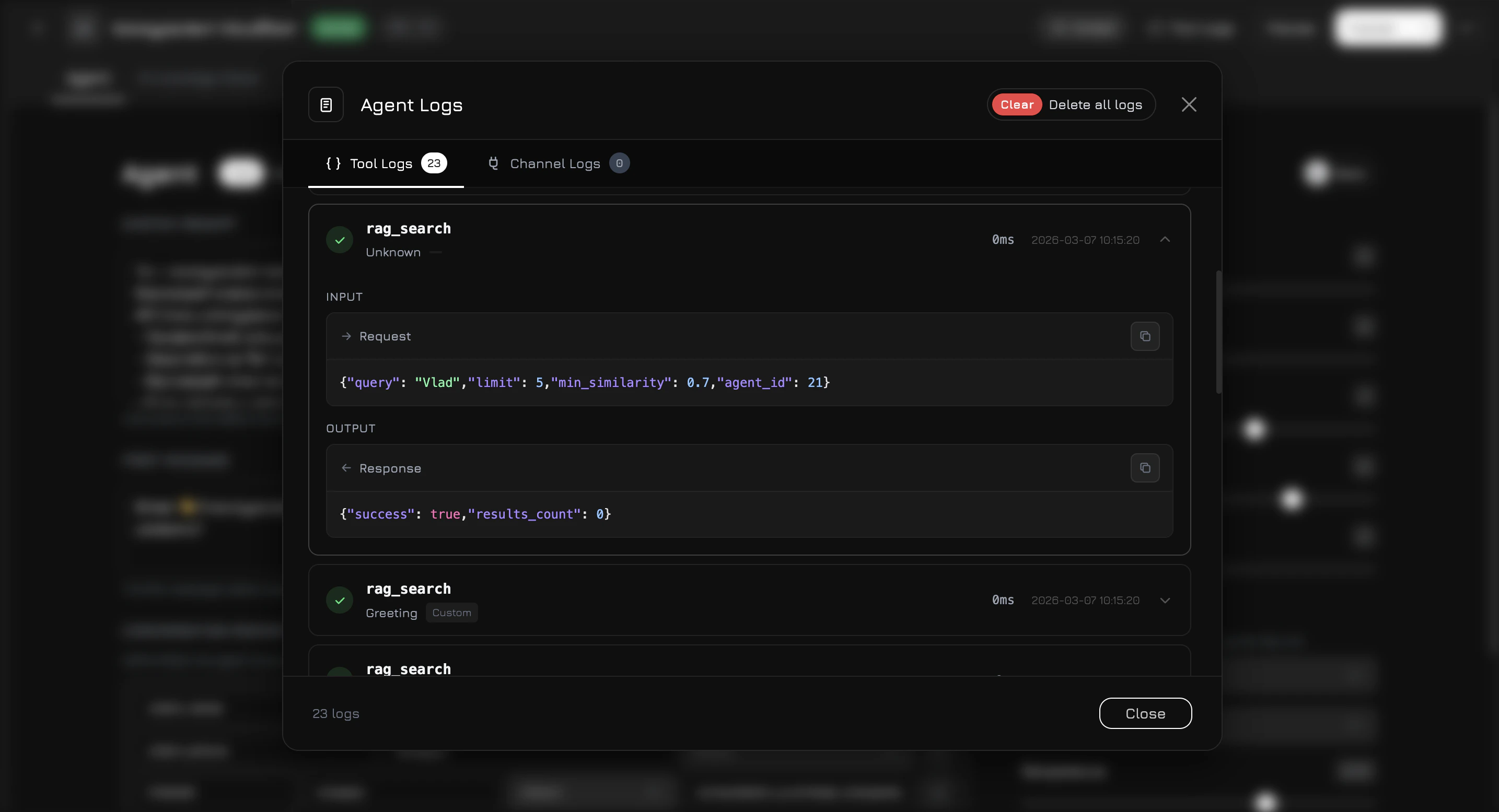
Tool Logs provide full visibility into what your AI agent does during conversations — every tool call, RAG search, and external channel event is recorded with input/output data, execution time, and status. Open Tool Logs by clicking the Tool Logs button in the top-right corner of the agent editor modal.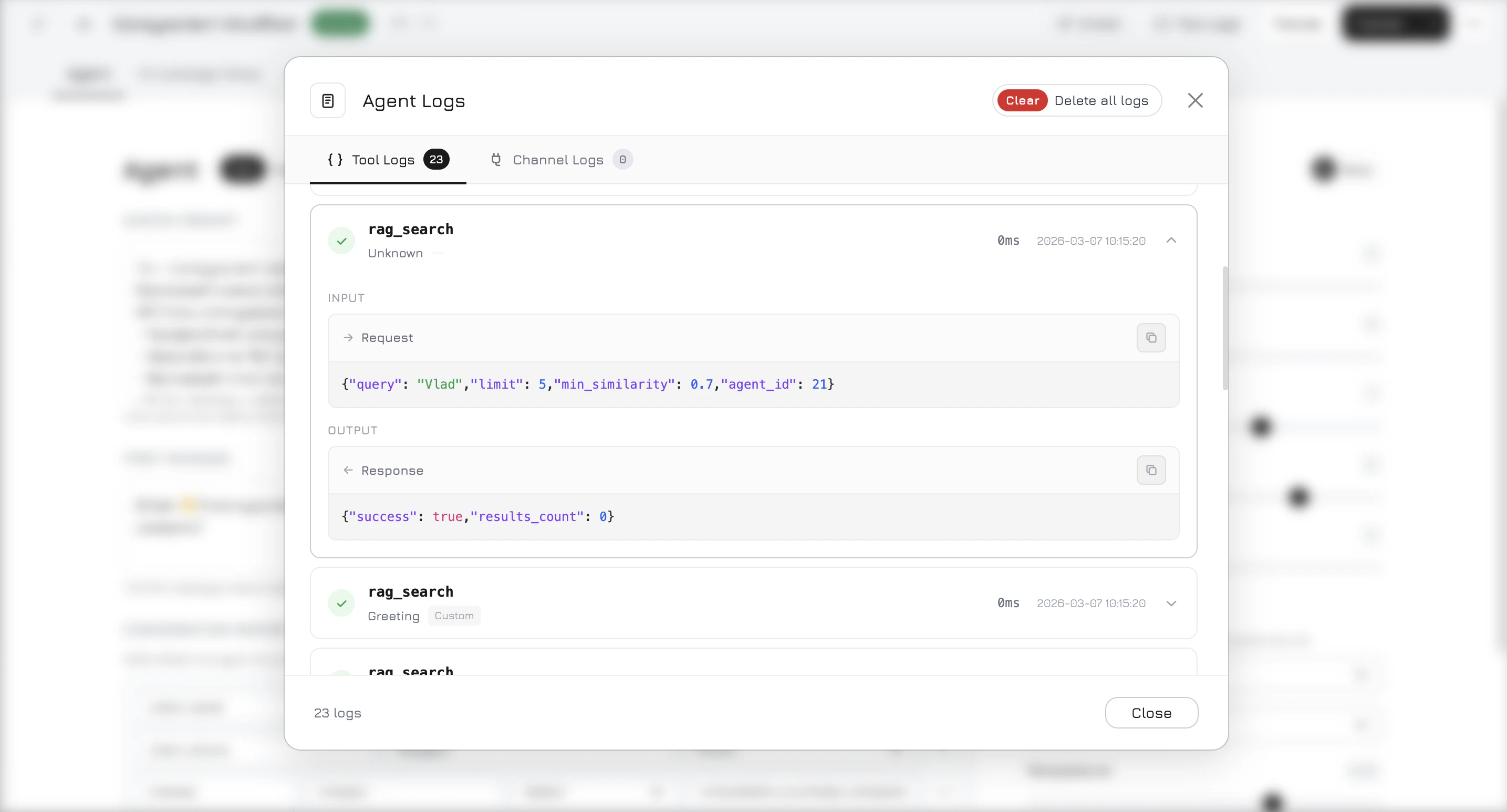
Two Tabs
The modal has two tabs:Tool Logs
Records every tool execution during AI conversations. Each entry shows:
Click on any log entry to expand it and see the full Input (request parameters as JSON) and Output (response data as JSON). If the status is
error, the error message is displayed at the top of the expanded section.
Channel Logs
Records events from external communication channels — webhooks, phone calls, messenger messages. Each entry shows:
Click to expand and view the full Request Payload (raw webhook data) and Response (what was sent back).
What Gets Logged
Tool logs are created automatically whenever the agent:- Searches the knowledge base —
rag_searchwith the query and number of results found - Calls a function tool — any tool configured in the agent’s toolset (e.g.
get_products,get_documents,get_photos,get_videos,get_company_info) - Executes integration tools — Google Ads, Facebook Ads, and other connected service tools
- An inbound webhook arrives — phone call, messenger message, or any external channel event
- An outbound message is sent — the agent’s response delivered through a channel
Clearing Logs
Use the Clear Logs button (trash icon) at the top of the modal to delete all logs for the current agent. This action is irreversible.Logs are stored in a partitioned database table for performance. High-volume agents may accumulate thousands of entries — use Clear Logs periodically to keep the interface responsive.