Overview
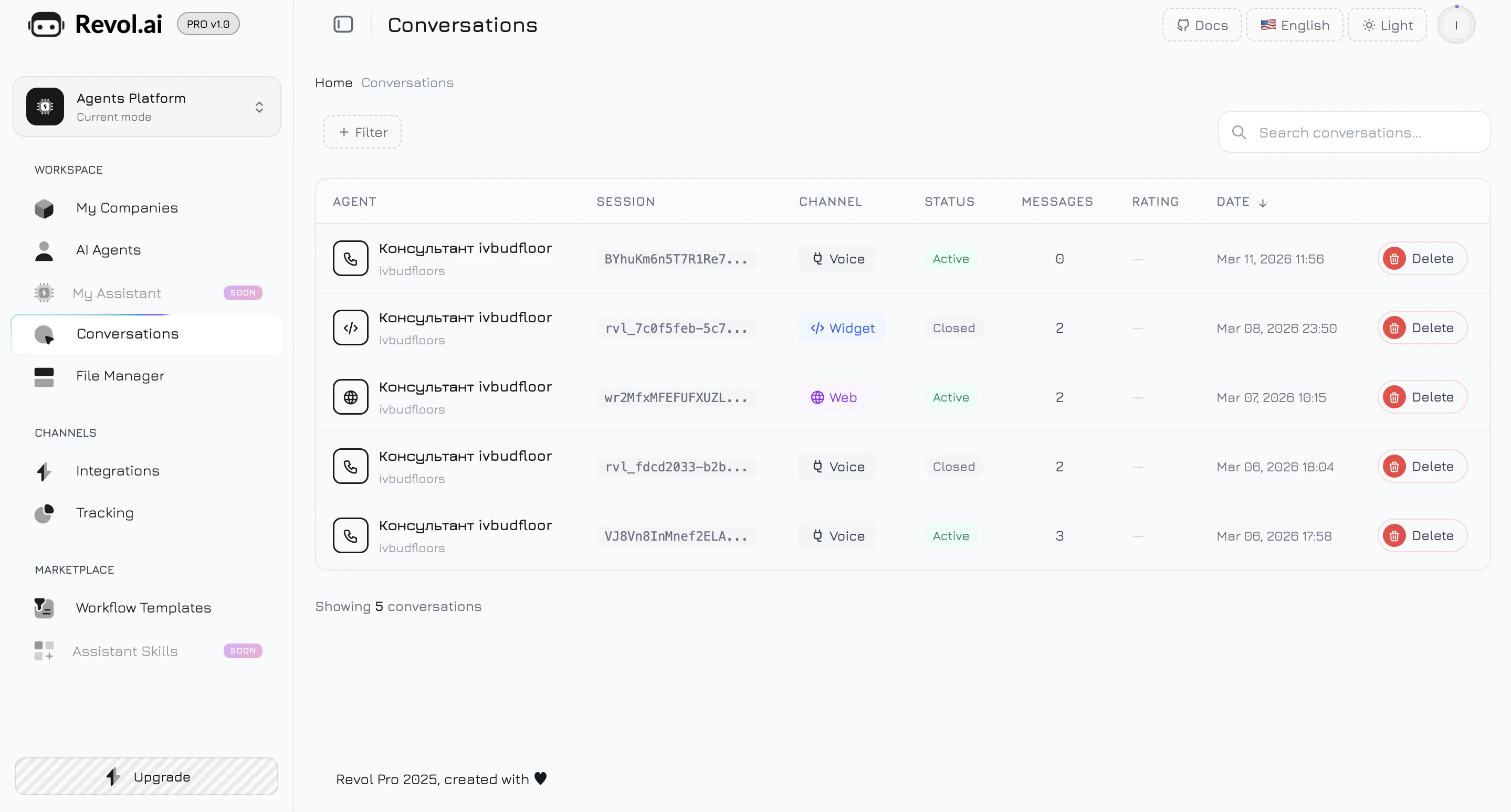
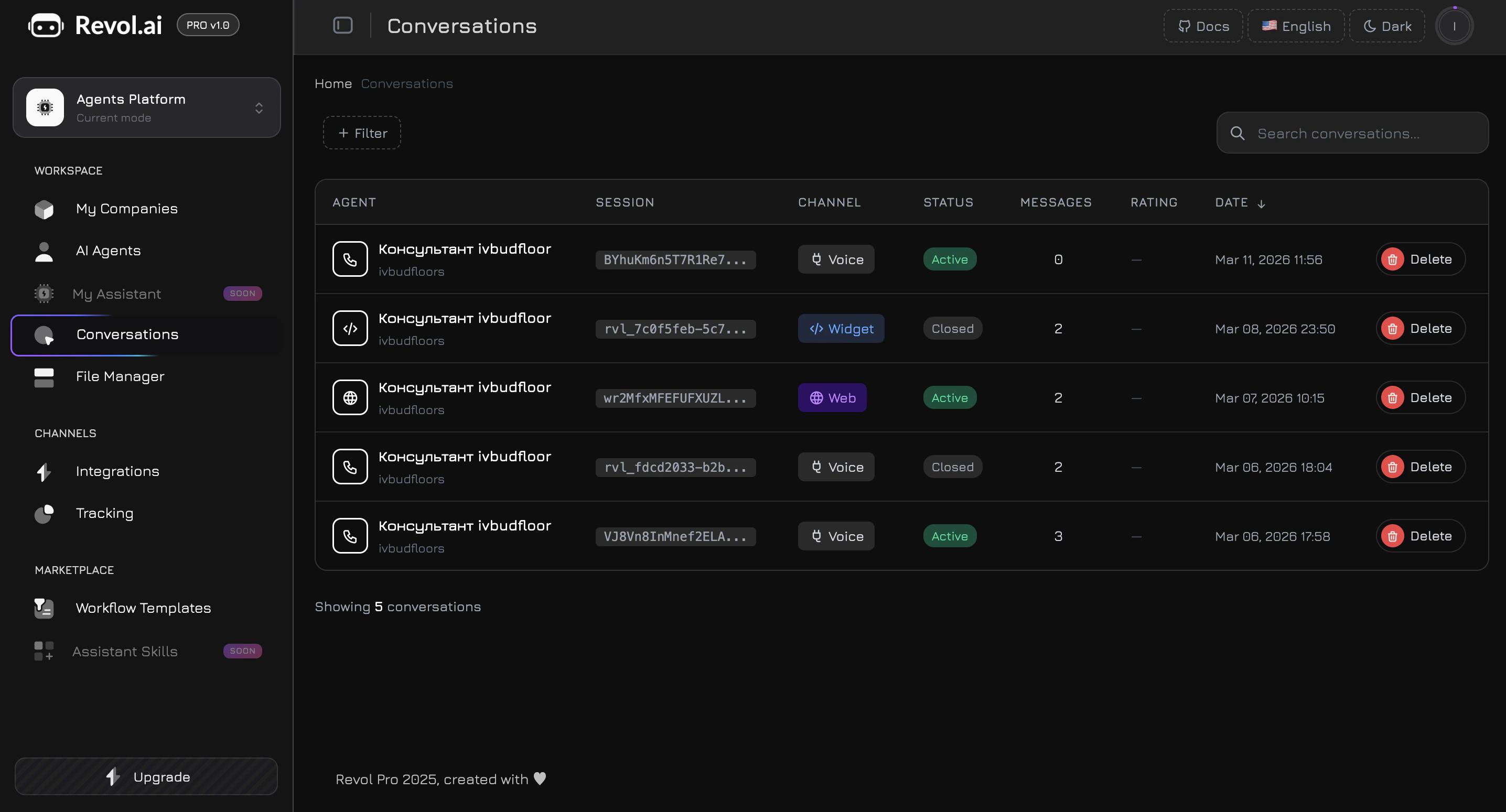
The Conversations page is a unified dashboard for all interactions between your AI agents and customers — regardless of which agent handled the conversation or which channel the visitor used (widget, phone, Telegram, WhatsApp, etc.).
This page works the same for all agent operating modes. In Active mode, you see conversations handled by the AI. In Passive mode, you see conversations handled by your team with the agent’s audit and analysis data attached. In Hybrid mode, both types appear in one unified view.
Navigate to Conversations in the sidebar menu to open this page.
Conversations Table
The table displays all conversations across all your agents, sorted by date (newest first). Each row shows:
| Column | Description |
|---|
| Agent | Agent name and company, with a channel icon |
| Session | Visitor session identifier |
| Channel | Communication channel badge — Widget, Web, Telegram, WhatsApp, VoIP, Messenger, CRM |
| Status | Current state — Active (ongoing), Closed (ended), or Archived |
| Messages | Total message count in the conversation |
| Rating | Client rating from 1 to 5, or — if not rated |
| Date | When the conversation started |
| Actions | Delete button |
Filtering
Click the Filter button to add filter chips. Each filter narrows the results:
| Filter | Options |
|---|
| Status | Active, Closed, Archived |
| Channel | Web, Widget, Telegram, WhatsApp, VoIP, Messenger, CRM |
| Agent | Select from all your agents |
| Min Rating | 1+, 2+, 3+, 4+, 5 |
| Date From | Calendar date picker |
| Date To | Calendar date picker |
× on its chip.
Search
The search field performs a case-insensitive search across three dimensions simultaneously:
- Session ID — partial match
- Agent name — partial match
- Message content — searches inside all messages of the conversation
Conversation Detail
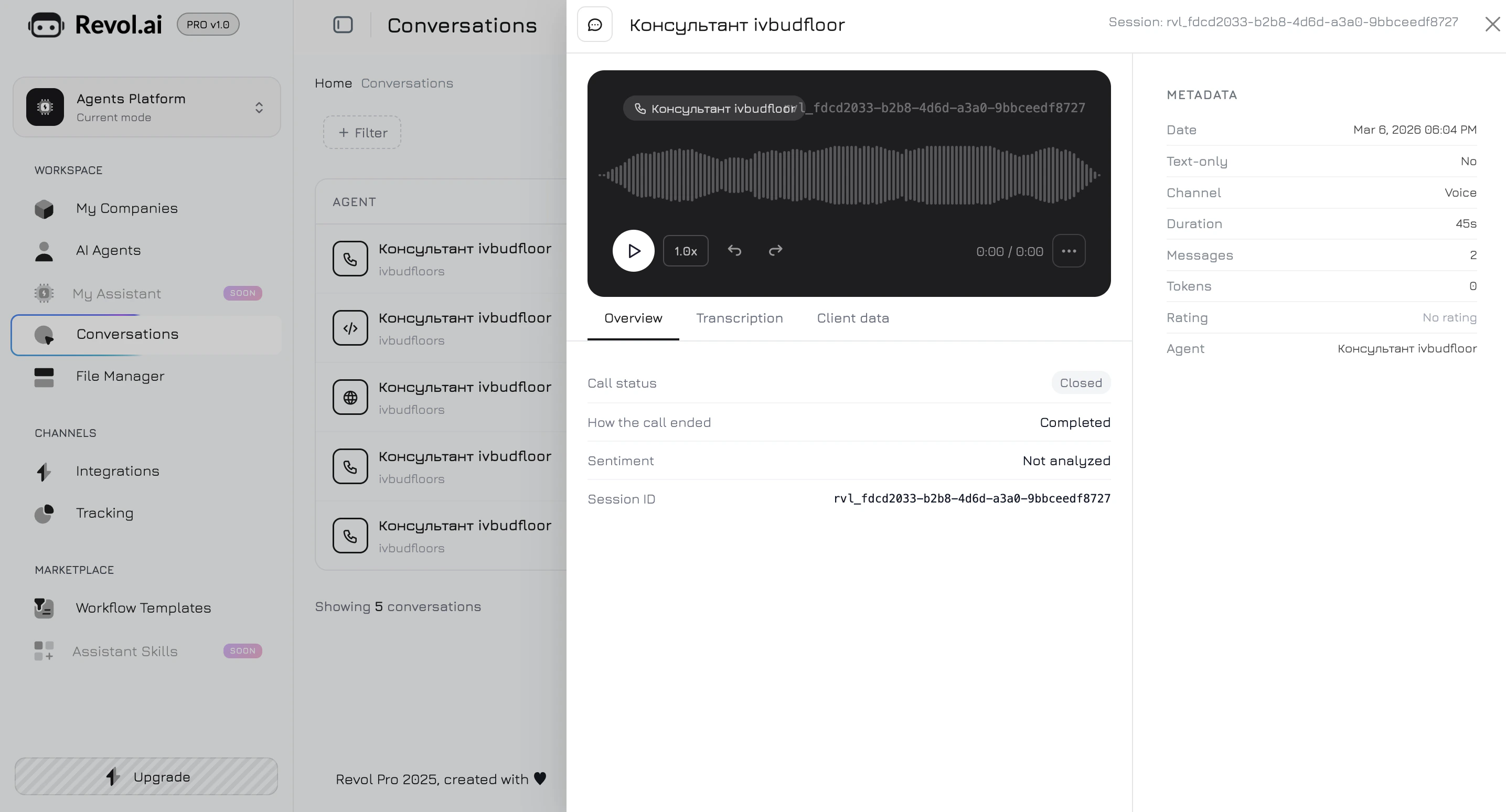
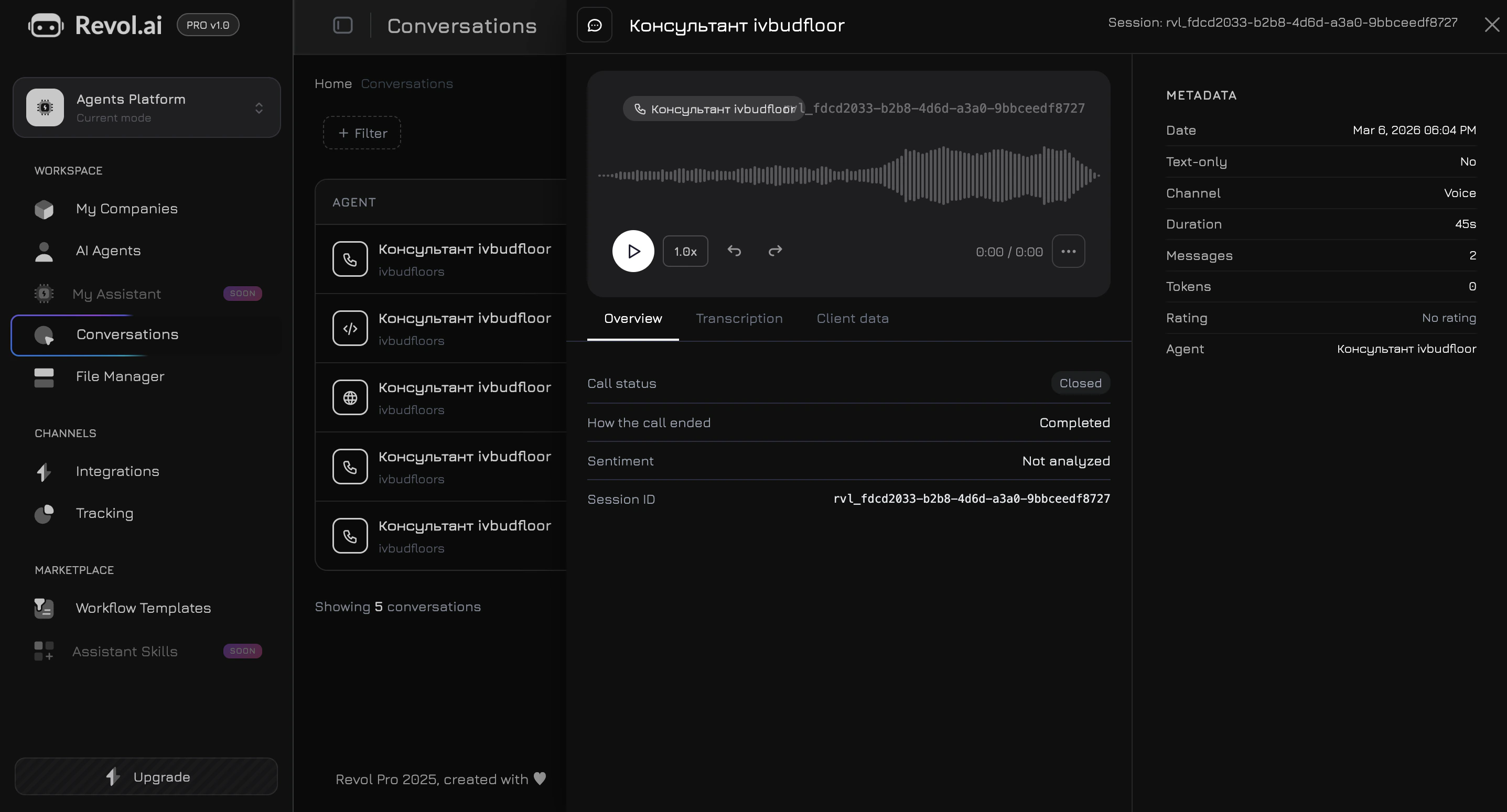
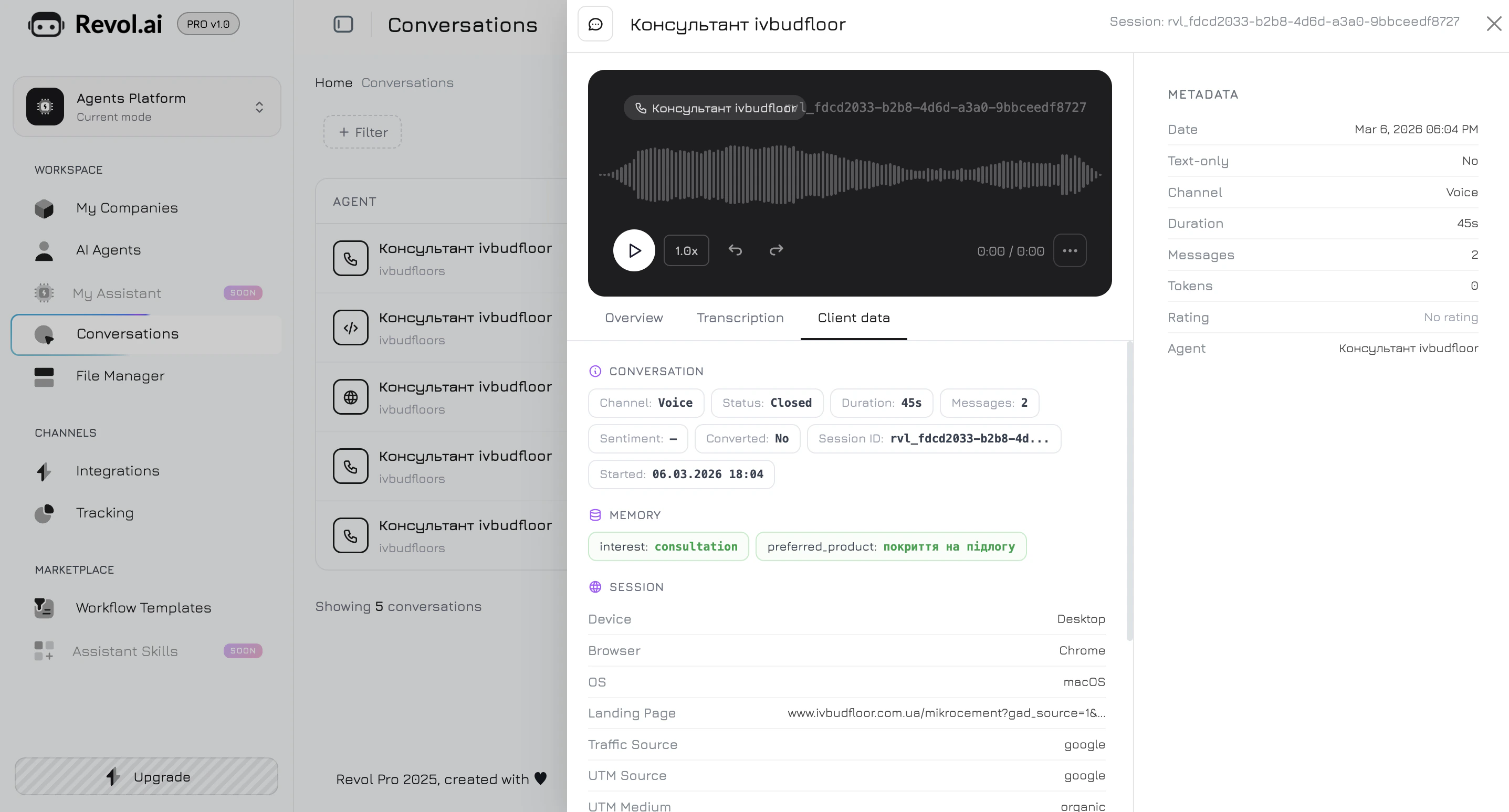
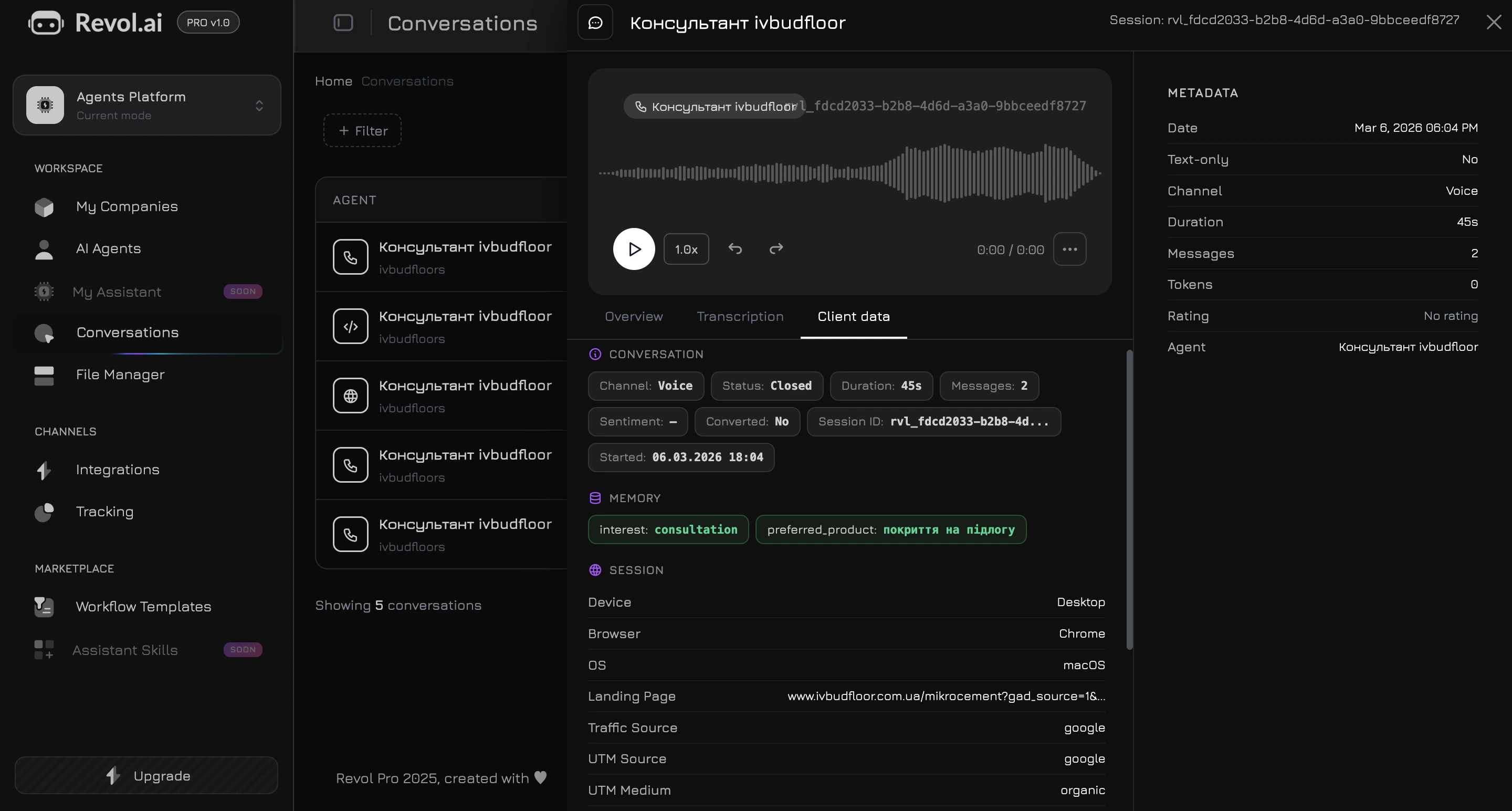
Click any row to open the detail panel — a side offcanvas sliding from the right. The panel has two columns: the main content area (left) and a metadata sidebar (right).
Audio Player
For voice conversations (VoIP, voice widget), a built-in audio player appears at the top of the panel. Features:
- Play/Pause with a visual waveform
- Playback speed — cycle through 0.5×, 1.0×, 1.5×, 2.0×
- Skip forward and back by 5 seconds
- Seek by clicking anywhere on the waveform
- Auto-advance — when one message ends, the next audio message plays automatically
Audio files are stored on the server for each conversation and loaded on demand when you open the detail panel.
For text-only conversations, the player is replaced with a text-only indicator.
Always visible on the right side of the panel:
| Field | Description |
|---|
| Date | When the conversation started |
| Text-only | Whether the conversation has voice messages |
| Channel | Communication channel |
| Duration | Total conversation time, or “Ongoing” if still active |
| Messages | Total message count |
| Tokens | Total LLM tokens used (prompt + completion) |
| Rating | Client rating as stars (1–5) or “No rating” |
| Agent | Which agent handled the conversation |
Three Tabs
The main content area has three tabs:
Overview
A quick summary of the conversation:
- Call status — Active, Closed, or Archived
- How the call ended — end reason or “Completed”
- Sentiment — AI-analyzed conversation tone (positive, negative, neutral) or “Not analyzed”
- Session ID — unique visitor session identifier
Transcription
Full message history displayed as chat bubbles. Only user and assistant messages are shown — system and tool messages are hidden. User messages appear as plain text; assistant messages support rich formatting (bold, links, lists, tables, code blocks, images).
Messages are paginated at 50 per page. For long conversations, the most recent messages are displayed first.
Client Data
The most detailed tab — combines conversation metadata, AI-extracted memory, and linked tracking analytics.
Conversation
An 8-cell info grid: Channel, Status, Duration, Messages, Sentiment, Converted (Yes/No), Session ID, and Start date.
Memory
Memory fields are extracted by the AI agent during the conversation based on instructions in the system prompt. They can include any data the agent is configured to collect — client name, phone, email, order ID, product interest, qualification status, etc.
Session (from Tracker)
If the visitor’s conversation is linked to a tracking session (via the website widget), the panel shows the session analytics:
- Device — desktop, mobile, or tablet
- Browser and OS
- Country and City — geo-location of the visitor
- Landing page — the first URL the visitor opened
- Traffic source — where the visitor came from
- UTM source and UTM medium — campaign attribution parameters
- Session duration — total time on site
- Pages visited — number of pages viewed
- Bounce — whether the visitor left after one page
Pageviews
If the linked session has pageviews, each page is shown with its title, time spent, and scroll depth percentage.
Events
Non-trigger events captured during the session — clicks, form submissions, custom events — with their names, types, and timestamps.
Triggers
Trigger events that collected form data or other structured information. Each trigger shows the trigger name, action type, timestamp, and an expandable JSON block with the captured data fields. A copy button allows copying the raw JSON.
Rating
Client Rating
Visitors can rate their conversation from 1 to 5 stars through the widget. The rating and optional comment are displayed in both the table and the detail panel. You can remove a client rating from the detail panel if needed.
Token Usage
Each conversation tracks LLM token usage — prompt tokens (input) and completion tokens (output). The total is shown in the metadata sidebar. This helps monitor AI costs per conversation.
Deleting Conversations
Click the trash icon in the table row to delete a conversation. A confirmation dialog appears before deletion. Deleting a conversation permanently removes:
- All messages and their content
- All audio files stored on the server
- Any associated ratings
Deletion is irreversible. Audio recordings and message history cannot be recovered.