Overview

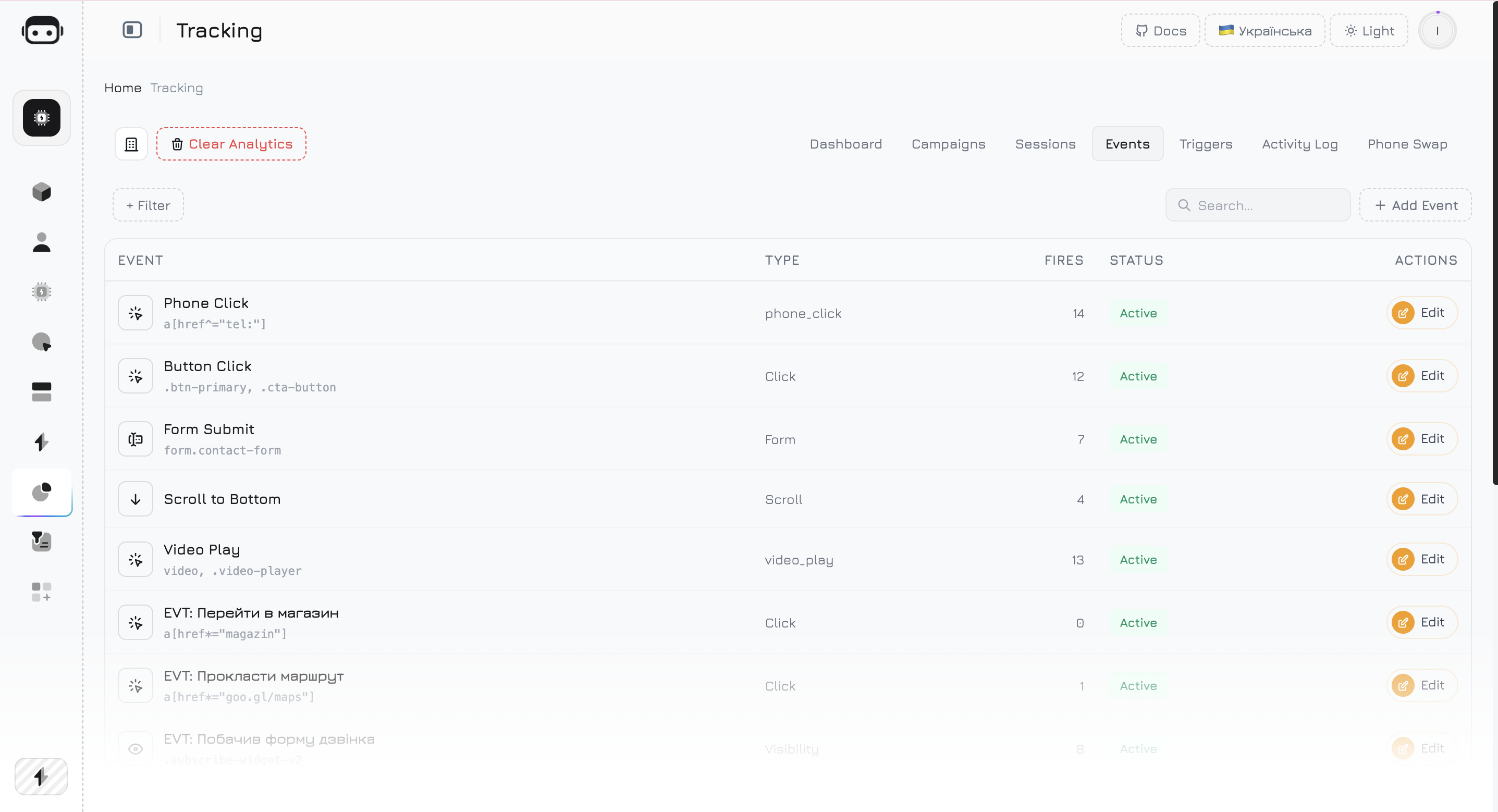
The Events tab lets you define tracking events to capture specific visitor actions on your website. Track button clicks, form submissions, scroll milestones, element visibility, or fire custom events from your own code. Any event can be marked as a conversion goal to measure campaign effectiveness.
Events tab

Events List

The events table shows all defined events with key metrics:
ColumnDescription
NameEvent name
TypeEvent type (Click, Scroll, Form Submit, Visibility, Custom)
FiresTotal number of times this event has been triggered
ConversionWhether this event counts as a conversion goal
StatusActive or inactive
ActionsEdit or delete the event

Filters

Filter the events list by:
FilterDescription
TypeShow only events of a specific type
ConversionShow only conversion goal events
StatusShow active or inactive events
SearchSearch events by name

Creating an Event

Click Create Event to define a new tracking event. Each event requires:
FieldRequiredDescription
NameYesEvent name for identification (e.g., “CTA Button Click”, “Contact Form Submit”)
TypeYesHow the event is triggered (see Event Types below)
CSS SelectorDependsCSS selector targeting the element (required for Click, Form Submit, Visibility)
Page URLNoRestrict the event to fire only on a specific page
Conversion GoalNoToggle to count this event as a conversion in analytics

Event Types

Each event type tracks a different kind of visitor interaction. The tracker script handles all automatic types — no coding required.

Click

Fires when a visitor clicks on an element matching the CSS selector.
SettingDescription
CSS SelectorTarget element selector (e.g., #cta-button, .buy-now, a[href="/contact"])
Page URLOptional — limit tracking to a specific page
What is captured:
  • Element text content (first 100 characters)
  • Element tag name (button, a, div, etc.)
  • CSS selector that matched
  • Current page URL
Use browser DevTools to find the right CSS selector. Right-click the element → Inspect → right-click the HTML tag → CopyCopy selector.
Examples of CSS selectors:
/* Button by ID */
#buy-now-btn

/* All buttons with a specific class */
.add-to-cart

/* Link to a specific page */
a[href="/pricing"]

/* Button inside a specific section */
.hero-section .cta-button

/* Any element with a data attribute */
[data-action="subscribe"]

Scroll (Visibility)

Fires when the visitor scrolls past a specific element on the page. Uses an IntersectionObserver to detect when the element enters the viewport.
SettingDescription
CSS SelectorTarget element to observe (e.g., #pricing-section, .testimonials)
Scroll ThresholdPercentage of the element that must be visible (default: 50%)
Use cases:
  • Track how many visitors see your pricing section
  • Measure engagement with specific content blocks
  • Detect if visitors reach the bottom of a long page
Each scroll event fires only once per session per element — even if the visitor scrolls past it multiple times. This prevents inflated counts.

Form Submit

Fires when a visitor submits a form matching the CSS selector.
SettingDescription
CSS SelectorTarget form element (e.g., #contact-form, .signup-form)
Form FieldsOptional — allowlist of field names to capture (e.g., email, phone, name)
What is captured:
  • Values from <input>, <select>, and <textarea> fields
  • Field names and their values (up to 500 characters per field)
  • Password and hidden fields are automatically excluded
By default, all visible form fields are captured. Use the Form Fields allowlist to limit data collection to specific fields and avoid capturing sensitive information.

Element Visibility

Fires when a specific element becomes visible in the browser viewport. Similar to Scroll, but focused on tracking whether a particular UI element was seen.
SettingDescription
CSS SelectorTarget element (e.g., .promo-banner, #special-offer)
Use cases:
  • Track impressions of promotional banners
  • Measure visibility of important CTAs
  • Detect if dynamically loaded content is seen (works with SPAs)
The tracker uses a MutationObserver to watch for dynamically added elements. If the target element is rendered by JavaScript after page load (React, Vue, etc.), it will still be detected.

Custom (Manual)

Fires when you call the JavaScript API from your own code. This is the most flexible event type — you control exactly when and with what data the event fires.
SettingDescription
NameEvent name that matches the name used in RevolTracker.track()
Custom events are covered in detail in the Custom Events API section below.

Conversion Goal

Any event can be marked as a Conversion Goal by enabling the toggle. When enabled:
  • The event is counted in the Conversions KPI card on the Dashboard
  • It’s used to calculate Conversion Rate in the Campaign Performance table
  • Sessions containing this event are highlighted in the session detail view
  • The event appears in conversion funnels and reports

What Makes a Good Conversion Goal?

Mark form submissions as conversions — contact forms, quote requests, newsletter signups. These are clear indicators that a visitor became a lead.
Mark add to cart or purchase completed custom events as conversions. Track the full funnel from page view to purchase.
Mark scroll past pricing or video play events as micro-conversions. These indicate strong interest even without a form submission.
Mark phone number click or chat widget opened events as conversions. These show intent to engage directly.
You can have multiple conversion goals active at the same time. The Dashboard Conversions KPI counts unique sessions with at least one conversion event — so a session that triggers 3 conversion events still counts as 1 conversion.

Custom Events API

Custom events give you full control over event tracking from your own JavaScript code. Use them when automatic tracking (clicks, forms, visibility) isn’t enough — for dynamic interactions, multi-step processes, or business-specific actions.

Basic Usage

// Simple event — no additional data
RevolTracker.track('button_clicked');

// Event with custom data
RevolTracker.track('item_added_to_cart', {
    item_id: 'SKU-12345',
    item_name: 'Running Shoes',
    price: 89.99,
    currency: 'USD'
});

API Reference

RevolTracker.track(eventName, data)
ParameterTypeRequiredDescription
eventNamestringYesEvent name — must match the name defined in the Events tab if you want it linked to an event definition
dataobjectNoCustom payload — any JSON-serializable data (objects, arrays, strings, numbers)
Automatically captured (you don’t need to pass these):
  • Current page URL
  • Session ID
  • Timestamp
  • Company ID

E-Commerce Examples

Track the full shopping funnel:
// Product viewed
RevolTracker.track('product_viewed', {
    product_id: 'SKU-12345',
    product_name: 'Running Shoes Pro',
    category: 'Footwear',
    price: 89.99
});

// Added to cart
RevolTracker.track('add_to_cart', {
    product_id: 'SKU-12345',
    quantity: 1,
    price: 89.99
});

// Checkout started
RevolTracker.track('checkout_started', {
    cart_total: 89.99,
    items_count: 1
});

// Purchase completed
RevolTracker.track('purchase_completed', {
    order_id: 'ORD-9876',
    total: 89.99,
    currency: 'USD',
    items: [
        { id: 'SKU-12345', name: 'Running Shoes Pro', qty: 1, price: 89.99 }
    ]
});

Add to Cart Integration

A complete example of integrating custom events with an “Add to Cart” button:
<button class="add-to-cart-btn"
        data-product-id="SKU-12345"
        data-product-name="Running Shoes Pro"
        data-price="89.99">
    Add to Cart
</button>

<script>
document.querySelectorAll('.add-to-cart-btn').forEach(function(btn) {
    btn.addEventListener('click', function() {
        // Your existing cart logic
        addItemToCart(this.dataset.productId);

        // Track the event in Revol
        RevolTracker.track('add_to_cart', {
            product_id: this.dataset.productId,
            product_name: this.dataset.productName,
            price: parseFloat(this.dataset.price)
        });
    });
});
</script>

Lead Form Example

Track form submissions with field data:
<form id="contact-form">
    <input name="name" type="text" placeholder="Your name">
    <input name="email" type="email" placeholder="Email">
    <input name="phone" type="tel" placeholder="Phone">
    <textarea name="message" placeholder="Message"></textarea>
    <button type="submit">Send</button>
</form>

<script>
document.getElementById('contact-form').addEventListener('submit', function(e) {
    var formData = new FormData(this);

    RevolTracker.track('contact_form_submitted', {
        name: formData.get('name'),
        email: formData.get('email'),
        has_phone: !!formData.get('phone'),
        message_length: (formData.get('message') || '').length
    });
});
</script>

SPA / React Example

For single-page applications, fire events on route changes or component interactions:
// React — track page view on route change
useEffect(() => {
    RevolTracker.track('page_view', {
        page: location.pathname,
        title: document.title
    });
}, [location.pathname]);

// React — track button click
function handlePricingClick(plan) {
    RevolTracker.track('pricing_plan_selected', {
        plan: plan,
        page: '/pricing'
    });
}

How Events Are Sent

Events are buffered and batched for performance:
  1. Each RevolTracker.track() call adds the event to an internal buffer
  2. Every 5 seconds, all buffered events are sent to the server in a single request
  3. On page unload, any remaining events are sent via sendBeacon() for reliability
  4. Maximum 50 events per batch — excess events are dropped
You don’t need to create an event definition in the dashboard for custom events to be recorded. Undefined custom events are still stored with their data — but they won’t have a fire count in the Events list. For full tracking, create a matching event definition with the same name.

Analyze Your Website with Claude Code

If you’re not sure which elements to track, you can use Claude Code to analyze your website and suggest an optimal event tracking setup.
Analyze the website at [YOUR_WEBSITE_URL] and create a comprehensive
event tracking plan for Revol Tracker. I need you to:

1. Identify all interactive elements on the page:
   - CTA buttons (purchases, signups, demos)
   - Navigation links that indicate intent
   - Forms (contact, subscribe, login)
   - Media elements (video plays, image galleries)
   - Scroll landmarks (pricing section, testimonials, FAQ)

2. For each element, provide:
   - A descriptive event name (snake_case)
   - The event type (click, form_submit, scroll, visibility, custom)
   - The exact CSS selector
   - Whether it should be a conversion goal (and why)
   - Priority (high/medium/low) based on business impact

3. Generate ready-to-use event definitions that I can create
   in the Revol Tracker Events tab.

4. For any elements that need custom JavaScript tracking,
   provide the complete RevolTracker.track() code snippets.

5. Suggest a conversion funnel with 3-5 key stages
   (e.g., Visit → View Pricing → Submit Form → Start Chat).

Format the output as a table with columns:
Event Name | Type | CSS Selector | Conversion | Priority

My website is: [PASTE URL]
My business type is: [e.g., e-commerce, SaaS, service business, agency]
My main conversion action is: [e.g., form submission, purchase, demo request]