

Overview
The Activity Log tab shows the most recent 500 tracking events captured on your website. Use it to monitor visitor interactions, debug event tracking, verify trigger activations, and inspect captured form data — all in one chronological feed.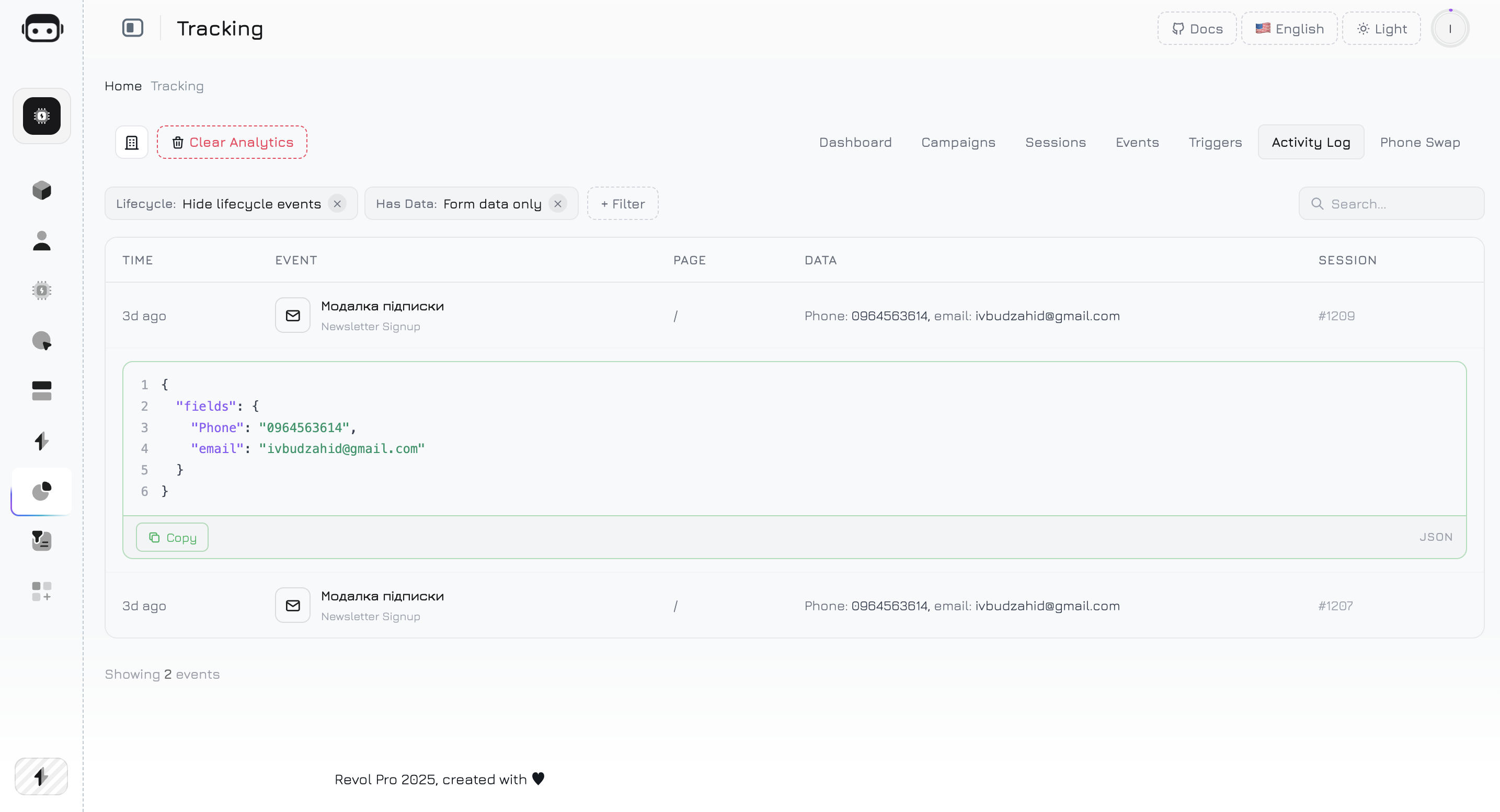
Events Table
Each row in the activity log represents a single tracked event:
The table displays 15 events per page with pagination at the bottom.
Event Types
The activity log captures several categories of events:Interaction Events
Trigger Events
Lifecycle Events
Lifecycle events (trigger_shown, trigger_dismissed, visibility) are hidden by default to reduce noise. Use the Lifecycle filter to show them.
Filters
The activity log supports a flexible filter system. Click the + Filter button to add filters. Active filters appear as removable chips above the table.Available Filters
Filter Behavior
- Already-applied filters are disabled in the dropdown to prevent duplicates
- Each filter chip shows the filter name and selected value
- Click the × on a chip to remove the filter
- Filters can be combined — for example, show only
form_submitevents from a specific campaign that have form data
Event Detail Panel
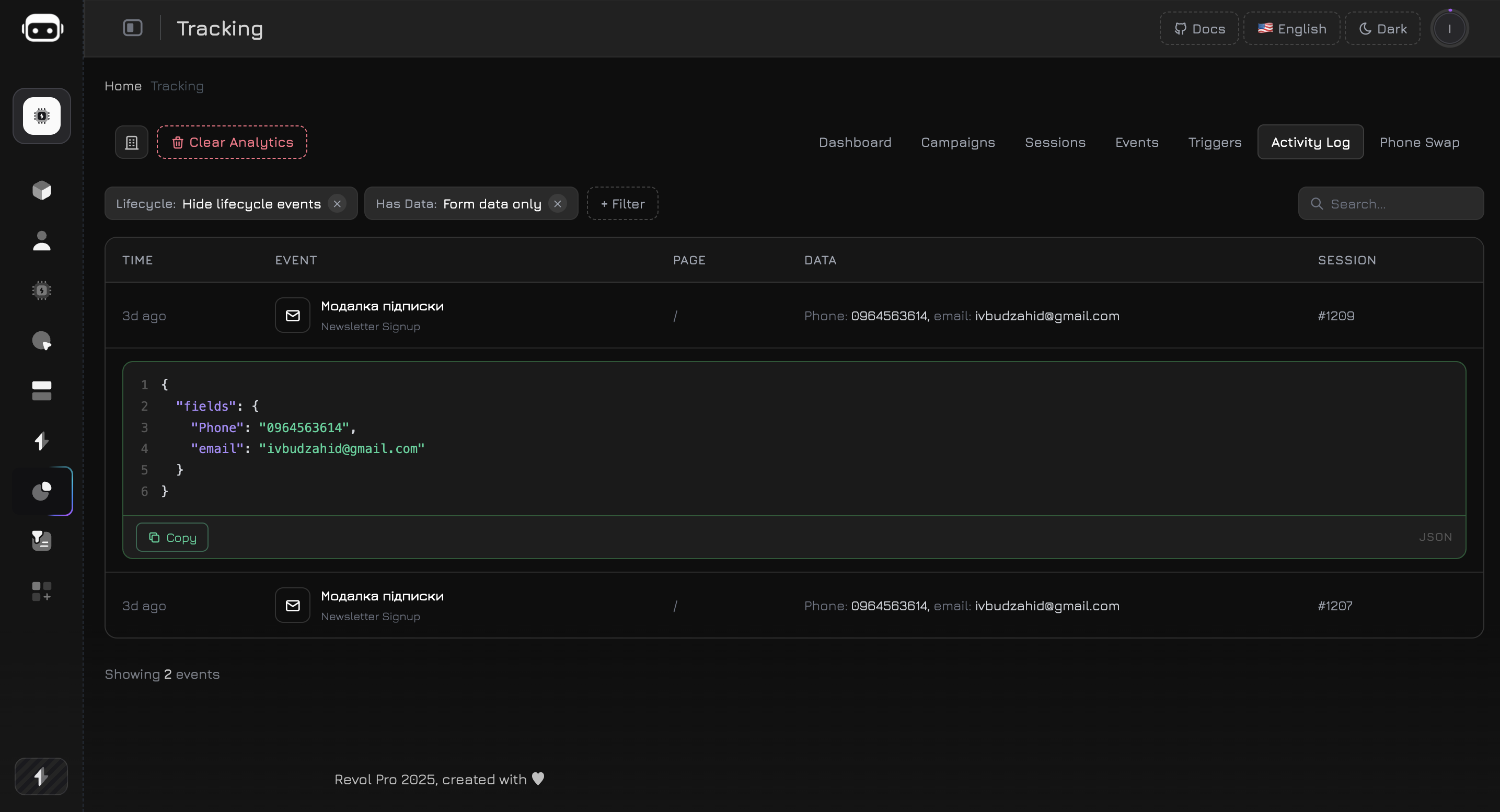
Click any event row that has data (the Data column shows key-value pairs instead of ”—”) to expand the detail panel below the row. The panel displays the full event payload as a syntax-highlighted JSON block.JSON Code Block
The expanded panel renders the completeevent_data object with color-coded syntax:
What Data Contains
The JSON payload varies by event type:- Click
- Form Submit
- Custom Event
- Trigger
Copy Button
Each JSON block has a Copy button in the bottom-right corner. Click it to copy the formatted JSON to your clipboard — useful for debugging, sharing with teammates, or importing data into other tools.Use Cases
Debug event tracking
Debug event tracking
After setting up a new click or form event, open the Activity Log and interact with the element on your website. The event should appear in the log within seconds. Check the Data column to verify the correct payload is captured.
Verify trigger conditions
Verify trigger conditions
Enable the Lifecycle filter to show
trigger_shown events. Navigate your site with different conditions (UTM parameters, device types, scroll depths) to confirm triggers fire when expected.Review form submissions
Review form submissions
Use the Has Data → Form data only filter to see all form submissions with captured field values. Expand each row to inspect the full payload — verify that the right fields are being captured and no sensitive data is leaking.
Monitor campaign activity
Monitor campaign activity
Select a specific campaign from the Campaign filter to see all events from visitors who arrived via that campaign. Useful for verifying that campaign attribution works correctly.
Quick data export
Quick data export
Find the event you need, expand the detail panel, and click Copy to grab the JSON payload. Paste it into a spreadsheet, Slack message, or support ticket for quick reference.
Limits
- The activity log loads the last 500 events from the server. Older events are available through session-level event views.
- Search matches event type and page URL only — it does not search inside event data payloads.
- Events with no
event_datacannot be expanded (the row is not clickable). - Page navigation collapses any open detail panel.