

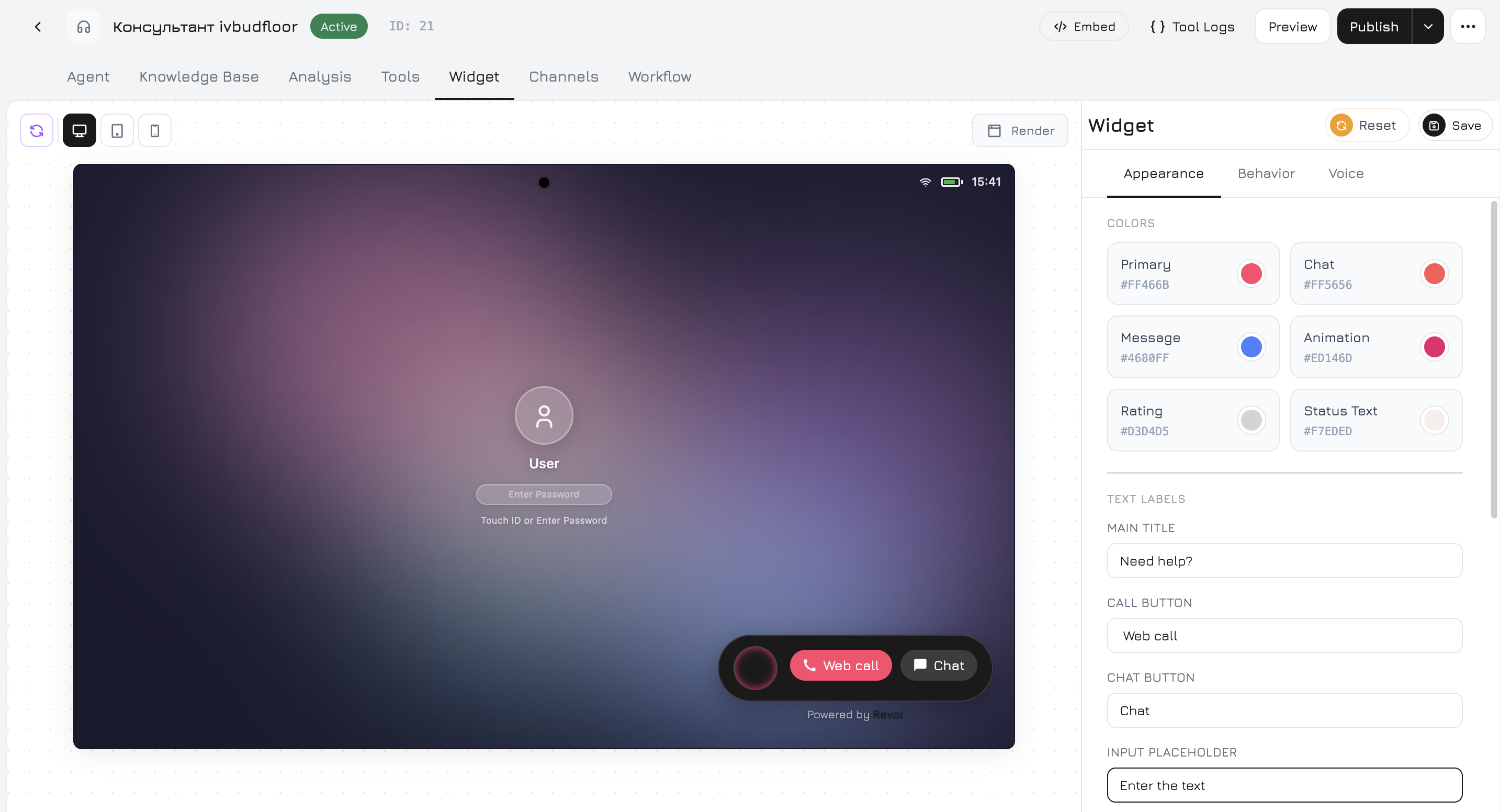
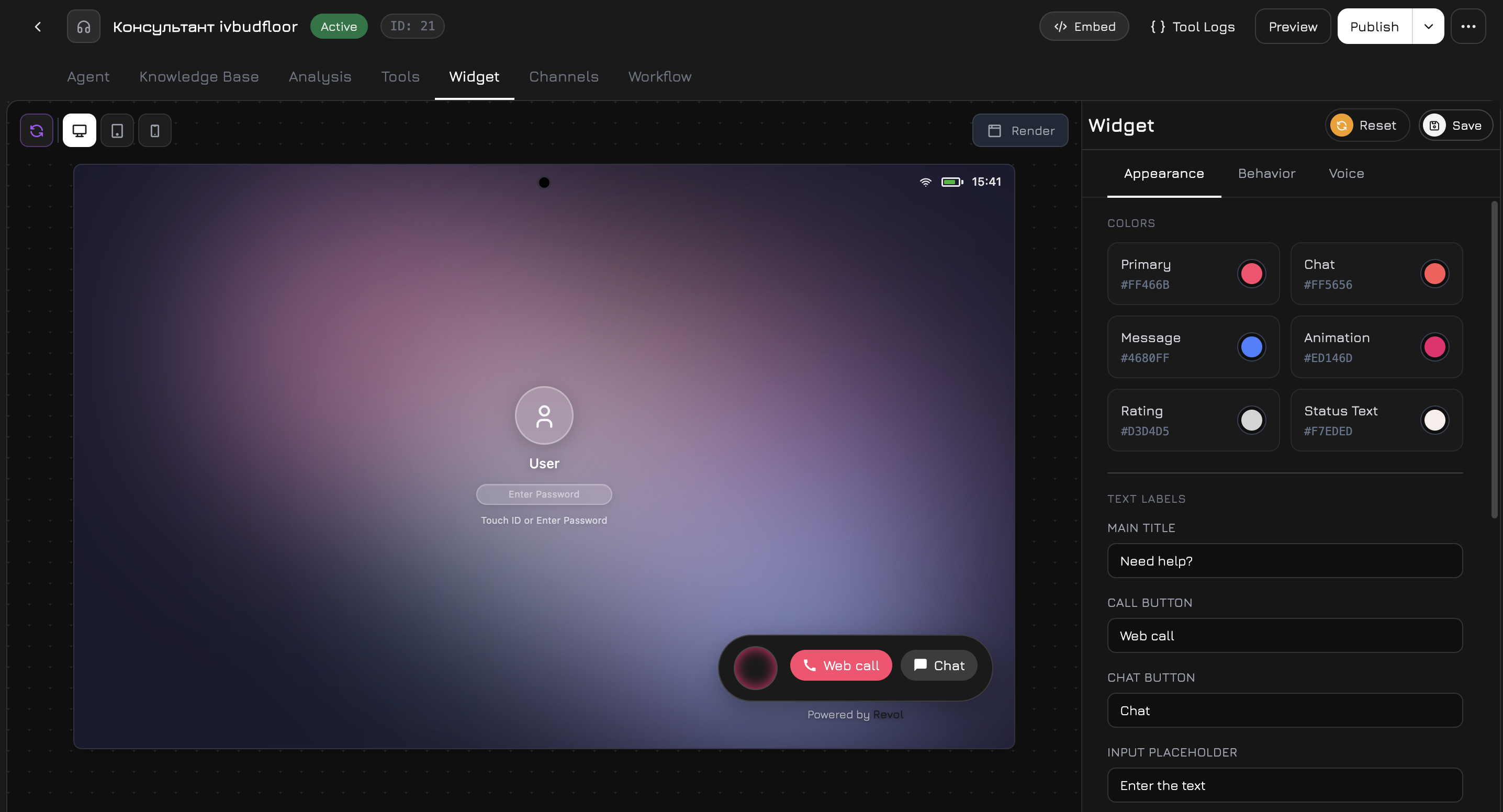
The Widget tab in the agent panel lets you fully customize how the chat widget looks and behaves on your website. All changes are previewed in real time.
Widget settings

Render Button

The Render button in the widget preview area reloads the live preview of your widget with the current settings. Use it to see how your changes look before saving.

Appearance

The Appearance tab controls the visual design of the widget.

Colors

SettingDescription
PrimaryMain button and accent color of the widget
ChatChat action button color
MessageBackground color of the agent’s message bubbles
AnimationColor of pulse and glow effects around the widget button
RatingColor of the star rating icons after conversation
Status TextColor of the status text on the widget button
Click any color swatch to open the color picker with a saturation/hue selector and hex input.

Text Labels

SettingDefaultDescription
Main Title”Need help?”Title displayed on the widget button
Call Button”Web call”Label on the voice call button
Chat Button”Chat”Label on the chat button
Input Placeholder”Enter the text”Placeholder text in the message input field

Position

OptionDescription
Bottom RightDefault — widget appears in the bottom-right corner
Bottom CenterCentered at the bottom of the page
Bottom LeftBottom-left corner
Top RightTop-right corner
Top CenterCentered at the top
Top LeftTop-left corner

Size & Style

SettingOptionsDescription
Widget ThemeLight / DarkColor theme of the chat window
Widget SizeSmall / Medium / LargeOverall size of the widget
Border Radius0–50px (slider)Corner roundness of the widget
Background Opacity0–100% (slider)Transparency of the widget background
Avatar URLURLCustom avatar image for the agent in the chat

Behavior

The Behavior tab controls how the widget functions.

Language

SettingOptionsDescription
Widget LanguageEnglish, Українська, Polski, Deutsch, EspañolInterface language for all widget labels and system messages

Features

SettingDefaultDescription
Feedback CollectionOnShow a star rating prompt after the conversation ends
Text During CallOnAllow the user to type text messages while a voice call is active
Chat Only ModeOffDisable voice calls entirely — only text chat is available
Terms & ConditionsOffRequire the user to accept terms before starting a chat
Sound EffectsOnPlay notification sounds for new messages

Automation

SettingDefaultDescription
Auto OpenOffAutomatically open the widget after a delay
Auto Open Delay5s (slider, 0–60s)How long to wait before auto-opening (only when Auto Open is enabled)
Auto GreetingOffAutomatically send a greeting message when the widget opens

Visibility

SettingDefaultDescription
Widget EnabledOnMaster toggle — show or hide the widget on your website
Show on MobileOnDisplay the widget on mobile devices
Show on DesktopOnDisplay the widget on desktop devices

Branding

SettingDefaultDescription
Powered By BadgeOnShow the “Powered by Revol” branding at the bottom of the widget
Welcome MessageA greeting message displayed when the chat opens (before the user sends anything)

Terms Details

When Terms & Conditions is enabled, these additional fields appear:
SettingDescription
Terms TextThe text shown to the user (e.g., “By continuing, you agree to our Terms of Service”)
Terms URLLink to your full terms page

Voice

The Voice tab configures speech recognition and text-to-speech for voice calls.

Speech Recognition (STT)

SettingOptionsDescription
LanguageУкраїнська, EnglishLanguage for speech-to-text transcription

Greeting Message

The text that the agent speaks when answering a voice call. You can Preview the audio before saving and Save to apply it.

Farewell Message

The text spoken when the call ends. Also has Preview and Save buttons.

Voice Output (TTS)

SettingOptionsDescription
ProviderOpenAI TTSText-to-speech provider (ElevenLabs and Google Cloud TTS coming soon)
VoiceAlloy, Echo, Fable, Onyx, Nova, ShimmerVoice character for the agent
Modeltts-1, tts-1-hdAudio quality — standard or HD
Speed0.5x – 2.0x (slider)Speech speed
Voice descriptions:
VoiceCharacter
AlloyNeutral, balanced
EchoWarm, conversational
FableExpressive, British accent
OnyxDeep, authoritative
NovaFriendly, optimistic
ShimmerClear, gentle

Test Voice

Enter any text and click Play Test to hear how the selected voice sounds with the current settings.

Save & Reset

  • Save — apply all changes to the widget
  • Reset — revert all settings to their last saved state