> ## Documentation Index
> Fetch the complete documentation index at: https://revolai.mintlify.site/llms.txt
> Use this file to discover all available pages before exploring further.
# Campaigns
> Create and manage tracking campaigns with UTM parameters, phone swap, and AI agent behavior
## Overview
The Campaigns tab lets you create and manage tracking campaigns. Each campaign generates a unique tracking URL with UTM parameters that attributes visitor sessions to specific marketing efforts. Beyond attribution, campaigns can swap phone numbers for call tracking and inject custom context into your AI agent's behavior.
 ## Campaign List
The campaigns table shows all your campaigns with key metrics:
| Column | Description |
| ------------------- | ------------------------------------------ |
| **Name** | Campaign name |
| **Source / Medium** | UTM source and medium values |
| **Sessions** | Total sessions attributed to this campaign |
| **Created** | Date the campaign was created |
| **Actions** | Edit or delete the campaign |
Click any row to open the campaign details panel.
***
## Creating a Campaign
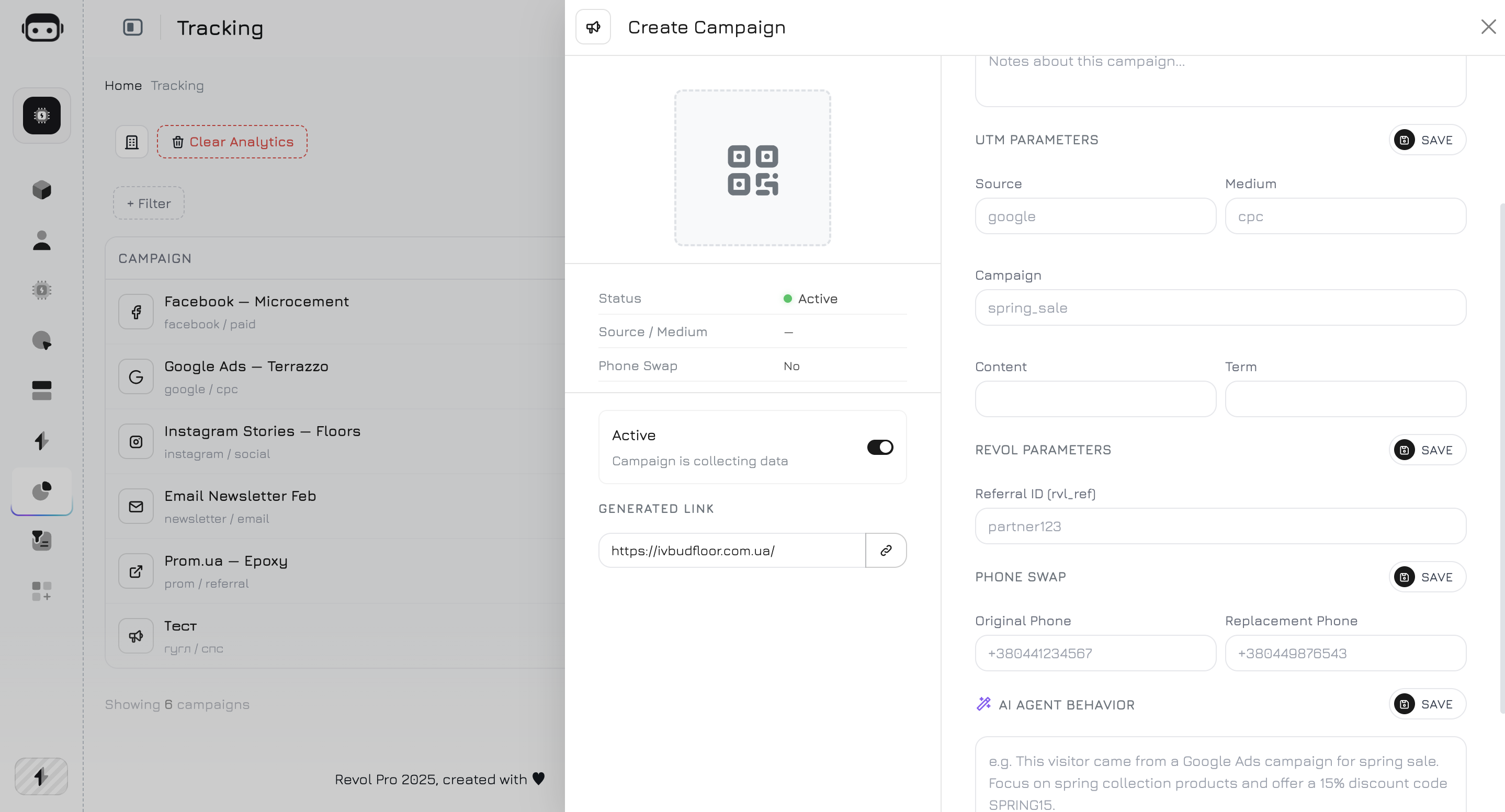
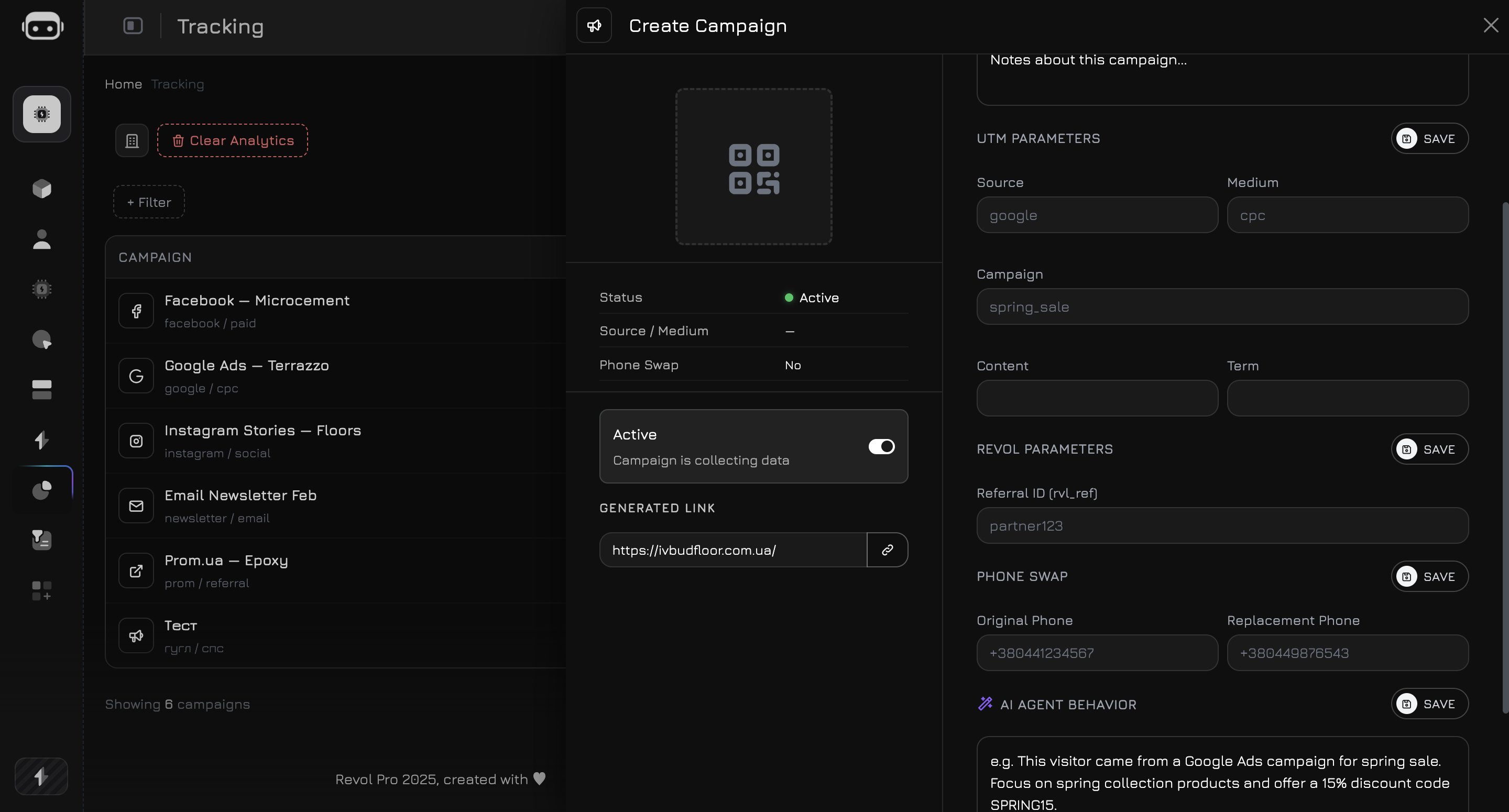
Click **Create Campaign** to open the campaign panel. The panel has two sides: a **preview area** on the left and a **settings form** on the right.
### Campaign Info
| Field | Required | Description |
| --------------- | -------- | ------------------------------------------------------------------------ |
| **Name** | Yes | Internal campaign name (e.g., "Spring Sale 2026", "Google Search Brand") |
| **Description** | No | Notes about the campaign purpose, target audience, or creative details |
### UTM Parameters
Standard UTM parameters that will be appended to the generated tracking URL:
| Parameter | URL Param | Required | Description |
| ------------ | -------------- | -------- | ------------------------------------------------------------------------------------------------- |
| **Source** | `utm_source` | Yes | Traffic source — where visitors come from (e.g., `google`, `facebook`, `newsletter`, `instagram`) |
| **Medium** | `utm_medium` | Yes | Marketing medium — how they get to you (e.g., `cpc`, `email`, `social`, `banner`, `referral`) |
| **Campaign** | `utm_campaign` | Auto | Campaign identifier — auto-filled from the campaign name |
| **Content** | `utm_content` | No | Ad content or variant — useful for A/B testing (e.g., `blue-button`, `header-banner`) |
| **Term** | `utm_term` | No | Paid search keyword (e.g., `buy shoes online`) |
When a visitor arrives via a URL with UTM parameters, the tracker automatically matches the session to the campaign with the same source + medium + campaign combination.
### Revol Parameters
| Parameter | URL Param | Description |
| --------------- | --------- | --------------------------------------------------------------------------------------------------------------------------------------- |
| **Referral ID** | `rvl_ref` | A custom referral identifier. Can be used independently from UTM parameters for internal tracking (e.g., affiliate IDs, partner codes). |
If the URL contains a `rvl_cmp` parameter (direct campaign ID), it takes priority over UTM matching.
**Matching priority:**
1. `rvl_cmp` — direct campaign ID in URL (highest priority)
2. UTM combination — matches `utm_source` + `utm_medium` + `utm_campaign`
3. `rvl_ref` — referral ID fallback
4. Auto-create — if no campaign matches, a new one is created from the UTM values
***
## Phone Swap
Phone swap lets you dynamically replace a phone number on your website with a campaign-specific tracking number. This way, when a visitor calls, you know exactly which campaign drove the call.
| Field | Description |
| --------------------- | ------------------------------------------------------------------------------ |
| **Original Phone** | The default phone number displayed on your website |
| **Replacement Phone** | The tracking number that replaces the original for visitors from this campaign |
When a visitor from this campaign loads your website, the tracker script finds the original phone number in the page content and swaps it with the replacement number. The swap is automatic and invisible to the visitor.
Phone swap requires the tracker script to be installed on your website. The original phone number must appear as text in the page HTML — numbers inside images or iframes are not replaced.
***
## AI Agent Behavior
This is the most powerful campaign feature. The **AI Agent Behavior** field lets you inject campaign-specific context into your AI agent's system prompt, changing how the agent communicates with visitors from this campaign.
### How It Works
A visitor clicks your campaign URL and lands on your website. The tracker identifies the campaign from UTM parameters.
The `campaign_id` is stored in the visitor's session and sent with every chat message to the AI agent.
When the agent processes a message, the campaign's AI prompt is appended to the system prompt as a `[Campaign Context]` block. The agent sees this context alongside its regular instructions.
The agent adjusts its responses based on the campaign context — different tone, offers, or focus depending on where the visitor came from.
### What to Write
The AI Agent Behavior field is a free-text prompt. Write instructions as if you're briefing the agent about this specific audience. Examples:
```text theme={null}
This visitor came from a Google brand search campaign. They already know
our brand. Focus on converting — offer a demo, highlight pricing advantages,
and mention current promotions. Don't spend time explaining what we do.
```
```text theme={null}
This visitor came from a Facebook awareness campaign targeting a cold audience.
They may not know our product well. Start with a brief explanation of key benefits,
use simple language, and offer a free trial rather than pushing for a purchase.
```
```text theme={null}
This visitor is an existing customer from our email newsletter.
Be warm and personal. Ask about their experience with the product.
Offer upsell opportunities and loyalty discounts. Reference their
history with us.
```
```text theme={null}
This visitor was referred by a partner. Mention the partnership,
offer the special partner discount (15% off first month), and
emphasize the integration between our products. Be extra helpful
as this reflects on both brands.
```
The campaign prompt is appended to the agent's system prompt, not replacing it. The agent still follows its base instructions — the campaign context adds an extra layer of guidance for visitors from that specific campaign.
***
## Generated Link & QR Code
The left side of the campaign panel shows a **preview area** with the campaign's QR code, info summary, and generated tracking link.
## Campaign List
The campaigns table shows all your campaigns with key metrics:
| Column | Description |
| ------------------- | ------------------------------------------ |
| **Name** | Campaign name |
| **Source / Medium** | UTM source and medium values |
| **Sessions** | Total sessions attributed to this campaign |
| **Created** | Date the campaign was created |
| **Actions** | Edit or delete the campaign |
Click any row to open the campaign details panel.
***
## Creating a Campaign
Click **Create Campaign** to open the campaign panel. The panel has two sides: a **preview area** on the left and a **settings form** on the right.
### Campaign Info
| Field | Required | Description |
| --------------- | -------- | ------------------------------------------------------------------------ |
| **Name** | Yes | Internal campaign name (e.g., "Spring Sale 2026", "Google Search Brand") |
| **Description** | No | Notes about the campaign purpose, target audience, or creative details |
### UTM Parameters
Standard UTM parameters that will be appended to the generated tracking URL:
| Parameter | URL Param | Required | Description |
| ------------ | -------------- | -------- | ------------------------------------------------------------------------------------------------- |
| **Source** | `utm_source` | Yes | Traffic source — where visitors come from (e.g., `google`, `facebook`, `newsletter`, `instagram`) |
| **Medium** | `utm_medium` | Yes | Marketing medium — how they get to you (e.g., `cpc`, `email`, `social`, `banner`, `referral`) |
| **Campaign** | `utm_campaign` | Auto | Campaign identifier — auto-filled from the campaign name |
| **Content** | `utm_content` | No | Ad content or variant — useful for A/B testing (e.g., `blue-button`, `header-banner`) |
| **Term** | `utm_term` | No | Paid search keyword (e.g., `buy shoes online`) |
When a visitor arrives via a URL with UTM parameters, the tracker automatically matches the session to the campaign with the same source + medium + campaign combination.
### Revol Parameters
| Parameter | URL Param | Description |
| --------------- | --------- | --------------------------------------------------------------------------------------------------------------------------------------- |
| **Referral ID** | `rvl_ref` | A custom referral identifier. Can be used independently from UTM parameters for internal tracking (e.g., affiliate IDs, partner codes). |
If the URL contains a `rvl_cmp` parameter (direct campaign ID), it takes priority over UTM matching.
**Matching priority:**
1. `rvl_cmp` — direct campaign ID in URL (highest priority)
2. UTM combination — matches `utm_source` + `utm_medium` + `utm_campaign`
3. `rvl_ref` — referral ID fallback
4. Auto-create — if no campaign matches, a new one is created from the UTM values
***
## Phone Swap
Phone swap lets you dynamically replace a phone number on your website with a campaign-specific tracking number. This way, when a visitor calls, you know exactly which campaign drove the call.
| Field | Description |
| --------------------- | ------------------------------------------------------------------------------ |
| **Original Phone** | The default phone number displayed on your website |
| **Replacement Phone** | The tracking number that replaces the original for visitors from this campaign |
When a visitor from this campaign loads your website, the tracker script finds the original phone number in the page content and swaps it with the replacement number. The swap is automatic and invisible to the visitor.
Phone swap requires the tracker script to be installed on your website. The original phone number must appear as text in the page HTML — numbers inside images or iframes are not replaced.
***
## AI Agent Behavior
This is the most powerful campaign feature. The **AI Agent Behavior** field lets you inject campaign-specific context into your AI agent's system prompt, changing how the agent communicates with visitors from this campaign.
### How It Works
A visitor clicks your campaign URL and lands on your website. The tracker identifies the campaign from UTM parameters.
The `campaign_id` is stored in the visitor's session and sent with every chat message to the AI agent.
When the agent processes a message, the campaign's AI prompt is appended to the system prompt as a `[Campaign Context]` block. The agent sees this context alongside its regular instructions.
The agent adjusts its responses based on the campaign context — different tone, offers, or focus depending on where the visitor came from.
### What to Write
The AI Agent Behavior field is a free-text prompt. Write instructions as if you're briefing the agent about this specific audience. Examples:
```text theme={null}
This visitor came from a Google brand search campaign. They already know
our brand. Focus on converting — offer a demo, highlight pricing advantages,
and mention current promotions. Don't spend time explaining what we do.
```
```text theme={null}
This visitor came from a Facebook awareness campaign targeting a cold audience.
They may not know our product well. Start with a brief explanation of key benefits,
use simple language, and offer a free trial rather than pushing for a purchase.
```
```text theme={null}
This visitor is an existing customer from our email newsletter.
Be warm and personal. Ask about their experience with the product.
Offer upsell opportunities and loyalty discounts. Reference their
history with us.
```
```text theme={null}
This visitor was referred by a partner. Mention the partnership,
offer the special partner discount (15% off first month), and
emphasize the integration between our products. Be extra helpful
as this reflects on both brands.
```
The campaign prompt is appended to the agent's system prompt, not replacing it. The agent still follows its base instructions — the campaign context adds an extra layer of guidance for visitors from that specific campaign.
***
## Generated Link & QR Code
The left side of the campaign panel shows a **preview area** with the campaign's QR code, info summary, and generated tracking link.
 * **QR Code** — scannable code linking to the generated campaign URL
* **Campaign Info** — summary table with campaign ID, status, source/medium, phone swap status, and creation date
* **Active Toggle** — enable or disable the campaign without deleting it
* **Generated Link** — the full tracking URL built from your website domain + UTM parameters
### Link Builder
Select your website URL from the dropdown, and the system generates the full tracking link:
```
https://yoursite.com/?utm_source=google&utm_medium=cpc&utm_campaign=spring-sale&rvl_ref=partner123
```
Click **Copy** to copy the link to your clipboard.
### QR Code
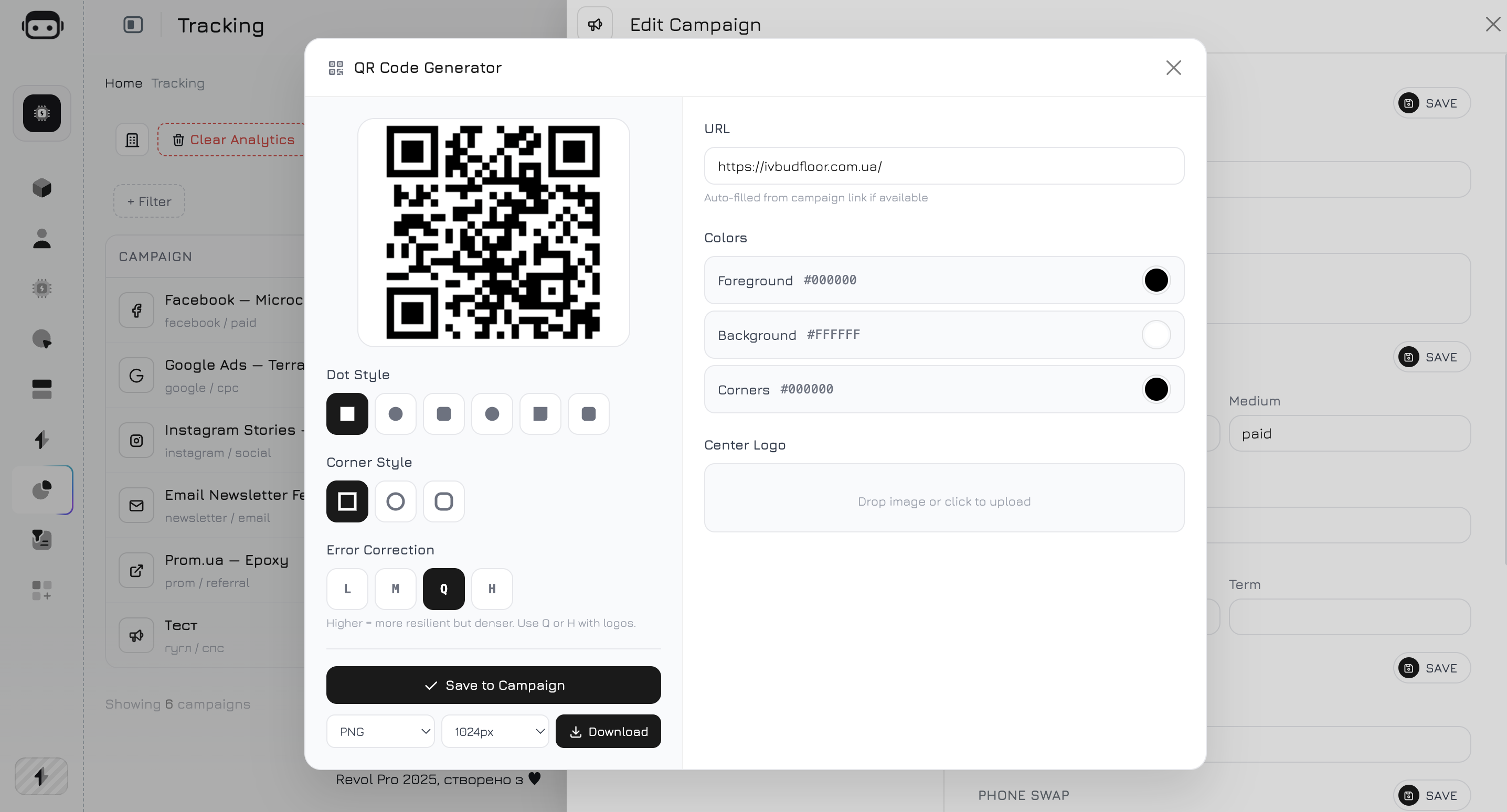
Every campaign automatically generates a **QR code** that encodes the full tracking URL with all UTM and Revol parameters. When someone scans the code, they land on your website and the session is immediately attributed to this campaign — just like clicking a link.
#### Customization
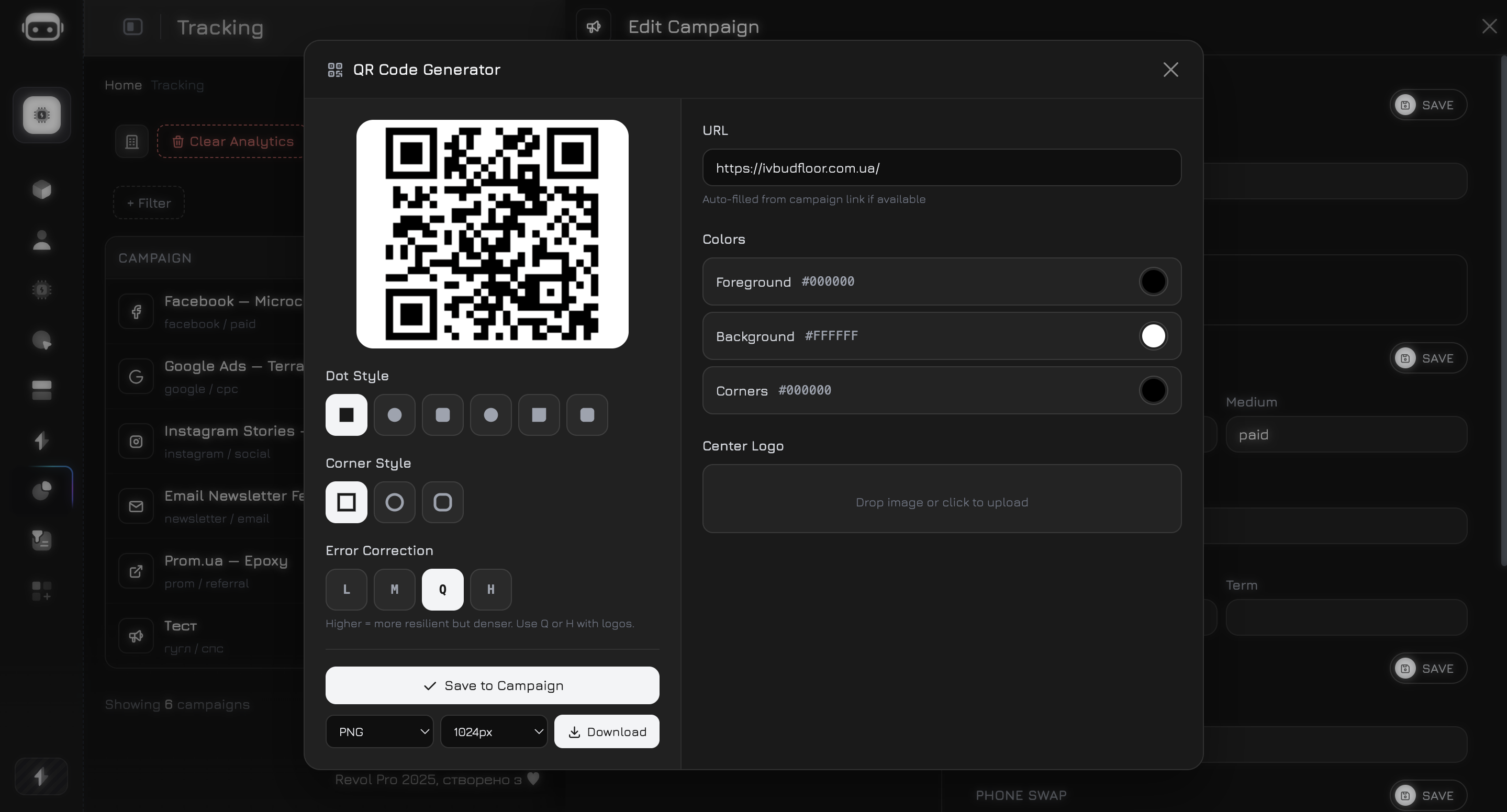
You can customize the QR code appearance directly in the campaign panel:
| Setting | Description |
| -------------- | ---------------------------------------------------------------- |
| **Color** | Change the QR code color to match your brand |
| **Background** | Set a background color or keep it transparent |
| **Logo** | Add your company logo in the center of the QR code |
| **Size** | Adjust the resolution for different use cases (print vs. screen) |
Click **Download** to save the QR code as an image file ready for use in any material.
#### Use Cases
The QR code is a powerful offline-to-online bridge. Here are practical ways to use it:
Add the QR code to **brochures, flyers, business cards, catalogs, or packaging**. Customers scan it and land on your website with full campaign attribution. You see exactly how many visitors came from each printed material.
Give each referral partner their own campaign with a unique QR code. Partners print it on their materials or share it digitally. You track how many leads each partner brings — with full session data, page flows, and conversation history.
Display the QR code on **banners, posters, or screens** at events. Attendees scan it to learn more about your product. Combined with AI Agent Behavior, your agent can greet them with event-specific messaging: *"Welcome from \[Event Name]! Here's a special offer for attendees..."*
Use the QR code inside **website triggers** — modal windows, slide-ins, or overlays that appear based on visitor behavior. For example, show a popup with a QR code that visitors can scan on their phone to continue the conversation later. Learn more in the [Triggers](/widget/triggers) section.
Print QR codes on product labels or packaging. Customers scan to access support, documentation, or warranty registration — all tracked as a campaign session with AI agent available for instant help.
Combine QR codes with **AI Agent Behavior** for maximum impact. Create a campaign for your trade show brochure, set the AI prompt to *"This visitor scanned a QR code from our brochure at \[Event]. Offer the event discount and focus on \[Product]"* — and every scan starts a personalized AI conversation.
***
## Third-Party Ad Campaigns
When you run ads on platforms like Google Ads or Facebook Ads, those platforms automatically append UTM parameters to your landing page URLs. Revol works seamlessly with these — no conflicts, no extra setup.
### What Happens
When a visitor clicks a Google or Facebook ad with UTM parameters:
1. The visitor lands on your website with UTM tags in the URL (e.g., `?utm_source=google&utm_medium=cpc&utm_campaign=brand`)
2. Revol's tracker reads the UTM parameters **passively** — it does not modify, remove, or redirect them
3. If a matching campaign exists in Revol, the session is attributed to it. If not, Revol auto-creates a campaign from the UTM values
4. Other tracking scripts (Google Analytics, Facebook Pixel, TikTok Pixel, etc.) continue to work normally — they read the same URL parameters independently
### Why There Are No Conflicts
Revol uses two types of URL parameters:
| Type | Parameters | Purpose |
| ------------------ | --------------------------------------------------------------------- | ----------------------------------------------------------------------------------------------------------- |
| **Standard UTM** | `utm_source`, `utm_medium`, `utm_campaign`, `utm_content`, `utm_term` | Shared with all analytics tools. Revol reads them, never overwrites them. |
| **Revol-specific** | `rvl_cmp`, `rvl_ref` | Prefixed with `rvl_` — unique to Revol. No other platform uses these, so there is zero chance of collision. |
Key points:
* **Read-only approach** — Revol's tracker only reads URL parameters. It never modifies the URL, sets redirects, or strips parameters that other tools need.
* **Unique prefix** — Revol's own parameters (`rvl_cmp`, `rvl_ref`) use the `rvl_` namespace, which doesn't overlap with any known tracking platform.
* **Isolated storage** — Revol stores campaign data in its own database. It doesn't interfere with cookies, `dataLayer`, or local storage used by Google Analytics, Facebook Pixel, or other tools.
* **No tag conflicts** — The `tracker.js` script operates independently. It doesn't modify the DOM in ways that break other tracking tags or interfere with tag managers (GTM, etc.).
You can create a Revol campaign with the same UTM values that your Google Ads or Facebook Ads use. This way, Revol picks up those sessions automatically and you can add AI Agent Behavior instructions specific to each ad campaign — without any changes to your ad platform setup.
***
## Managing Campaigns
### Edit
Click a campaign row in the table to open the panel. Modify any field and click **Save**.
### Toggle Active / Inactive
Use the **Active** toggle in the campaign panel. Inactive campaigns stop tracking new sessions but keep historical data.
### Delete
Click the **Delete** button at the bottom of the campaign panel. This removes the campaign configuration but keeps the session data already collected.
Deleting a campaign cannot be undone. Sessions already attributed to the campaign will retain the campaign reference in reports.
* **QR Code** — scannable code linking to the generated campaign URL
* **Campaign Info** — summary table with campaign ID, status, source/medium, phone swap status, and creation date
* **Active Toggle** — enable or disable the campaign without deleting it
* **Generated Link** — the full tracking URL built from your website domain + UTM parameters
### Link Builder
Select your website URL from the dropdown, and the system generates the full tracking link:
```
https://yoursite.com/?utm_source=google&utm_medium=cpc&utm_campaign=spring-sale&rvl_ref=partner123
```
Click **Copy** to copy the link to your clipboard.
### QR Code
Every campaign automatically generates a **QR code** that encodes the full tracking URL with all UTM and Revol parameters. When someone scans the code, they land on your website and the session is immediately attributed to this campaign — just like clicking a link.
#### Customization
You can customize the QR code appearance directly in the campaign panel:
| Setting | Description |
| -------------- | ---------------------------------------------------------------- |
| **Color** | Change the QR code color to match your brand |
| **Background** | Set a background color or keep it transparent |
| **Logo** | Add your company logo in the center of the QR code |
| **Size** | Adjust the resolution for different use cases (print vs. screen) |
Click **Download** to save the QR code as an image file ready for use in any material.
#### Use Cases
The QR code is a powerful offline-to-online bridge. Here are practical ways to use it:
Add the QR code to **brochures, flyers, business cards, catalogs, or packaging**. Customers scan it and land on your website with full campaign attribution. You see exactly how many visitors came from each printed material.
Give each referral partner their own campaign with a unique QR code. Partners print it on their materials or share it digitally. You track how many leads each partner brings — with full session data, page flows, and conversation history.
Display the QR code on **banners, posters, or screens** at events. Attendees scan it to learn more about your product. Combined with AI Agent Behavior, your agent can greet them with event-specific messaging: *"Welcome from \[Event Name]! Here's a special offer for attendees..."*
Use the QR code inside **website triggers** — modal windows, slide-ins, or overlays that appear based on visitor behavior. For example, show a popup with a QR code that visitors can scan on their phone to continue the conversation later. Learn more in the [Triggers](/widget/triggers) section.
Print QR codes on product labels or packaging. Customers scan to access support, documentation, or warranty registration — all tracked as a campaign session with AI agent available for instant help.
Combine QR codes with **AI Agent Behavior** for maximum impact. Create a campaign for your trade show brochure, set the AI prompt to *"This visitor scanned a QR code from our brochure at \[Event]. Offer the event discount and focus on \[Product]"* — and every scan starts a personalized AI conversation.
***
## Third-Party Ad Campaigns
When you run ads on platforms like Google Ads or Facebook Ads, those platforms automatically append UTM parameters to your landing page URLs. Revol works seamlessly with these — no conflicts, no extra setup.
### What Happens
When a visitor clicks a Google or Facebook ad with UTM parameters:
1. The visitor lands on your website with UTM tags in the URL (e.g., `?utm_source=google&utm_medium=cpc&utm_campaign=brand`)
2. Revol's tracker reads the UTM parameters **passively** — it does not modify, remove, or redirect them
3. If a matching campaign exists in Revol, the session is attributed to it. If not, Revol auto-creates a campaign from the UTM values
4. Other tracking scripts (Google Analytics, Facebook Pixel, TikTok Pixel, etc.) continue to work normally — they read the same URL parameters independently
### Why There Are No Conflicts
Revol uses two types of URL parameters:
| Type | Parameters | Purpose |
| ------------------ | --------------------------------------------------------------------- | ----------------------------------------------------------------------------------------------------------- |
| **Standard UTM** | `utm_source`, `utm_medium`, `utm_campaign`, `utm_content`, `utm_term` | Shared with all analytics tools. Revol reads them, never overwrites them. |
| **Revol-specific** | `rvl_cmp`, `rvl_ref` | Prefixed with `rvl_` — unique to Revol. No other platform uses these, so there is zero chance of collision. |
Key points:
* **Read-only approach** — Revol's tracker only reads URL parameters. It never modifies the URL, sets redirects, or strips parameters that other tools need.
* **Unique prefix** — Revol's own parameters (`rvl_cmp`, `rvl_ref`) use the `rvl_` namespace, which doesn't overlap with any known tracking platform.
* **Isolated storage** — Revol stores campaign data in its own database. It doesn't interfere with cookies, `dataLayer`, or local storage used by Google Analytics, Facebook Pixel, or other tools.
* **No tag conflicts** — The `tracker.js` script operates independently. It doesn't modify the DOM in ways that break other tracking tags or interfere with tag managers (GTM, etc.).
You can create a Revol campaign with the same UTM values that your Google Ads or Facebook Ads use. This way, Revol picks up those sessions automatically and you can add AI Agent Behavior instructions specific to each ad campaign — without any changes to your ad platform setup.
***
## Managing Campaigns
### Edit
Click a campaign row in the table to open the panel. Modify any field and click **Save**.
### Toggle Active / Inactive
Use the **Active** toggle in the campaign panel. Inactive campaigns stop tracking new sessions but keep historical data.
### Delete
Click the **Delete** button at the bottom of the campaign panel. This removes the campaign configuration but keeps the session data already collected.
Deleting a campaign cannot be undone. Sessions already attributed to the campaign will retain the campaign reference in reports.