> ## Documentation Index
> Fetch the complete documentation index at: https://revolai.mintlify.site/llms.txt
> Use this file to discover all available pages before exploring further.
# Integrations Overview
> Connect AI agents to communication channels, productivity tools, and ad platforms
 ## What Are Integrations?
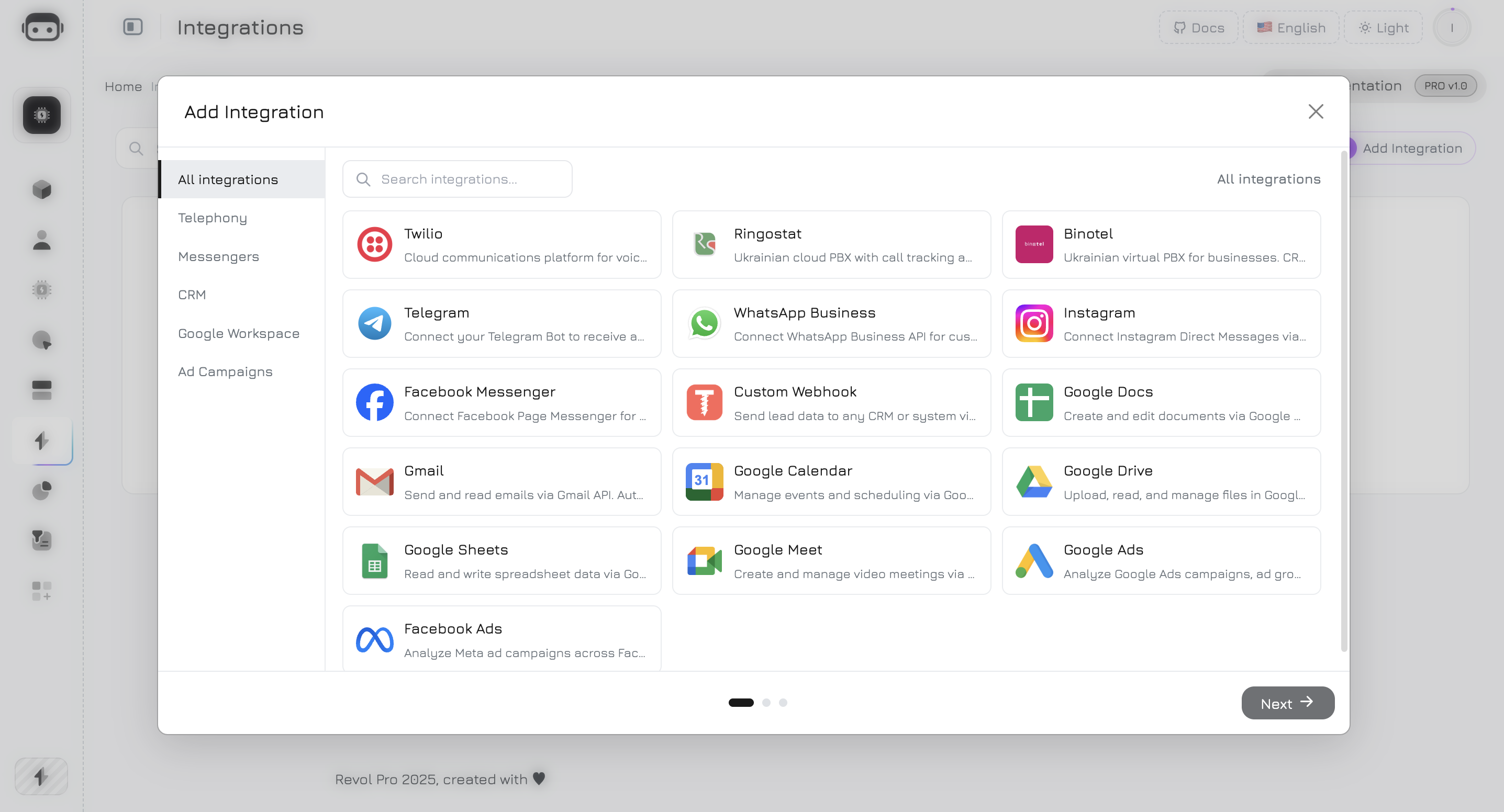
Integrations connect your AI agents to external services — so they can answer phone calls, reply in messengers, send emails, create documents, and pull analytics data. Each integration gives your agent a set of **tools** it can call during conversations.
## Available Integrations
Twilio, Ringostat, Binotel — AI-powered phone calls and SMS
Telegram, WhatsApp, Instagram DM, Facebook Messenger
Gmail, Docs, Sheets, Drive, Calendar, Meet
Google Ads, Facebook Ads — campaign analytics and management
Send lead data to any CRM or external system
## How It Works
Every integration follows the same pattern:
Add an integration from the Integrations page. Depending on the provider, you either enter API credentials (VoIP, Telegram) or go through OAuth (Google, Meta).
Revol tests your credentials against the provider's API and fetches available resources (phone numbers, bot info, connected accounts).
After verification, Revol automatically creates **agent tools** based on the integration type. For example, connecting Gmail gives your agents `send_email`, `read_inbox`, `search_emails`, and other tools.
In the agent's **Tools** tab, enable the tools you need. Then add them to workflow nodes — the agent can call these tools during conversations via LLM function calling.
## Authentication Methods
| Method | Used by | How it works |
| -------------------- | ------------------------------------------------------ | ---------------------------------------------------------------------------------------------------------------------------- |
| **API Key / Token** | Twilio, Ringostat, Binotel, Telegram | Enter credentials in the wizard. Stored encrypted in the database. |
| **Google OAuth 2.0** | Gmail, Docs, Sheets, Drive, Calendar, Meet, Google Ads | Click "Connect with Google", authorize in the consent screen. Revol stores a refresh token and auto-refreshes access tokens. |
| **Meta OAuth** | WhatsApp, Instagram, Facebook Messenger, Facebook Ads | Click "Connect with Meta", authorize via Meta. Revol exchanges the code for a long-lived token (\~60 days). |
| **Webhook URL** | Custom Webhook | No auth needed — you provide the target URL and optional headers. |
## Channels
A **channel** is the connection between an integration and a specific AI agent. One integration (e.g., your Twilio account) can serve multiple agents through separate channels.
Available channel types:
| Channel | Requires Integration | Description |
| -------------- | --------------------- | ------------------------------------- |
| **Web Widget** | No | Built-in chat widget for your website |
| **Phone** | VoIP integration | Inbound/outbound voice calls and SMS |
| **Telegram** | Telegram integration | Bot messages in Telegram |
| **WhatsApp** | WhatsApp integration | WhatsApp Business messages |
| **Instagram** | Instagram integration | Instagram Direct Messages |
To set up a channel, go to the agent's **Channels** tab, select the channel type, and choose which integration to use.
## Webhook Security
All inbound webhook endpoints (VoIP calls, messenger messages) are protected with:
* **Signature validation** — cryptographic verification of request authenticity per provider
* **Idempotency** — duplicate webhook detection to prevent double-processing
* **Rate limiting** — 120 requests per minute per channel
* **IP allowlisting** — where supported by provider (e.g., Binotel)
## All Integrations
| Integration | Category | Auth | Tools |
| ------------------ | ------------ | ------------ | ------------------------------------------------ |
| Twilio | Telephony | API Key | 3 tools — calls, SMS, call history |
| Ringostat | Telephony | API Key | 2 tools — calls, call history |
| Binotel | Telephony | API Key | 2 tools — calls, call history |
| Telegram | Messenger | Bot Token | 6 tools — messages, files, history, edit, delete |
| WhatsApp Business | Messenger | Meta OAuth | 6 tools — messages, templates, media, history |
| Instagram DM | Messenger | Meta OAuth | 6 tools — messages, media, history, comments |
| Facebook Messenger | Messenger | Meta OAuth | 6 tools — messages, templates, media, buttons |
| Gmail | Productivity | Google OAuth | 6 tools — send, read, search, reply, drafts |
| Google Docs | Productivity | Google OAuth | 5 tools — create, read, append, search, export |
| Google Sheets | Productivity | Google OAuth | 7 tools — read, write, append, search, create |
| Google Drive | Productivity | Google OAuth | 8 tools — list, search, upload, share, folders |
| Google Calendar | Productivity | Google OAuth | 6 tools — events, availability, free slots |
| Google Meet | Productivity | Google OAuth | 1 tool — create meeting link |
| Google Ads | Advertising | Google OAuth | 3 tools — campaigns, keywords, pause |
| Facebook Ads | Advertising | Meta OAuth | 4 tools — campaigns, ad sets, insights, pause |
| Custom Webhook | CRM | URL | 2 tools — send payload, test connection |
**Total: 67 agent tools** across 16 integrations.
## Next Steps
Connect Twilio, Ringostat, or Binotel for AI phone calls
Connect Telegram, WhatsApp, Instagram, or Facebook
Connect Gmail, Docs, Sheets, Drive, Calendar, Meet
Connect Google Ads or Facebook Ads
## What Are Integrations?
Integrations connect your AI agents to external services — so they can answer phone calls, reply in messengers, send emails, create documents, and pull analytics data. Each integration gives your agent a set of **tools** it can call during conversations.
## Available Integrations
Twilio, Ringostat, Binotel — AI-powered phone calls and SMS
Telegram, WhatsApp, Instagram DM, Facebook Messenger
Gmail, Docs, Sheets, Drive, Calendar, Meet
Google Ads, Facebook Ads — campaign analytics and management
Send lead data to any CRM or external system
## How It Works
Every integration follows the same pattern:
Add an integration from the Integrations page. Depending on the provider, you either enter API credentials (VoIP, Telegram) or go through OAuth (Google, Meta).
Revol tests your credentials against the provider's API and fetches available resources (phone numbers, bot info, connected accounts).
After verification, Revol automatically creates **agent tools** based on the integration type. For example, connecting Gmail gives your agents `send_email`, `read_inbox`, `search_emails`, and other tools.
In the agent's **Tools** tab, enable the tools you need. Then add them to workflow nodes — the agent can call these tools during conversations via LLM function calling.
## Authentication Methods
| Method | Used by | How it works |
| -------------------- | ------------------------------------------------------ | ---------------------------------------------------------------------------------------------------------------------------- |
| **API Key / Token** | Twilio, Ringostat, Binotel, Telegram | Enter credentials in the wizard. Stored encrypted in the database. |
| **Google OAuth 2.0** | Gmail, Docs, Sheets, Drive, Calendar, Meet, Google Ads | Click "Connect with Google", authorize in the consent screen. Revol stores a refresh token and auto-refreshes access tokens. |
| **Meta OAuth** | WhatsApp, Instagram, Facebook Messenger, Facebook Ads | Click "Connect with Meta", authorize via Meta. Revol exchanges the code for a long-lived token (\~60 days). |
| **Webhook URL** | Custom Webhook | No auth needed — you provide the target URL and optional headers. |
## Channels
A **channel** is the connection between an integration and a specific AI agent. One integration (e.g., your Twilio account) can serve multiple agents through separate channels.
Available channel types:
| Channel | Requires Integration | Description |
| -------------- | --------------------- | ------------------------------------- |
| **Web Widget** | No | Built-in chat widget for your website |
| **Phone** | VoIP integration | Inbound/outbound voice calls and SMS |
| **Telegram** | Telegram integration | Bot messages in Telegram |
| **WhatsApp** | WhatsApp integration | WhatsApp Business messages |
| **Instagram** | Instagram integration | Instagram Direct Messages |
To set up a channel, go to the agent's **Channels** tab, select the channel type, and choose which integration to use.
## Webhook Security
All inbound webhook endpoints (VoIP calls, messenger messages) are protected with:
* **Signature validation** — cryptographic verification of request authenticity per provider
* **Idempotency** — duplicate webhook detection to prevent double-processing
* **Rate limiting** — 120 requests per minute per channel
* **IP allowlisting** — where supported by provider (e.g., Binotel)
## All Integrations
| Integration | Category | Auth | Tools |
| ------------------ | ------------ | ------------ | ------------------------------------------------ |
| Twilio | Telephony | API Key | 3 tools — calls, SMS, call history |
| Ringostat | Telephony | API Key | 2 tools — calls, call history |
| Binotel | Telephony | API Key | 2 tools — calls, call history |
| Telegram | Messenger | Bot Token | 6 tools — messages, files, history, edit, delete |
| WhatsApp Business | Messenger | Meta OAuth | 6 tools — messages, templates, media, history |
| Instagram DM | Messenger | Meta OAuth | 6 tools — messages, media, history, comments |
| Facebook Messenger | Messenger | Meta OAuth | 6 tools — messages, templates, media, buttons |
| Gmail | Productivity | Google OAuth | 6 tools — send, read, search, reply, drafts |
| Google Docs | Productivity | Google OAuth | 5 tools — create, read, append, search, export |
| Google Sheets | Productivity | Google OAuth | 7 tools — read, write, append, search, create |
| Google Drive | Productivity | Google OAuth | 8 tools — list, search, upload, share, folders |
| Google Calendar | Productivity | Google OAuth | 6 tools — events, availability, free slots |
| Google Meet | Productivity | Google OAuth | 1 tool — create meeting link |
| Google Ads | Advertising | Google OAuth | 3 tools — campaigns, keywords, pause |
| Facebook Ads | Advertising | Meta OAuth | 4 tools — campaigns, ad sets, insights, pause |
| Custom Webhook | CRM | URL | 2 tools — send payload, test connection |
**Total: 67 agent tools** across 16 integrations.
## Next Steps
Connect Twilio, Ringostat, or Binotel for AI phone calls
Connect Telegram, WhatsApp, Instagram, or Facebook
Connect Gmail, Docs, Sheets, Drive, Calendar, Meet
Connect Google Ads or Facebook Ads