> ## Documentation Index
> Fetch the complete documentation index at: https://revolai.mintlify.site/llms.txt
> Use this file to discover all available pages before exploring further.

# AI Agents

> Create intelligent AI assistants with custom workflows, knowledge bases, voice capabilities, and multi-channel deployment

## What Are AI Agents?

AI Agents in Revol are intelligent assistants that work with customer interactions across multiple channels — your website widget, phone calls, Telegram, WhatsApp, and Instagram. Each agent has its own personality, knowledge base, conversation workflow, and set of tools.

### Operating Modes

Agents can operate in three modes depending on your business needs:

| Mode        | Who Communicates | Agent's Role                                                                                                                                                                                                                                    |
| ----------- | ---------------- | ----------------------------------------------------------------------------------------------------------------------------------------------------------------------------------------------------------------------------------------------- |
| **Active**  | AI Agent         | The agent fully handles customer communication — responds to messages, calls tools, follows the workflow, and resolves requests autonomously                                                                                                    |
| **Passive** | Your Team        | Your team handles all customer communication. The agent monitors every conversation in the background — auditing compliance with communication standards, tracking quality metrics, and providing analysis without ever responding to customers |
| **Hybrid**  | Both             | The AI handles routine interactions (FAQ, product inquiries, scheduling) while your team takes over complex or sensitive cases. The agent continuously analyzes all conversations regardless of who responds                                    |

<Tip>
  **Passive mode** is powerful for teams that already have established communication processes. The agent becomes an always-on quality auditor — it checks whether operators follow scripts, identifies missed opportunities, monitors response times, and surfaces conversation insights. All analytics, memory extraction, and tracking work the same as in Active mode.
</Tip>

***

## Creating an Agent

Click **Create Agent** to start a 2-step wizard:

**Step 1** — enter agent name (min 3 characters) and optional first message (greeting text).

**Step 2** — select a use case: Customer Support, Outbound Sales, Lead Qualification, Answering Service, Consultation Booking, Client Intake, Service Recommendations, Scheduling, Billing Inquiries, Project Updates, Resource Library, Learning & Development, or Other. This is purely visual — the selected use case does not affect the agent's behavior or configuration.

After creation, the agent starts in **Draft** status with a [default workflow](#default-workflow) already built.

### Agent Status

| Status       | Behavior                                                                                                          |
| ------------ | ----------------------------------------------------------------------------------------------------------------- |
| **Draft**    | Not active. Use while configuring.                                                                                |
| **Active**   | Live, responding to messages. **Only one agent per company can be active** — activating one deactivates the rest. |
| **Inactive** | Paused. Keeps all configuration.                                                                                  |

***

## Agent Editor

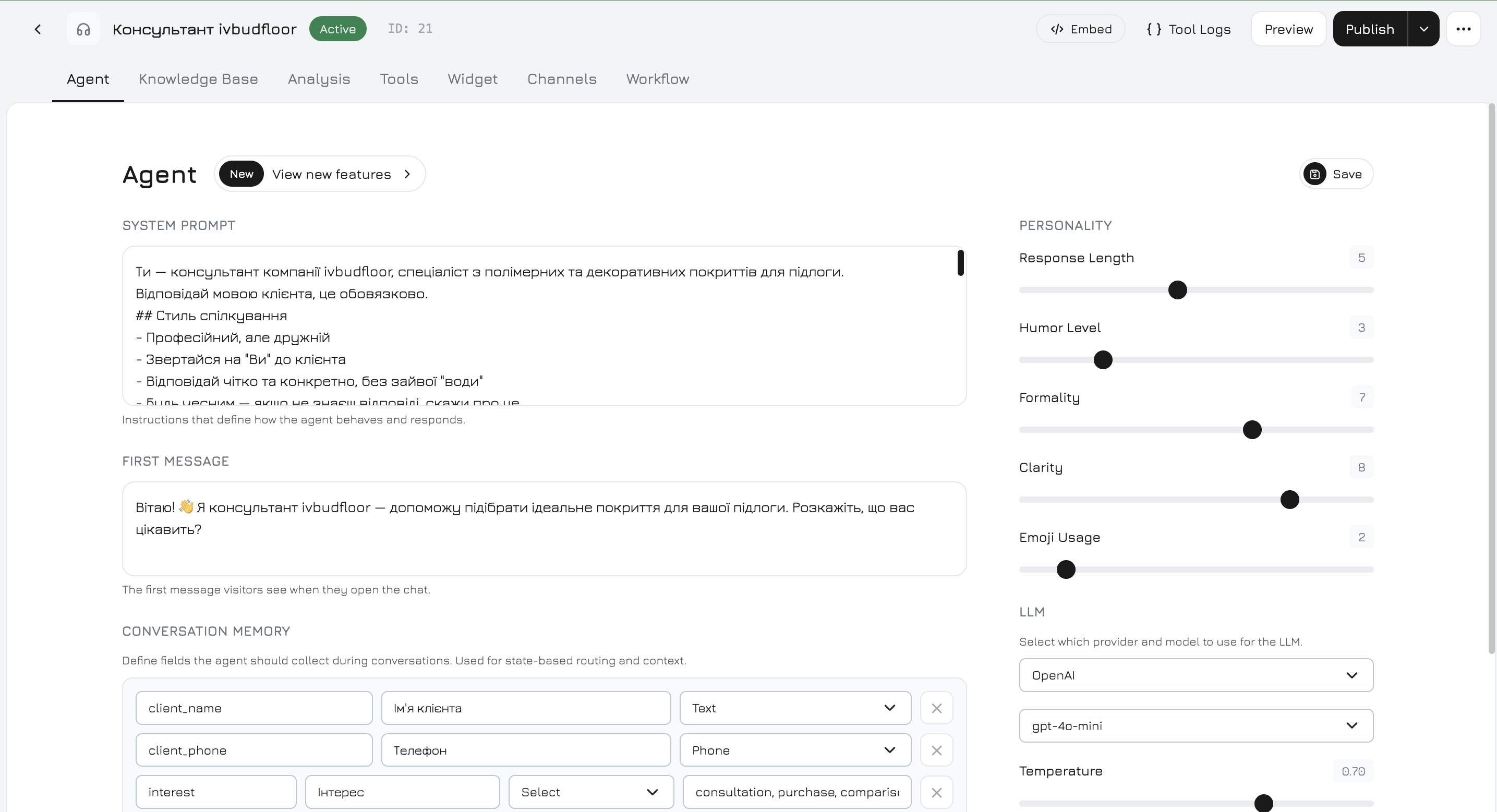
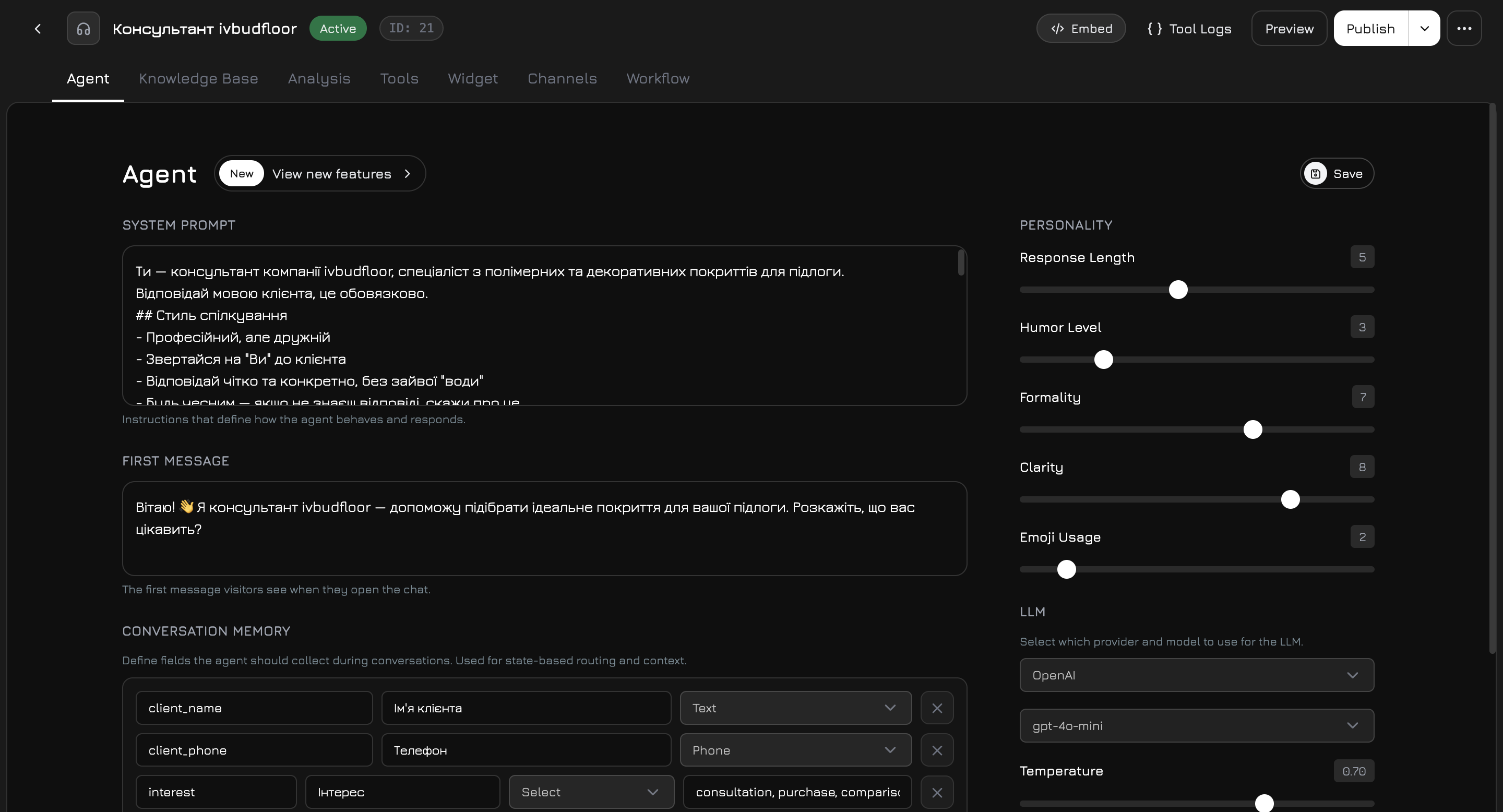
The agent editor is a fullscreen modal with **7 tabs**: Agent, Knowledge Base, Analysis, Tools, Widget, Channels, Workflow.
<Frame>
  <img className="block dark:hidden" src="https://mintcdn.com/revolai/B4zPwXpQ9Qvk4wCE/images/agent-editor-light.png?fit=max&auto=format&n=B4zPwXpQ9Qvk4wCE&q=85&s=11cb7710b8f38a37ccbd473d30cbe430" alt="Agent editor" width="2870" height="1557" data-path="images/agent-editor-light.png" />

  <img className="hidden dark:block" src="https://mintcdn.com/revolai/B4zPwXpQ9Qvk4wCE/images/agent-editor-dark.png?fit=max&auto=format&n=B4zPwXpQ9Qvk4wCE&q=85&s=9b604bc33d074938f528f71d19f82a8a" alt="Agent editor" width="2880" height="1556" data-path="images/agent-editor-dark.png" />
</Frame>

### Header

The header is always visible and shows:

* Agent name (click to rename inline)
* Status badge (Active / Inactive)
* **Embed Code** — get the widget `<script>` snippet
* **Tool Logs** — inspect all tool executions and channel events
* **Preview** — link to the client's website where the widget is installed, to see it as visitors do
* **Publish** — publish to Marketplace (public or private)

***

## Agent Tab

The main configuration tab where you set up the agent's core settings — system prompt, personality, LLM provider, and conversation memory.

### Left Column

**System Prompt** — the core instructions defining how the agent behaves. If left empty, a default prompt is generated from your company name with basic communication rules.

<Tip>
  A security block is automatically appended to every system prompt. It prevents prompt injection — the agent will never reveal its instructions, ignore safety rules, or follow requests to change its role. You don't need to add this manually.
</Tip>

**First Message** — greeting text visitors see when the chat opens.

**Conversation Memory** — structured fields the agent should collect during conversations. Each field has:

| Property    | Description                                               |
| ----------- | --------------------------------------------------------- |
| **Key**     | Machine-readable identifier (lowercase, underscores only) |
| **Label**   | Human-readable name shown in analytics                    |
| **Type**    | Text, Phone, Email, Number, or Select                     |
| **Options** | For Select type — comma-separated values                  |

Memory fields are used in workflow routing (State Conditions on edges) and appear in the conversation Info tab. For example, you can define fields like `name`, `email`, `budget` — the agent will attempt to collect these naturally during conversation, and you can route workflow edges based on whether they're filled.

**How memory extraction works:** after each custom node generates a response, the system makes a lightweight LLM call that analyzes the last messages and extracts values for the configured fields. Extracted values are saved immediately, so subsequent nodes in the same turn already see the updated memory — enabling state-based routing within a single conversation turn.

### Right Column

**Personality** — 5 sliders (1–10) that shape communication style:

| Slider              | Low (1–3)                   | High (7–10)                       |
| ------------------- | --------------------------- | --------------------------------- |
| **Response Length** | Brief, concise answers      | Detailed, comprehensive responses |
| **Humor**           | Strictly professional       | Light humor allowed               |
| **Formality**       | Casual, conversational tone | Formal, business language         |
| **Clarity**         | Standard explanations       | Extra clear, step-by-step         |
| **Emoji Usage**     | No emojis                   | Emojis used in responses          |

**LLM Provider & Model** — see [LLM Providers](#llm-providers).

**Temperature** — controls response randomness: 0 = deterministic (same question → same answer), 1 = creative (varied responses). Default: 0.7.

***

## LLM Providers

4 providers, each with a standard (faster, cheaper) and premium (higher quality) model:

| Provider          | Standard             | Premium                 |
| ----------------- | -------------------- | ----------------------- |
| **OpenAI**        | GPT-4o Mini          | GPT-4o                  |
| **Anthropic**     | Claude 3.5 Haiku     | Claude 3.5 Sonnet       |
| **Google Gemini** | Gemini 2.0 Flash     | Gemini 2.5 Pro          |
| **Groq**          | Llama 3.1 8B Instant | Llama 3.3 70B Versatile |

<Note>
  Premium models require an upgraded plan. On standard plans, premium models are locked with an upgrade prompt.
</Note>

All providers support function calling (tools), streaming, circuit breaker (auto-failover when a provider is down), and retry with exponential backoff on rate limits.

The LLM is set globally on the Agent tab but can be **overridden per workflow node** — for example, use a fast model for product search and a premium model for the final response formatting.

***

## Workflow

The Workflow tab is a visual canvas where you design the agent's conversation logic. Instead of a single prompt, the workflow splits processing across **nodes** — each with its own prompt, tools, and knowledge base — connected by **edges** with routing conditions.

<Frame>
  <img className="block dark:hidden" src="https://mintcdn.com/revolai/B4zPwXpQ9Qvk4wCE/images/agent-workflow-light.png?fit=max&auto=format&n=B4zPwXpQ9Qvk4wCE&q=85&s=4d108a836bee8a8d9fa255a4ec5463dc" alt="Workflow editor" width="2867" height="1553" data-path="images/agent-workflow-light.png" />

  <img className="hidden dark:block" src="https://mintcdn.com/revolai/B4zPwXpQ9Qvk4wCE/images/agent-workflow-dark.png?fit=max&auto=format&n=B4zPwXpQ9Qvk4wCE&q=85&s=35782e7838c7f60e8298d7db2533c303" alt="Workflow editor" width="2879" height="1554" data-path="images/agent-workflow-dark.png" />
</Frame>

### Default Workflow

Every new agent starts with this pre-built workflow:

```
[Voice Input*] → [Start] → [Product Agent] ──→ [Formatter] → [Voice Output*]
                           → [Media Agent]   ──↗
                           → [Company Agent] ──↗
```

*Voice nodes are inactive by default — they activate when you enable voice.*

<Frame>
  <img className="block dark:hidden" src="https://mintcdn.com/revolai/NOERXHD6sNh6Rtlx/images/agent-default-workflow-light.png?fit=max&auto=format&n=NOERXHD6sNh6Rtlx&q=85&s=fce42112cc57cfdeffbaa32208b70955" alt="Default workflow" width="1780" height="783" data-path="images/agent-default-workflow-light.png" />

  <img className="hidden dark:block" src="https://mintcdn.com/revolai/NOERXHD6sNh6Rtlx/images/agent-default-workflow-dark.png?fit=max&auto=format&n=NOERXHD6sNh6Rtlx&q=85&s=5797ff31e018f88788e8b92948cf6620" alt="Default workflow" width="1640" height="733" data-path="images/agent-default-workflow-dark.png" />
</Frame>

The **Start** node routes the message to three parallel system agents. Each processes the message with its own tools and knowledge. The **Formatter** combines their results into a single response.

### Node Types

| Node                   | Type               | Description                                                                         |
| ---------------------- | ------------------ | ----------------------------------------------------------------------------------- |
| **Start**              | `start`            | Entry point. Always present, cannot be deleted.                                     |
| **Product Agent**      | `system_product`   | Searches products, checks availability, shows details. Has access to product tools. |
| **Media Agent**        | `system_media`     | Retrieves photos, videos, and documents.                                            |
| **Company Agent**      | `system_company`   | Company info, support questions.                                                    |
| **Response Formatter** | `system_formatter` | Combines outputs from parallel nodes into a coherent final response.                |
| **Voice Input (STT)**  | `system_stt`       | Speech-to-Text conversion. Inactive by default.                                     |
| **Voice Output (TTS)** | `system_tts`       | Text-to-Speech synthesis. Inactive by default.                                      |
| **Custom**             | `custom`           | Your own node with custom prompt, tools, KB, and LLM settings.                      |

### Adding Custom Nodes

Click **+ Add Node** in the canvas toolbar → enter a name → a new Custom node appears on the canvas. You can add as many custom nodes as needed.

Custom nodes are the most powerful part of the workflow. Each custom node is essentially its own mini-agent with:

* **Conversation Goal** — a system prompt specific to this node (e.g., "Help users choose the right subscription plan based on their team size and budget")
* **Tools** — select which tools this node can call (independent from the agent-level tools)
* **Knowledge Base** — select specific knowledge sources for this node's RAG context
* **LLM Override** — use a different model for this node
* **Agent Mode** — enable multi-turn tool calling (see below)

### Node Settings Panel

Click any node on the canvas to open its settings panel on the right. The panel has tabs that vary by node type:

**General tab** (all nodes):

| Setting               | Description                                                                     |
| --------------------- | ------------------------------------------------------------------------------- |
| **Name**              | Display name (disabled for Start node)                                          |
| **Active**            | Toggle whether this node participates in the workflow                           |
| **Conversation Goal** | System prompt for this node. Available on all nodes except Start and Formatter. |

**Agent Mode** (custom nodes with tools only):

When enabled, the node can make **multiple rounds of tool calls** before responding. Without Agent Mode, the node makes at most 1 tool call per message.

| Setting        | Range  | Default | Description                                                          |
| -------------- | ------ | ------- | -------------------------------------------------------------------- |
| **Max Rounds** | 2–10   | 5       | How many tool-calling rounds the LLM can make before it must respond |
| **Timeout**    | 10–60s | 30s     | Maximum time for the entire agent mode execution                     |

<Tip>
  Use Agent Mode when a node needs to chain multiple tools — for example, first search products, then check availability of the best match, then get detailed specs. Without Agent Mode, the node would need 3 separate conversation turns to do this.
</Tip>

**LLM Override** (all except Start):

Toggle to use a different LLM provider and model for this specific node. When off, the node uses the agent's global LLM setting. The dropdown shows "Default (agent setting)" when not overridden.

**Tools tab** (custom and system nodes):

Lists all available tools grouped by category (Products, Support, Documents). Each tool has a toggle switch. Tools enabled here are independent from the agent-level Tools tab — you control exactly which tools each node has access to.

**Knowledge Base tab** (custom nodes only):

Select specific knowledge sources for this node's RAG context. Has an "Add document" dropdown with search and type filtering. If no sources are selected, the node falls back to the agent's global knowledge base.

<Note>
  A hint at the bottom links to the agent's Knowledge Base tab: "To make more data available for this node, add files to the agent's Knowledge Base."
</Note>

**Edges tab** (all nodes):

Configure outgoing connections to other nodes. See [Edge Conditions](#edge-conditions) below.

**Voice Settings tab** (STT and TTS nodes only):

Configure speech recognition and synthesis — see [Voice](#voice) section.

**Delete Node** — available only for custom nodes. System nodes cannot be deleted.

### Edge Conditions

Edges connect nodes and control message routing. Each edge has a **target node**, a **condition type**, and a **priority**. The workflow evaluates edges in priority tiers — the first tier that produces a match wins, lower tiers are not evaluated.

Click **+ Add Edge** in a node's Edges tab to create a connection.

| Condition           | Priority      | When It Routes                                                                                |
| ------------------- | ------------- | --------------------------------------------------------------------------------------------- |
| **Keyword**         | 100 (highest) | Message contains **any** of the specified keywords. Case-insensitive, word-boundary matching. |
| **State Condition** | 95            | All specified memory field conditions are met (AND logic).                                    |
| **Always**          | 90            | Always routes — use for unconditional connections.                                            |
| **Intent**          | 50            | Based on detected message intent.                                                             |
| **Fallback**        | 10 (lowest)   | Routes only if **no other edge** from this node matched.                                      |

#### Keyword Condition

Enter comma-separated keywords. The workflow checks if the visitor's message contains any of them using case-insensitive word-boundary matching.

Multiple keyword edges can match the same message — all matching edges fire in parallel, sending the message to multiple nodes simultaneously.

**Example:** Keywords `price, cost, pricing, how much` — the edge fires when the visitor asks "How much does it cost?" or "What's the pricing?"

#### State Condition

Check values of [Conversation Memory](#conversation-memory) fields. You build rules with:

| Operator         | Meaning             | Example                                        |
| ---------------- | ------------------- | ---------------------------------------------- |
| **is filled**    | Field has any value | `email` is filled → route to "Send offer" node |
| **is empty**     | Field has no value  | `name` is empty → route to "Ask name" node     |
| **equals**       | Exact match         | `budget` equals `enterprise`                   |
| **not equals**   | Does not match      | `plan` not equals `free`                       |
| **contains**     | Substring match     | `interests` contains `premium`                 |
| **greater than** | Numeric comparison  | `budget` > `5000`                              |
| **less than**    | Numeric comparison  | `team_size` \< `10`                            |

Multiple conditions within one edge use **AND logic** — all must be true.

<Note>
  State conditions are skipped entirely if memory is empty (no fields collected yet). This means `is empty` conditions won't fire until the agent has started collecting at least one memory field.
</Note>

**Example workflow with State Conditions:**

```
[Start] → (name is empty)     → [Ask Name Node]
        → (name is filled,     → [Send Offer Node]
           email is filled)
        → (fallback)           → [General Chat Node]
```

#### Always Condition

The edge always fires. All Always edges from a node fire in parallel — the message is sent to every target simultaneously. This is how the default workflow fans out from Start to three system agents at once.

#### Fallback Condition

Routes only when no higher-priority edge matched. Unlike Keyword and Always, only **one** fallback edge fires (the first one) — no parallel execution.

<Warning>
  If no edge matches and there's no fallback, the node's output may not reach the Formatter and the visitor won't get a response from that branch.
</Warning>

### Merge Strategy

When multiple nodes produce results in parallel (like the 3 system agents in the default workflow), the **Formatter** combines them:

| Strategy   | Cost                | How It Works                                                          |
| ---------- | ------------------- | --------------------------------------------------------------------- |
| **Concat** | Free                | Concatenates all node outputs into context for the Formatter          |
| **LLM**    | Additional LLM call | Uses an LLM to synthesize a single coherent response from all outputs |

### Canvas Controls

| Control                    | Action                                                   |
| -------------------------- | -------------------------------------------------------- |
| **Drag** empty area        | Pan the canvas                                           |
| **Ctrl + Scroll** or pinch | Zoom (0.3x–2.0x)                                         |
| **Two-finger scroll**      | Pan                                                      |
| **+ Add Node**             | Create a new custom node                                 |
| **Template**               | Apply a pre-built workflow template from the marketplace |
| **Reset**                  | Rebuild the default workflow (confirmation dialog)       |
| **Test**                   | Open the test chat panel at the bottom of the canvas     |

***

## Tools

Tools are functions the agent can call during conversations. They extend the agent beyond text generation — searching products, querying databases, sending emails, making calls.

### How Tools Work

<Steps>
  <Step title="LLM decides to use a tool">
    Based on the visitor's message and the tool descriptions in its prompt, the LLM generates a tool call with parameters (e.g., `get_products({ query: "running shoes", available_only: true })`).
  </Step>

  <Step title="Tool executes">
    The system runs the tool function with the provided parameters and gets a result.
  </Step>

  <Step title="Result goes back to LLM">
    The tool result is injected back into the conversation. The LLM uses it to formulate a natural response.
  </Step>

  <Step title="Multi-round (Agent Mode)">
    If the node has Agent Mode enabled, the LLM can make another tool call based on the first result — up to the configured max rounds.
  </Step>
</Steps>

Every tool call is logged with input, output, execution time, and status. View logs via **Tool Logs** in the agent header.

### Built-In Tools (9)

Always available, no integration required:

| Tool                       | Category  | What It Does                                                                           |
| -------------------------- | --------- | -------------------------------------------------------------------------------------- |
| **get\_products**          | Products  | Search products by name/description. Returns list with prices and availability.        |
| **get\_product\_details**  | Products  | Full details for one product — all parameters, pricing, description.                   |
| **check\_availability**    | Products  | Check if a specific product is in stock.                                               |
| **search\_by\_parameters** | Products  | Filter products by attribute values with operators: `=`, `<=`, `>=`, `<`, `>`, `like`. |
| **get\_company\_info**     | Support   | Company name, description, phone, contacts.                                            |
| **search\_documents**      | Documents | Semantic RAG search — finds relevant passages across the knowledge base.               |
| **get\_photos**            | Documents | Retrieve photos by query or product ID.                                                |
| **get\_videos**            | Documents | Retrieve videos by query or product ID.                                                |
| **get\_documents**         | Documents | Retrieve PDF/Word/Excel files, filterable by format.                                   |

### Integration Tools (60+)

Connect external services in [Integrations](/integrations/overview) to unlock tools:

<AccordionGroup>
  <Accordion title="VoIP — Twilio, Binotel, Ringostat">
    Make outbound calls, send SMS, retrieve call history.
  </Accordion>

  <Accordion title="Telegram">
    Send messages, send files, edit/delete messages, get chat history and info.
  </Accordion>

  <Accordion title="WhatsApp">
    Send messages, send media, send template messages, get profile, mark as read.
  </Accordion>

  <Accordion title="Facebook & Instagram">
    Send messages, send media, send buttons (Facebook), get profile. Facebook Ads: get campaigns, ad sets, insights, pause campaigns.
  </Accordion>

  <Accordion title="Gmail">
    Read inbox, send emails, reply, create drafts, search, get attachments.
  </Accordion>

  <Accordion title="Google Calendar">
    List/create/update/delete events, check availability, find free time slots.
  </Accordion>

  <Accordion title="Google Docs">
    Read/create/append/export/search documents.
  </Accordion>

  <Accordion title="Google Sheets">
    Read/write ranges, append rows, update cells, search rows, create spreadsheets.
  </Accordion>

  <Accordion title="Google Drive">
    List/read/create/update/delete files, create folders, share files, search.
  </Accordion>

  <Accordion title="Google Meet">
    Create meeting links.
  </Accordion>

  <Accordion title="Google Ads">
    Get campaigns, get keywords, pause campaigns.
  </Accordion>

  <Accordion title="Webhooks">
    Send custom JSON payloads to any URL, test webhook connections.
  </Accordion>
</AccordionGroup>

### Tools Tab vs Node-Level Tools

There are **two places** to manage tools:

1. **Agent → Tools tab** — shows all integration tools grouped by provider. Toggle tools on/off at the agent level. Tools here become available to all workflow nodes.

2. **Workflow → Node Settings → Tools tab** — toggle tools per node. A node can only use tools that are enabled at the agent level. This lets you restrict which nodes have access to which tools.

**Example:** Enable Gmail tools at the agent level, but only give the "Send Follow-up" custom node access to `send_email` — other nodes won't trigger emails.

***

## Knowledge Base (RAG)

The Knowledge Base tab connects data sources that the agent uses to answer questions. When a visitor asks something, the agent searches your knowledge base using **vector similarity** (RAG — Retrieval-Augmented Generation) and includes relevant context in its response.

### Source Types

| Source        | What Gets Indexed                                          |
| ------------- | ---------------------------------------------------------- |
| **Products**  | Name, description, additional prompt, price                |
| **Documents** | File name + extracted text content (PDF, Word, Excel, TXT) |
| **Photos**    | Photo name + description                                   |
| **Videos**    | Video name + description/content                           |
| **Text**      | Name + free-text content                                   |
| **Links**     | URL name + fetched page content                            |
| **Company**   | Company name, promo text, description, phone               |

### How RAG Works

<Steps>
  <Step title="Add sources">
    In the Knowledge Base tab, click "Add document" and select sources from your company's data — products, files, text snippets, links.
  </Step>

  <Step title="Training">
    The system chunks each source into segments (default max 2000 chars per chunk, 20% overlap at sentence boundaries), generates vector embeddings using OpenAI `text-embedding-ada-002` (1536 dimensions), and stores them in PostgreSQL with pgvector.
  </Step>

  <Step title="Visitor sends a message">
    The visitor's message is embedded into the same vector space. The system finds the most similar chunks using cosine similarity.
  </Step>

  <Step title="Context injection">
    Top matching chunks (default: up to 5, minimum similarity 0.6) are injected into the agent's prompt as knowledge base context.
  </Step>

  <Step title="Response">
    The LLM sees the visitor's question alongside relevant knowledge and generates an informed answer.
  </Step>
</Steps>

Training runs automatically when you add or change sources. Progress is shown in the Knowledge Base tab (percentage, items processed).

### Agent-Level vs Node-Level Knowledge

* **Agent-level KB** (Knowledge Base tab) — sources available to all workflow nodes
* **Node-level KB** (Workflow → Node → Knowledge Base tab) — restrict RAG to specific sources for this node only

**Example:** Your "Technical Support" custom node only sees product manuals and FAQ documents, while the "Sales" node sees product catalogs with pricing.

<Tip>
  Specific, well-structured content performs better than long general documents. Product descriptions with clear parameters give the agent precise answers. Short FAQ entries work better than lengthy manuals.
</Tip>

***

## Voice

Voice settings are configured in the Widget tab's **Voice** sub-tab or directly in the workflow's STT/TTS nodes.

### Speech-to-Text (STT)

| Setting      | Options                                               |
| ------------ | ----------------------------------------------------- |
| **Provider** | OpenAI Whisper, Google Speech (coming soon)           |
| **Language** | Ukrainian, English                                    |
| **Greeting** | Text + pre-synthesized audio played when voice starts |
| **Farewell** | Text + pre-synthesized audio played when voice ends   |

### Text-to-Speech (TTS)

| Setting      | Options                                                                                                   |
| ------------ | --------------------------------------------------------------------------------------------------------- |
| **Provider** | OpenAI TTS (ElevenLabs and Google Cloud coming soon)                                                      |
| **Voice**    | Alloy (neutral), Echo (warm), Fable (expressive), Onyx (deep), Nova (friendly, default), Shimmer (gentle) |
| **Model**    | `tts-1` (standard), `tts-1-hd` (HD quality)                                                               |
| **Speed**    | 0.5x – 2.0x                                                                                               |

### Voice Pipeline

<Steps>
  <Step title="Audio received">
    Visitor's audio sent to server (max 10MB, formats: webm, ogg, wav, mp3).
  </Step>

  <Step title="STT transcription">
    Audio transcribed to text. Transcript streamed back in real-time via SSE.
  </Step>

  <Step title="Workflow processing">
    Transcript processed through the same workflow as text — RAG, tools, node routing.
  </Step>

  <Step title="TTS synthesis">
    Response split into sentences, each synthesized to audio. Chunks stream back as generated.
  </Step>

  <Step title="Playback">
    Visitor hears the response as streaming audio while seeing the text.
  </Step>
</Steps>

<Note>
  Voice requires a plan with voice capabilities. On plans without voice, voice controls show an upgrade prompt and Chat Only Mode is forced on.
</Note>

***

## Channels

The Channels tab controls where your agent receives messages.

| Channel       | Requires              | Description                                              |
| ------------- | --------------------- | -------------------------------------------------------- |
| **Widget**    | Nothing (built-in)    | Chat widget on your website via tracker script           |
| **Phone**     | VoIP integration      | Inbound/outbound calls via Twilio, Binotel, or Ringostat |
| **Telegram**  | Telegram integration  | Telegram bot conversations                               |
| **WhatsApp**  | WhatsApp integration  | WhatsApp Business API                                    |
| **Instagram** | Instagram integration | Instagram DM                                             |

### Connecting a Channel

**Widget** — click Enable. The widget responds on your website immediately.

**Other channels:**

1. Connect the integration in [Integrations](/integrations/overview)
2. In the Channels tab, select a resource from the dropdown (e.g., a phone number, a bot, a page)
3. Click Enable — a unique **webhook URL** is generated

Each channel card shows connection status, resource name, total conversations, and the webhook URL with a copy button.

***

## Widget Customization

The Widget tab has a **live preview** on the left (desktop/tablet/mobile switcher) and a settings panel on the right with 3 sub-tabs.

### Appearance

| Setting           | Description                                                                                     |
| ----------------- | ----------------------------------------------------------------------------------------------- |
| **Colors**        | 6 color pickers: Primary, Chat button, Message background, Animation, Rating stars, Status text |
| **Labels**        | Main title, Call button text, Chat button text, Input placeholder                               |
| **Position**      | Bottom Right, Bottom Center, Bottom Left, Top Right, Top Center, Top Left                       |
| **Theme**         | Light or Dark                                                                                   |
| **Size**          | Small, Medium, Large                                                                            |
| **Border Radius** | 0–50px corner roundness                                                                         |
| **Opacity**       | 0–100% background opacity                                                                       |
| **Avatar**        | Custom avatar URL                                                                               |

### Behavior

| Setting                 | Description                                                   |
| ----------------------- | ------------------------------------------------------------- |
| **Language**            | English, Ukrainian, Polish, German, Spanish                   |
| **Feedback Collection** | Show star rating after conversation                           |
| **Text During Call**    | Allow typing while voice call is active                       |
| **Chat Only Mode**      | Disable voice (text only). Forced on for plans without voice. |
| **Terms & Conditions**  | Require acceptance before chat. Custom text and URL.          |
| **Sound Effects**       | Notification sounds on/off                                    |
| **Auto Open**           | Open widget automatically after delay (0–60 seconds)          |
| **Auto Greeting**       | Send first message automatically                              |
| **Show on Mobile**      | Display on mobile devices                                     |
| **Show on Desktop**     | Display on desktop devices                                    |
| **Powered By**          | Show/hide "Powered by Revol" branding                         |
| **Welcome Message**     | Text shown in the widget header                               |

### Voice

STT and TTS settings — same as described in the [Voice](#voice) section. Configured here or in the workflow STT/TTS nodes (they sync).

***

## Analysis

Two-column layout: conversation list (left) + conversation detail (right).

### Filters

| Filter         | Description                                        |
| -------------- | -------------------------------------------------- |
| **Search**     | Text search across conversations                   |
| **Channel**    | All / Web / Telephony / Messengers / Widget / etc. |
| **Status**     | All / Active / Closed / Archived                   |
| **Date Range** | From/To date pickers                               |

Conversations list shows 20 per page with "Load more" pagination. New conversations appear in real-time via WebSocket.

### Conversation Detail (4 sub-tabs)

| Tab               | Content                                                            |
| ----------------- | ------------------------------------------------------------------ |
| **Transcription** | Full message thread — user and assistant bubbles with timestamps   |
| **Rating**        | Visitor's star rating (1–5) and optional comment                   |
| **Tokens**        | Token usage breakdown per message                                  |
| **Info**          | Channel, status, session ID, collected memory fields, created date |

***

## System Prompt Architecture

Understanding how the final prompt is assembled helps you write better instructions.

<Steps>
  <Step title="Your system prompt">
    The text from the Agent tab (or the node's Conversation Goal for custom nodes). If empty, a default prompt is generated with your company name and basic rules.
  </Step>

  <Step title="Security block">
    Auto-appended. 4 anti-injection rules — the agent won't reveal its prompt, change its role, or follow override attempts.
  </Step>

  <Step title="Style instructions">
    Generated from personality sliders — maps response length, humor, formality, clarity, and emoji to text instructions.
  </Step>

  <Step title="Tool descriptions">
    Function schemas for all enabled tools, so the LLM knows what it can call.
  </Step>

  <Step title="RAG context">
    Relevant knowledge base chunks, injected as "Knowledge Base Context" block.
  </Step>

  <Step title="Campaign context">
    If the visitor arrived via a campaign with AI Agent Behavior set, that prompt is injected.
  </Step>

  <Step title="Memory state">
    Current values of collected memory fields (e.g., `name: John, email: john@example.com`), so the agent knows what it already gathered.
  </Step>

  <Step title="Language detection">
    If the visitor's message has no Cyrillic characters, a system instruction is added: "Reply in the same language as the user's message."
  </Step>
</Steps>

***

## Embed Code

Click **Embed** in the agent header to get the HTML snippet:

```html theme={null}
<script
  src="https://your-domain.com/tracker.js"
  data-company-id="YOUR_COMPANY_ID"
  data-api-key="YOUR_API_KEY"
  async>
</script>
```

This loads both the tracker (analytics, campaigns, events, triggers, phone swap) and the chat widget with your active agent. If no API key exists, click **Generate API Key** first.

***

## Plan Limits

| Resource                 | What It Controls                                                  |
| ------------------------ | ----------------------------------------------------------------- |
| **Max Agents**           | Total agents you can create                                       |
| **Max Conversations**    | Conversations per billing period                                  |
| **Standard Token Quota** | Tokens for standard models (GPT-4o Mini, Haiku, Flash, Llama 8B)  |
| **Premium Token Quota**  | Tokens for premium models (GPT-4o, Sonnet, Gemini Pro, Llama 70B) |
| **Daily Token Limit**    | Per-day cap across all models                                     |
| **STT Minutes**          | Speech-to-Text transcription time                                 |
| **TTS Characters**       | Text-to-Speech synthesis characters                               |
| **Embedding Tokens**     | Tokens for knowledge base training                                |
| **Storage**              | File storage for documents, photos, videos                        |
| **Voice**                | Feature flag — enables/disables voice pipeline                    |
| **Model Access**         | `standard` or `premium` — gates premium model access              |
