> ## Documentation Index
> Fetch the complete documentation index at: https://revolai.mintlify.site/llms.txt
> Use this file to discover all available pages before exploring further.
# Knowledge Base
> Train your agent with documents and content
## Overview
The Knowledge Base uses **RAG (Retrieval-Augmented Generation)** to give your agent access to your business content. Documents are split into chunks, converted to vector embeddings, and stored for semantic search.
Navigate to the **Knowledge Base** tab in the agent panel. Here you choose which data the agent will use for its responses.
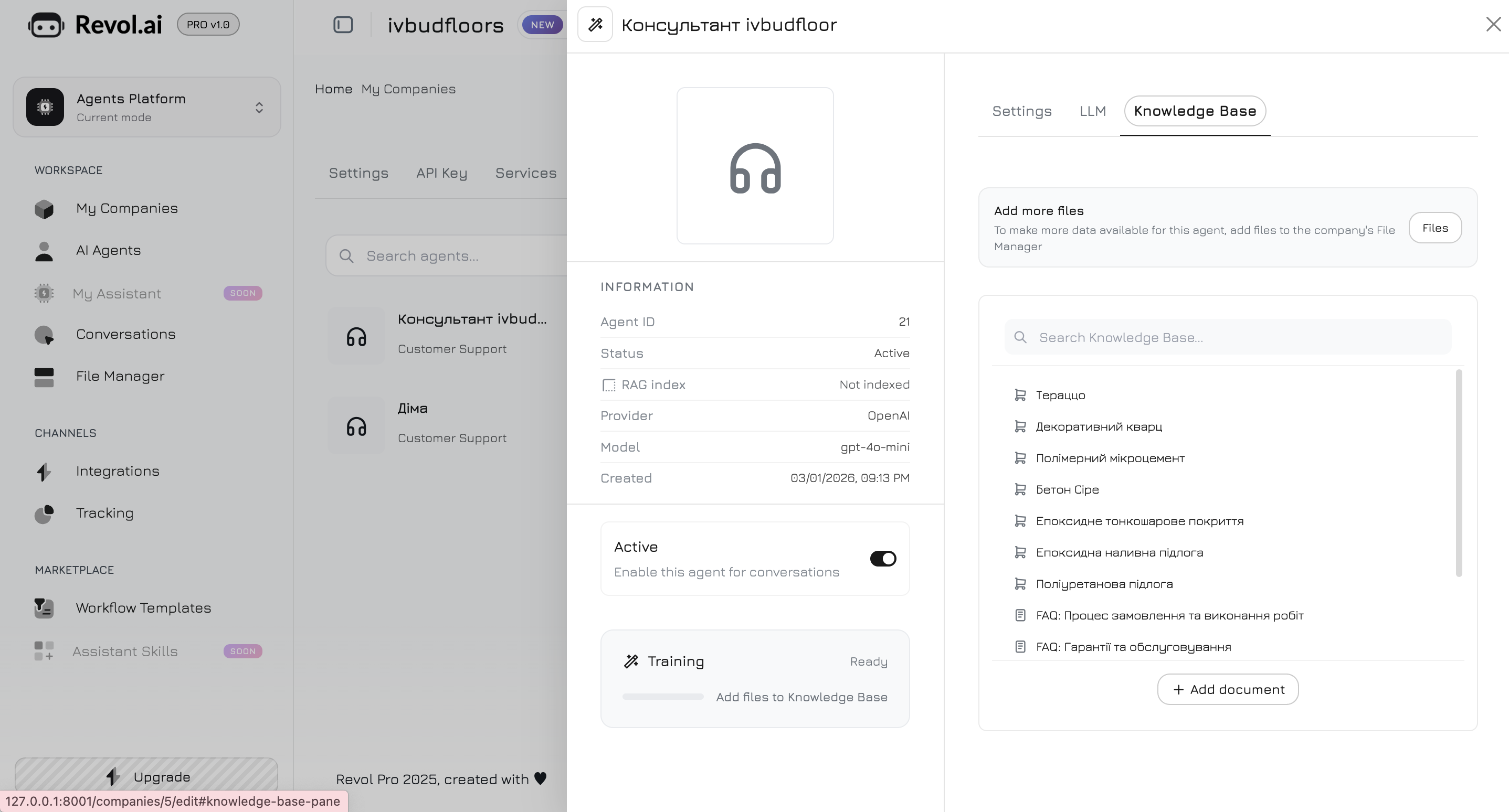
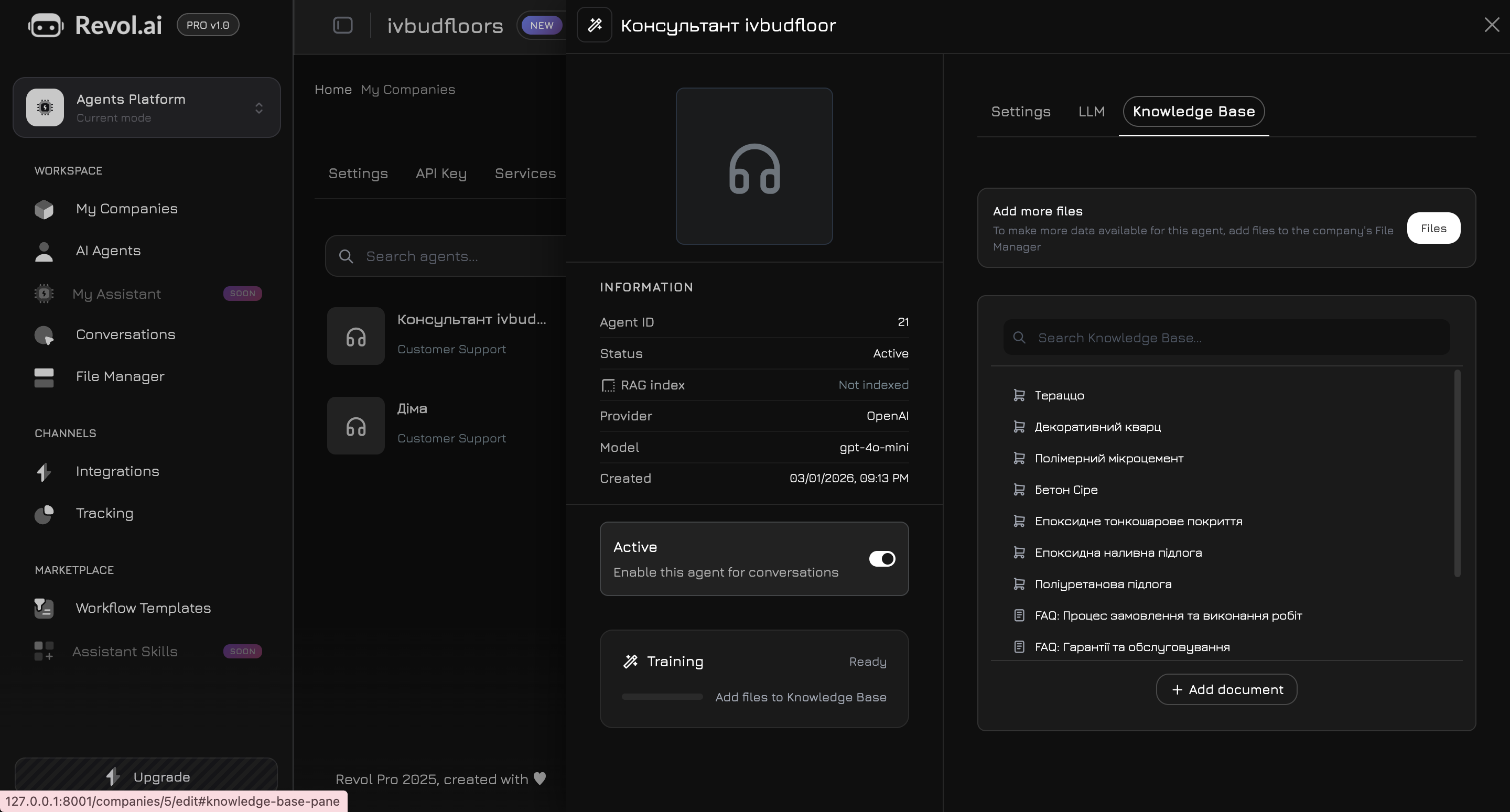 ## Adding Content
### Documents
Upload files in supported formats:
* PDF
* DOCX
* TXT
### URLs
Provide web page URLs. Revol will scrape the content and add it to the knowledge base.
### Text
Add content directly as text blocks.
## How RAG Works
You upload a document or add content.
Content is split into manageable chunks.
Each chunk is converted to a vector embedding using the selected embedding model.
Embeddings are stored in PostgreSQL with pgvector extension.
When a user asks a question, the most similar chunks are retrieved using cosine similarity.
Retrieved chunks are injected into the LLM prompt as context.
## RAG Settings
Open RAG settings via the **gear icon** (⚙) in the Knowledge Base storage panel. All settings are per-company and auto-saved.
### Embedding Model
Choose which model converts your text into vector embeddings:
| Model | Provider | Dimensions | Price | Best for |
| ---------------------- | --------- | ---------- | ---------------- | ------------------------------------- |
| text-embedding-3-small | OpenAI | 1536 | \$0.02/1M tokens | General use, English content |
| text-embedding-3-large | OpenAI | 1536 | \$0.13/1M tokens | Higher accuracy, English content |
| BGE-M3 | DeepInfra | 1024 | \$0.01/1M tokens | Multilingual content (100+ languages) |
Changing the embedding model **deletes all existing embeddings** for the company. You must re-train all agents after switching. A confirmation dialog will appear before the change is applied.
### Chunk Limit
How many text chunks are returned per RAG search (1–20). Default: **5**.
Higher values provide more context to the LLM but increase token usage.
### Character Limit
Maximum characters per chunk when splitting documents (500–10,000). Default: **1,500**.
Smaller chunks give more precise retrieval. Larger chunks preserve more context per result.
### Chunk Overlap
Overlap between consecutive chunks (0–40%). Default: **15%**.
Overlap ensures important context at chunk boundaries is not lost. Higher overlap creates more chunks and uses more storage.
### Similarity Threshold
Minimum cosine similarity score to include a result (0.1–1.0). Default: **0.35**.
Lower values return more results (better recall). Higher values return only highly relevant results (better precision). For multilingual content, use lower thresholds (0.3–0.4).
## Storage Limits
| Plan | Knowledge Docs | Embedding Tokens |
| ------------ | -------------- | ---------------- |
| Free | 10 | 100,000 |
| Premium | 100 | 1,000,000 |
| Professional | 1,000 | 5,000,000 |
***
## Generate Knowledge Base with Claude Code
If you have project documentation (website pages, docs portal, README files, wiki) and want to turn it into a structured knowledge base for your Revol AI agent, you can use **Claude Code** to analyze the documentation and generate ready-to-upload TXT files.
```text theme={null}
# Instruction: Generate Knowledge Base Files from Documentation
## Context
I use Revol — a platform for building AI sales agents with RAG
(Retrieval-Augmented Generation). My agent answers questions
using a knowledge base: uploaded files are chunked (configurable
size and overlap), embedded via a selectable model (OpenAI
text-embedding-3-small/large or BGE-M3), stored in PostgreSQL
with pgvector, and searched by cosine similarity at inference time.
I need to convert my project documentation into a set of .txt
files optimized for this RAG pipeline — so the agent can find
and cite accurate answers.
## How RAG Chunking Works (important for file structure)
- Each file is split into chunks of ~2000 characters with 20%
overlap at sentence boundaries
- The file name becomes part of the embedding metadata — use
descriptive names so the system can identify the source
- Shorter, focused files perform better than one giant file
- Each chunk should be self-contained — a reader should
understand the chunk without needing the surrounding text
- Structured content (lists, tables as text, clear headers)
chunks better than long prose paragraphs
## Your Task
### Step 1: Analyze All Documentation
Read every documentation file in the project. For each file,
identify:
1. The topic it covers
2. Key facts, settings, configurations, and values
3. Step-by-step procedures
4. Feature descriptions with specifics (limits, options, formats)
5. Pricing, plans, and quotas (if applicable)
6. Technical details (APIs, parameters, integrations)
### Step 2: Plan the File Structure
Group related content into logical topics. Each file should
cover ONE cohesive topic. Target file sizes:
- Ideal: 2,000–6,000 characters per file (1–3 chunks)
- Maximum: 10,000 characters (5 chunks)
- If a topic is larger, split it into sub-topics
Naming convention: {Topic-Name}.txt
- Use descriptive English names with hyphens
- No numbering prefixes (ordering doesn't matter for RAG)
- Name should hint at the content for metadata
Examples:
- Platform-Overview.txt
- Getting-Started.txt
- Pricing-Plans.txt
- API-Authentication.txt
- Webhook-Integration.txt
### Step 3: Write the Files
For each file, follow these rules:
Content rules:
- Start with a clear topic heading as plain text
- Write in plain text — no Markdown formatting, no HTML,
no JSX components
- Convert tables to readable text lists or key-value pairs
- Convert step-by-step guides to numbered lists
- Include specific values: numbers, limits, prices, options,
defaults, formats, URLs
- Each paragraph or section should be understandable on its
own (self-contained chunks)
- Remove navigation elements, "Next Steps" links, and
cross-references that don't add informational value
- Keep the original language of the documentation
Optimization for RAG:
- Front-load important information — put the answer before
the explanation
- Use consistent terminology throughout all files
- Repeat key terms naturally so they appear in multiple
chunks (improves retrieval)
- For features with settings: list setting name, type,
default value, options, and description
- For integrations: list provider, auth method, setup steps,
available tools/functions
What to exclude:
- Screenshots and image references
- UI component markup (tabs, accordions, cards, frames)
- "See also" and navigation links
- Decorative text and marketing fluff
- Duplicate content (don't repeat the same info in
multiple files)
### Step 4: Create the Output
1. Create a temporary directory (e.g., temp-knowledge-base/)
2. Write all .txt files into it
3. List all files with their sizes and topic descriptions
4. Provide a summary of total files and total size
## Optional: Generate a Workflow Agent Seeder
If the project uses Revol and you also need to create an AI
agent with a workflow to answer questions about this
documentation, generate a Laravel database seeder that:
1. Creates an AiAgent with:
- Appropriate system prompt for documentation support
- LLM: gpt-4o-mini, temperature: 0.3 (accuracy)
- Personality: high clarity (8-9), high formality (6-7),
low humor (2-3), low emoji (1-2)
2. Builds a Smart Router workflow:
- Start node with keyword-based edges to expert nodes
- 3-6 custom "expert" nodes, each covering a topic group
- Each expert has a specific conversation_goal describing
its domain
- Each expert has search_documents + get_company_info tools
- One fallback edge to a General Assistant node
- All experts connect to a Formatter node
- Voice nodes (STT/TTS) inactive by default
3. Keywords on edges should match the natural vocabulary
users would use when asking about each topic
## Input
My documentation is located at: [PATH OR URL]
Project name: [NAME]
Project description: [BRIEF DESCRIPTION]
Target company_id for seeder: [ID or skip seeder]
```
This prompt works best with comprehensive documentation portals, product docs, API references, and knowledge bases. The generated .txt files are ready to upload directly to Revol's File Manager — just drag and drop, then click **Train**.
## Adding Content
### Documents
Upload files in supported formats:
* PDF
* DOCX
* TXT
### URLs
Provide web page URLs. Revol will scrape the content and add it to the knowledge base.
### Text
Add content directly as text blocks.
## How RAG Works
You upload a document or add content.
Content is split into manageable chunks.
Each chunk is converted to a vector embedding using the selected embedding model.
Embeddings are stored in PostgreSQL with pgvector extension.
When a user asks a question, the most similar chunks are retrieved using cosine similarity.
Retrieved chunks are injected into the LLM prompt as context.
## RAG Settings
Open RAG settings via the **gear icon** (⚙) in the Knowledge Base storage panel. All settings are per-company and auto-saved.
### Embedding Model
Choose which model converts your text into vector embeddings:
| Model | Provider | Dimensions | Price | Best for |
| ---------------------- | --------- | ---------- | ---------------- | ------------------------------------- |
| text-embedding-3-small | OpenAI | 1536 | \$0.02/1M tokens | General use, English content |
| text-embedding-3-large | OpenAI | 1536 | \$0.13/1M tokens | Higher accuracy, English content |
| BGE-M3 | DeepInfra | 1024 | \$0.01/1M tokens | Multilingual content (100+ languages) |
Changing the embedding model **deletes all existing embeddings** for the company. You must re-train all agents after switching. A confirmation dialog will appear before the change is applied.
### Chunk Limit
How many text chunks are returned per RAG search (1–20). Default: **5**.
Higher values provide more context to the LLM but increase token usage.
### Character Limit
Maximum characters per chunk when splitting documents (500–10,000). Default: **1,500**.
Smaller chunks give more precise retrieval. Larger chunks preserve more context per result.
### Chunk Overlap
Overlap between consecutive chunks (0–40%). Default: **15%**.
Overlap ensures important context at chunk boundaries is not lost. Higher overlap creates more chunks and uses more storage.
### Similarity Threshold
Minimum cosine similarity score to include a result (0.1–1.0). Default: **0.35**.
Lower values return more results (better recall). Higher values return only highly relevant results (better precision). For multilingual content, use lower thresholds (0.3–0.4).
## Storage Limits
| Plan | Knowledge Docs | Embedding Tokens |
| ------------ | -------------- | ---------------- |
| Free | 10 | 100,000 |
| Premium | 100 | 1,000,000 |
| Professional | 1,000 | 5,000,000 |
***
## Generate Knowledge Base with Claude Code
If you have project documentation (website pages, docs portal, README files, wiki) and want to turn it into a structured knowledge base for your Revol AI agent, you can use **Claude Code** to analyze the documentation and generate ready-to-upload TXT files.
```text theme={null}
# Instruction: Generate Knowledge Base Files from Documentation
## Context
I use Revol — a platform for building AI sales agents with RAG
(Retrieval-Augmented Generation). My agent answers questions
using a knowledge base: uploaded files are chunked (configurable
size and overlap), embedded via a selectable model (OpenAI
text-embedding-3-small/large or BGE-M3), stored in PostgreSQL
with pgvector, and searched by cosine similarity at inference time.
I need to convert my project documentation into a set of .txt
files optimized for this RAG pipeline — so the agent can find
and cite accurate answers.
## How RAG Chunking Works (important for file structure)
- Each file is split into chunks of ~2000 characters with 20%
overlap at sentence boundaries
- The file name becomes part of the embedding metadata — use
descriptive names so the system can identify the source
- Shorter, focused files perform better than one giant file
- Each chunk should be self-contained — a reader should
understand the chunk without needing the surrounding text
- Structured content (lists, tables as text, clear headers)
chunks better than long prose paragraphs
## Your Task
### Step 1: Analyze All Documentation
Read every documentation file in the project. For each file,
identify:
1. The topic it covers
2. Key facts, settings, configurations, and values
3. Step-by-step procedures
4. Feature descriptions with specifics (limits, options, formats)
5. Pricing, plans, and quotas (if applicable)
6. Technical details (APIs, parameters, integrations)
### Step 2: Plan the File Structure
Group related content into logical topics. Each file should
cover ONE cohesive topic. Target file sizes:
- Ideal: 2,000–6,000 characters per file (1–3 chunks)
- Maximum: 10,000 characters (5 chunks)
- If a topic is larger, split it into sub-topics
Naming convention: {Topic-Name}.txt
- Use descriptive English names with hyphens
- No numbering prefixes (ordering doesn't matter for RAG)
- Name should hint at the content for metadata
Examples:
- Platform-Overview.txt
- Getting-Started.txt
- Pricing-Plans.txt
- API-Authentication.txt
- Webhook-Integration.txt
### Step 3: Write the Files
For each file, follow these rules:
Content rules:
- Start with a clear topic heading as plain text
- Write in plain text — no Markdown formatting, no HTML,
no JSX components
- Convert tables to readable text lists or key-value pairs
- Convert step-by-step guides to numbered lists
- Include specific values: numbers, limits, prices, options,
defaults, formats, URLs
- Each paragraph or section should be understandable on its
own (self-contained chunks)
- Remove navigation elements, "Next Steps" links, and
cross-references that don't add informational value
- Keep the original language of the documentation
Optimization for RAG:
- Front-load important information — put the answer before
the explanation
- Use consistent terminology throughout all files
- Repeat key terms naturally so they appear in multiple
chunks (improves retrieval)
- For features with settings: list setting name, type,
default value, options, and description
- For integrations: list provider, auth method, setup steps,
available tools/functions
What to exclude:
- Screenshots and image references
- UI component markup (tabs, accordions, cards, frames)
- "See also" and navigation links
- Decorative text and marketing fluff
- Duplicate content (don't repeat the same info in
multiple files)
### Step 4: Create the Output
1. Create a temporary directory (e.g., temp-knowledge-base/)
2. Write all .txt files into it
3. List all files with their sizes and topic descriptions
4. Provide a summary of total files and total size
## Optional: Generate a Workflow Agent Seeder
If the project uses Revol and you also need to create an AI
agent with a workflow to answer questions about this
documentation, generate a Laravel database seeder that:
1. Creates an AiAgent with:
- Appropriate system prompt for documentation support
- LLM: gpt-4o-mini, temperature: 0.3 (accuracy)
- Personality: high clarity (8-9), high formality (6-7),
low humor (2-3), low emoji (1-2)
2. Builds a Smart Router workflow:
- Start node with keyword-based edges to expert nodes
- 3-6 custom "expert" nodes, each covering a topic group
- Each expert has a specific conversation_goal describing
its domain
- Each expert has search_documents + get_company_info tools
- One fallback edge to a General Assistant node
- All experts connect to a Formatter node
- Voice nodes (STT/TTS) inactive by default
3. Keywords on edges should match the natural vocabulary
users would use when asking about each topic
## Input
My documentation is located at: [PATH OR URL]
Project name: [NAME]
Project description: [BRIEF DESCRIPTION]
Target company_id for seeder: [ID or skip seeder]
```
This prompt works best with comprehensive documentation portals, product docs, API references, and knowledge bases. The generated .txt files are ready to upload directly to Revol's File Manager — just drag and drop, then click **Train**.